logo

Jira Kanban Project

1

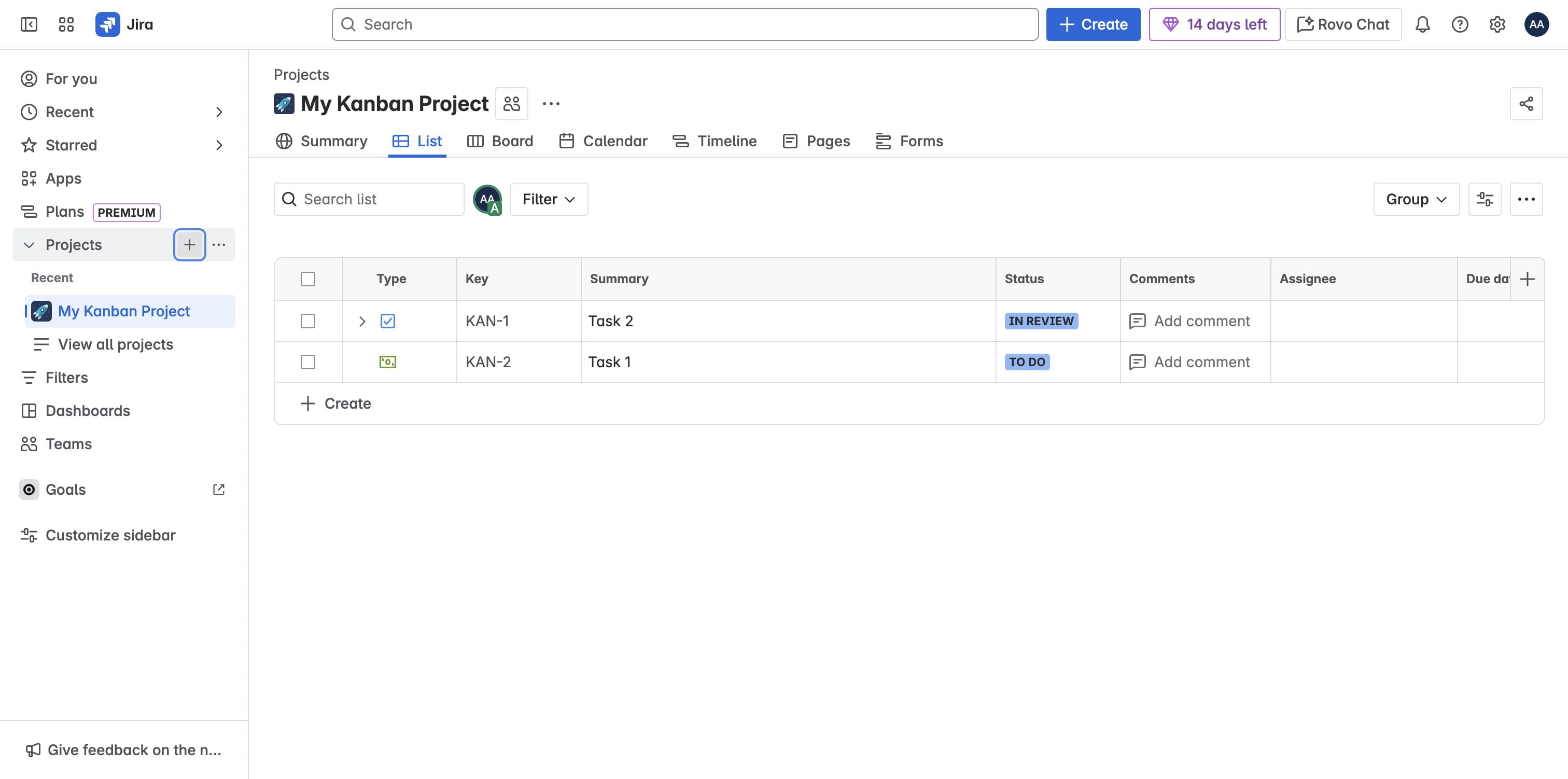
Go to your list of Jira projects

2

Create a new project

Create a new project
3

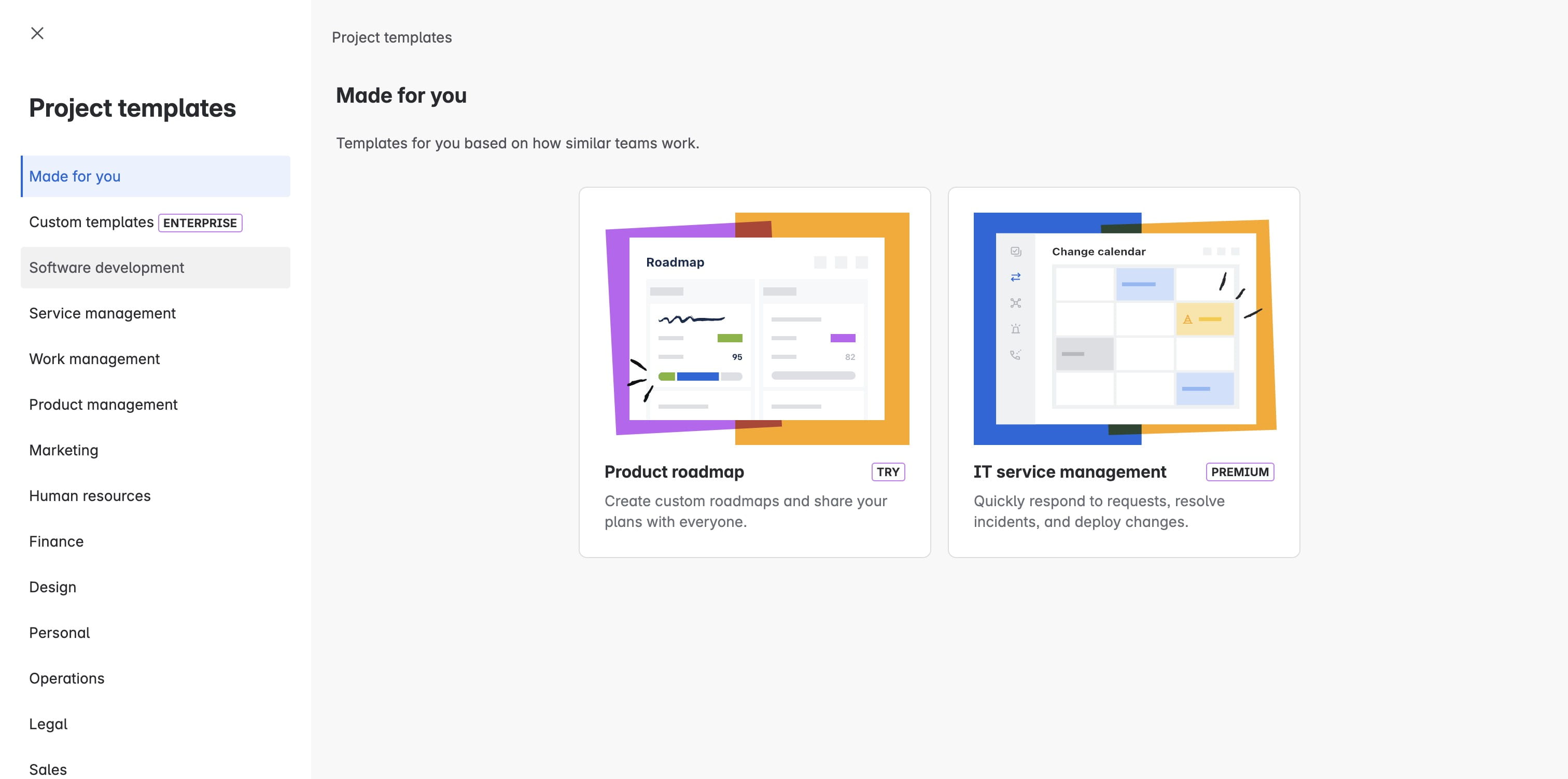
Click on "Software development"

Click on "Software development"
4

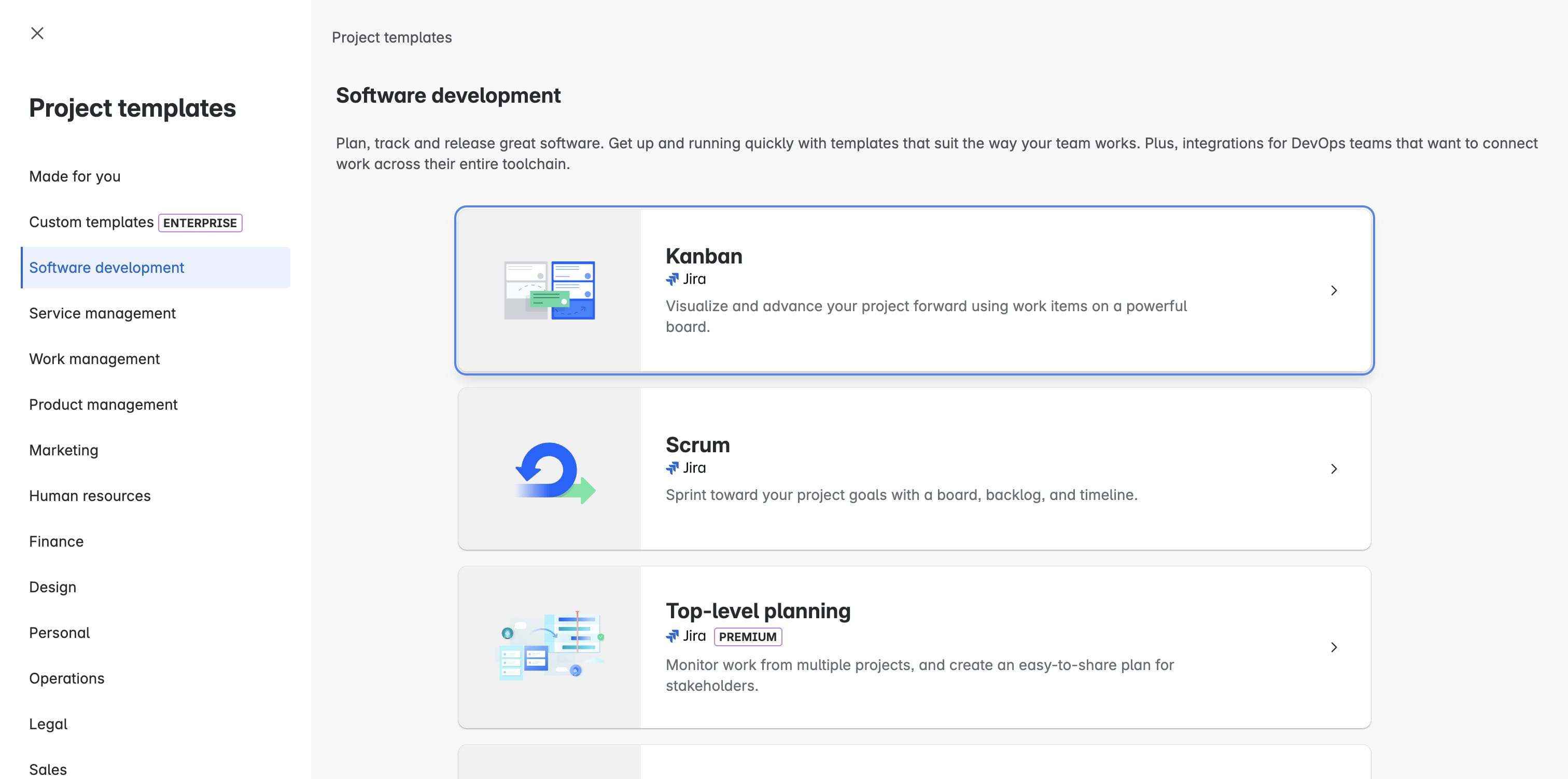
Click on Kanban

Click on Kanban
5

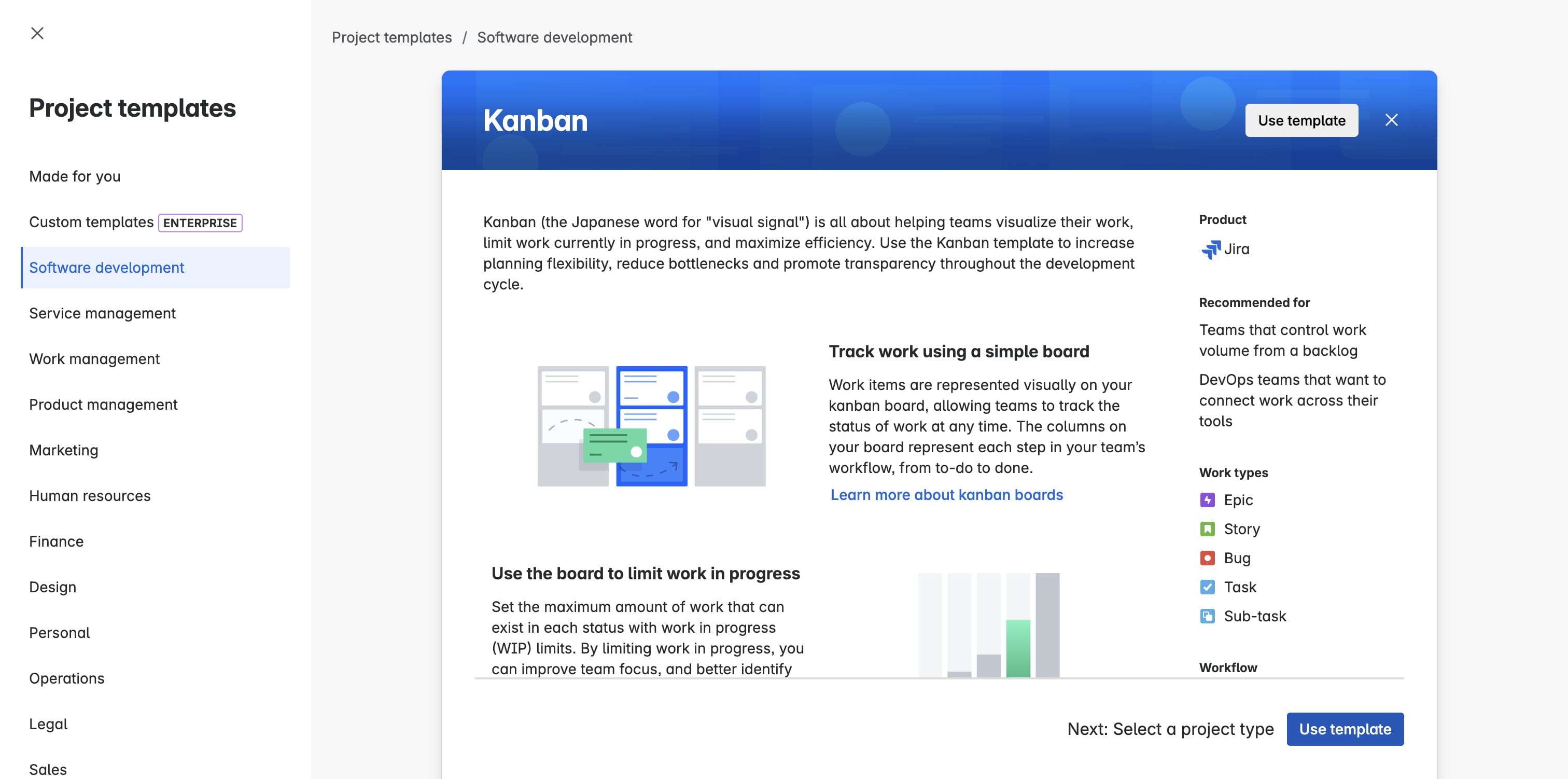
Click on "Use template"

Click on "Use template"
6

Click on "Select a team-managed project"
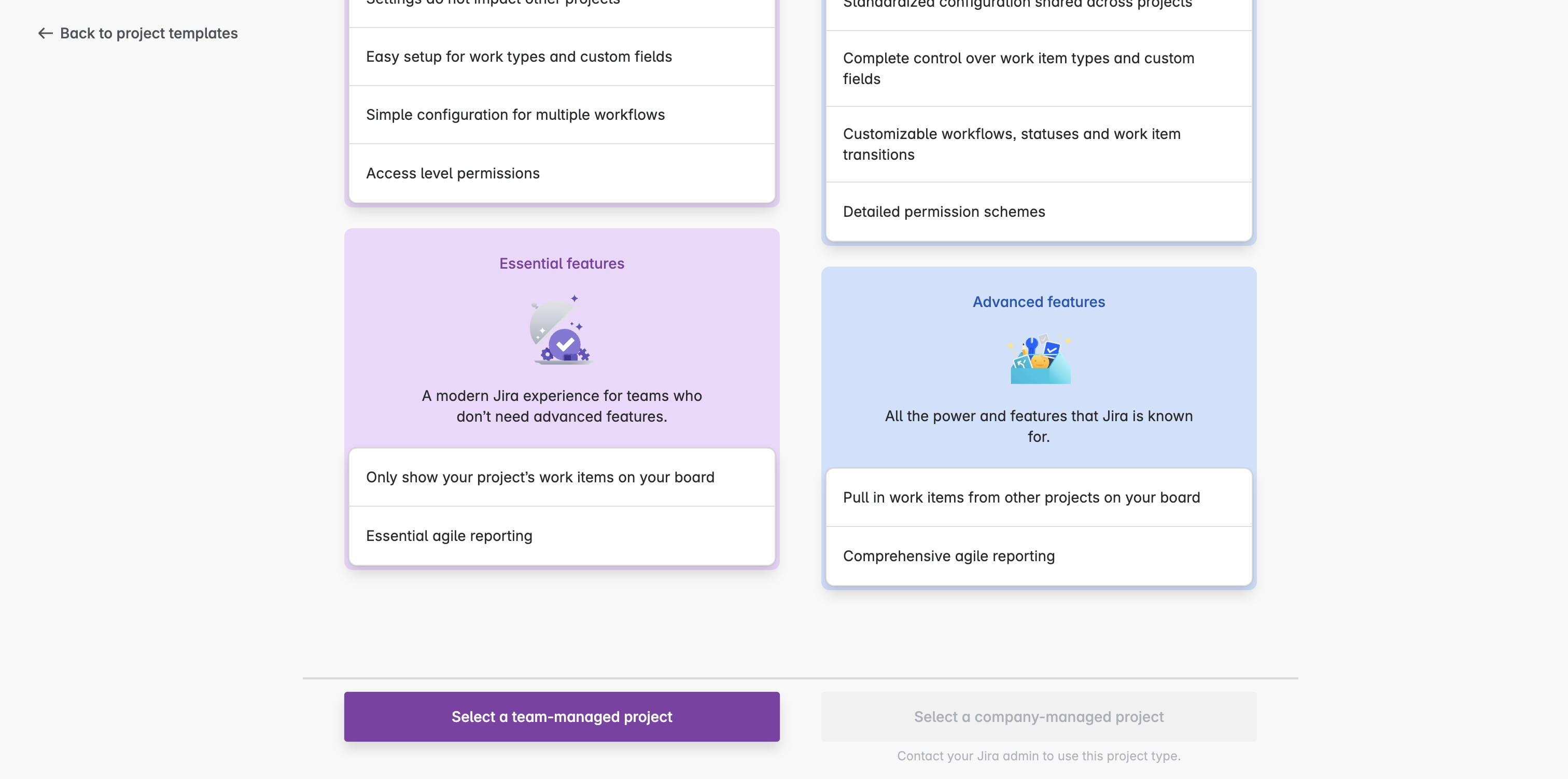
Click on "Select a team-managed project"
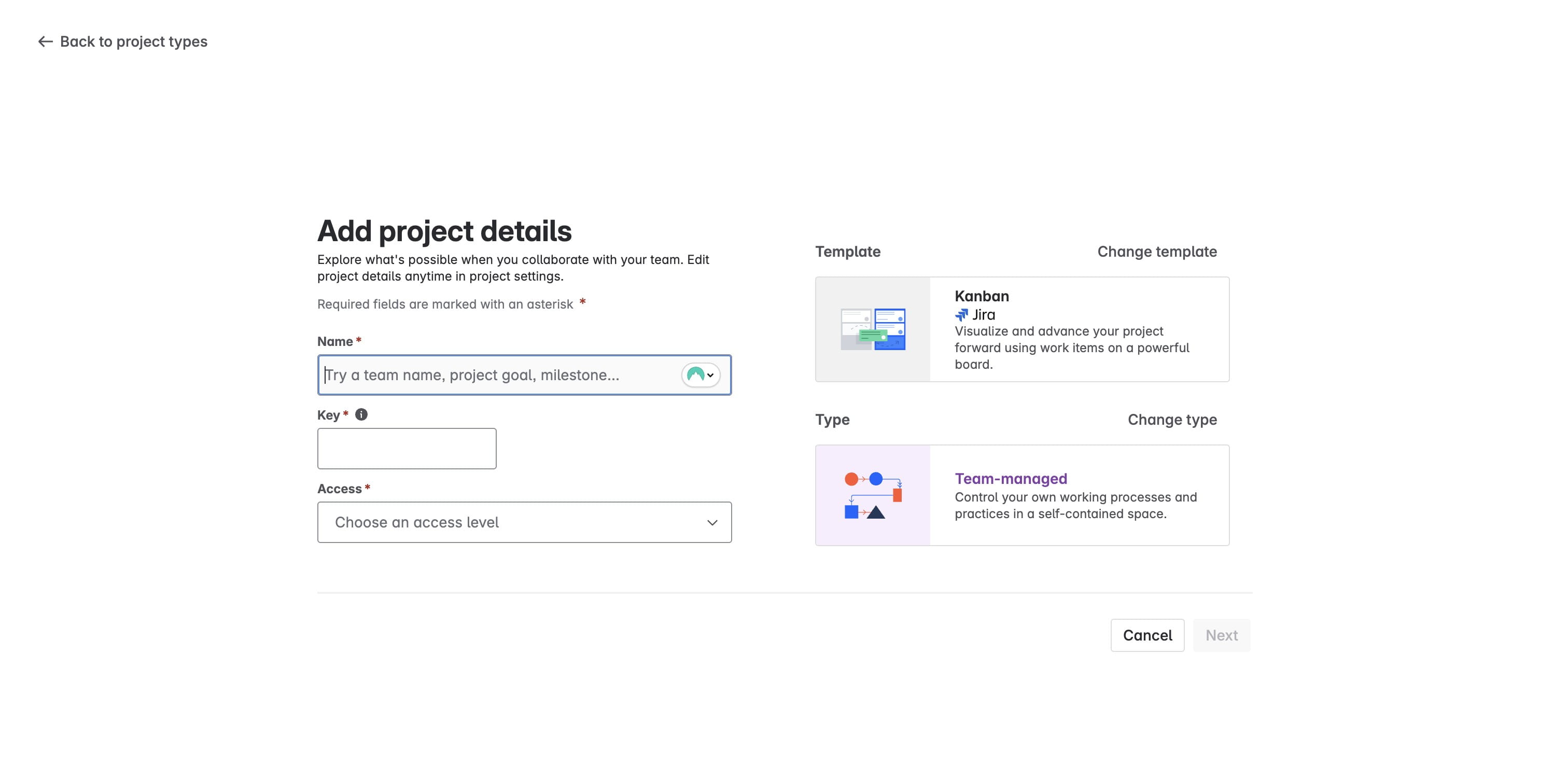
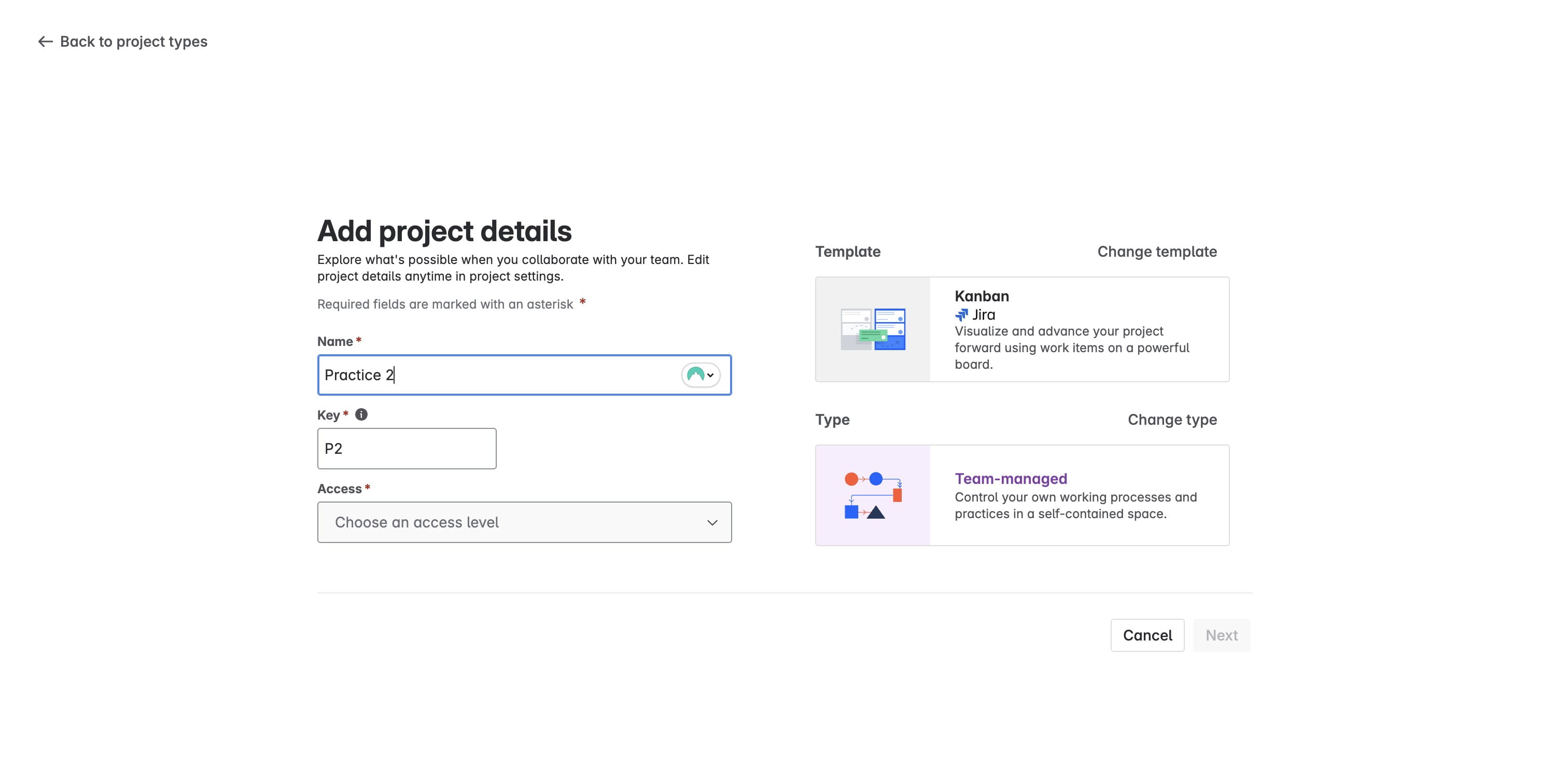
7

Enter a project name

Enter a project name
8

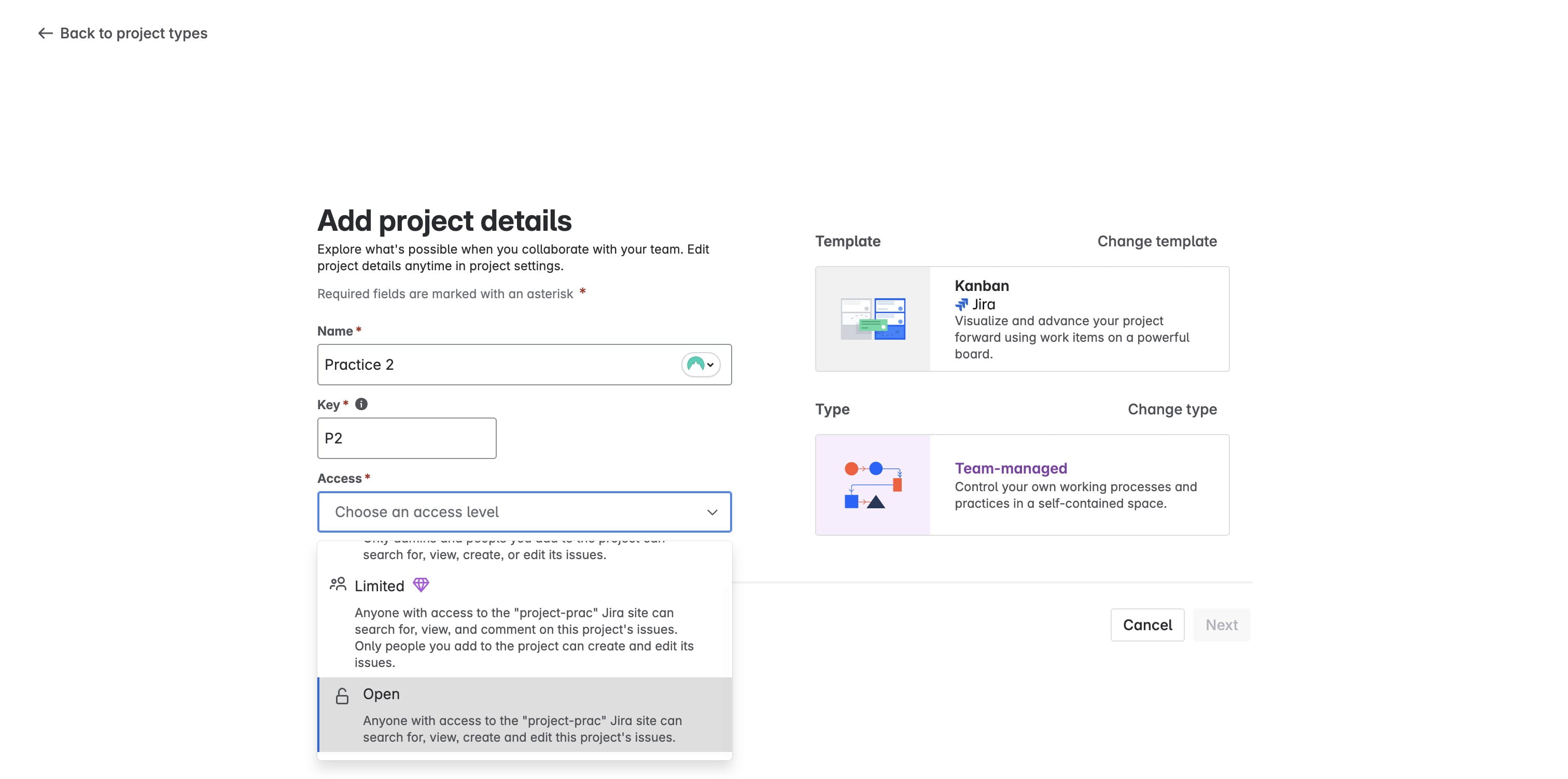
Click on "Choose an access level"

Click on "Choose an access level"
9

Click on "Anyone with access to the "" Jira site"
Click on "Anyone with access to the "" Jira site"
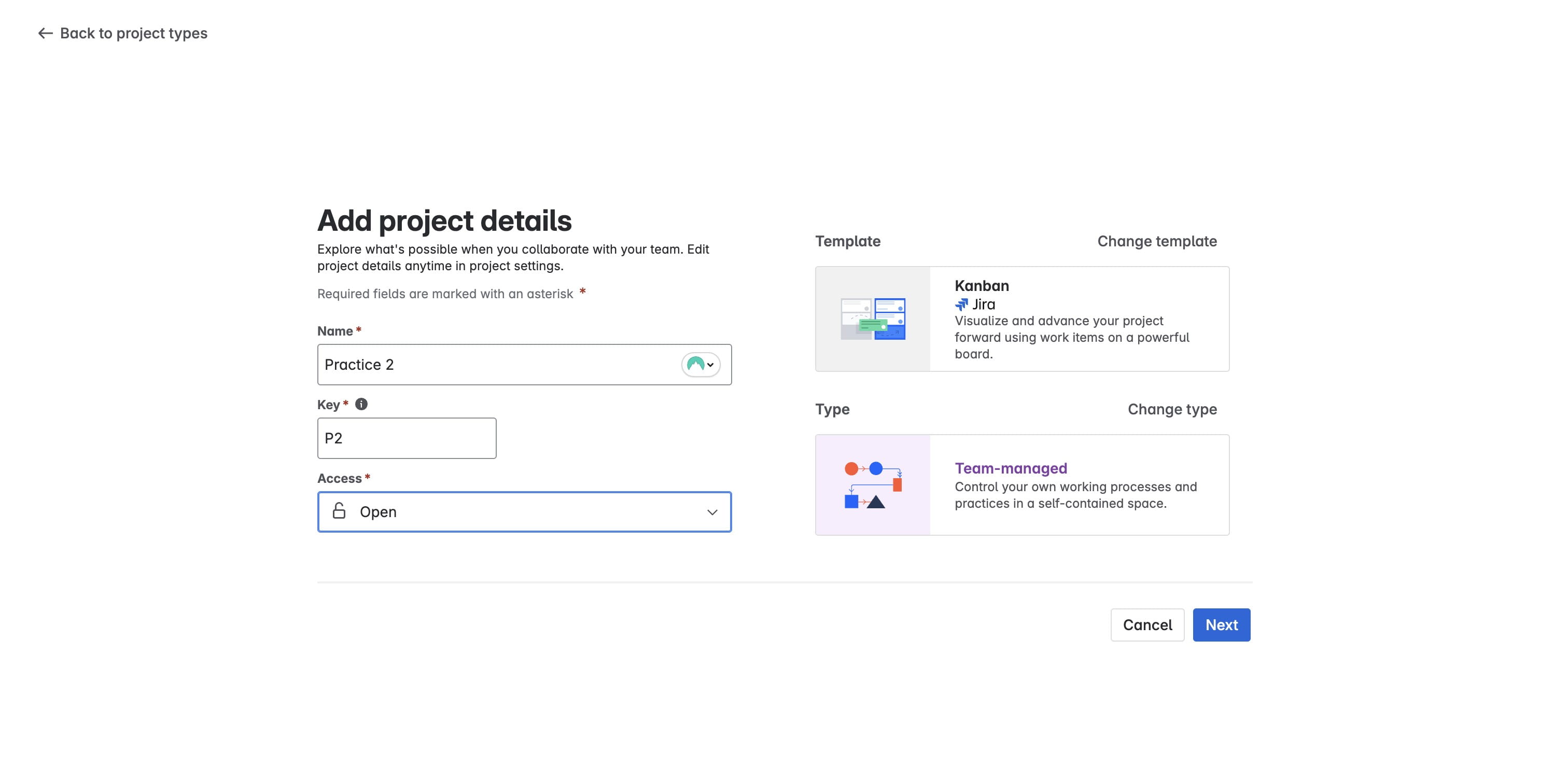
10

Click on "Open"

Click on "Open"
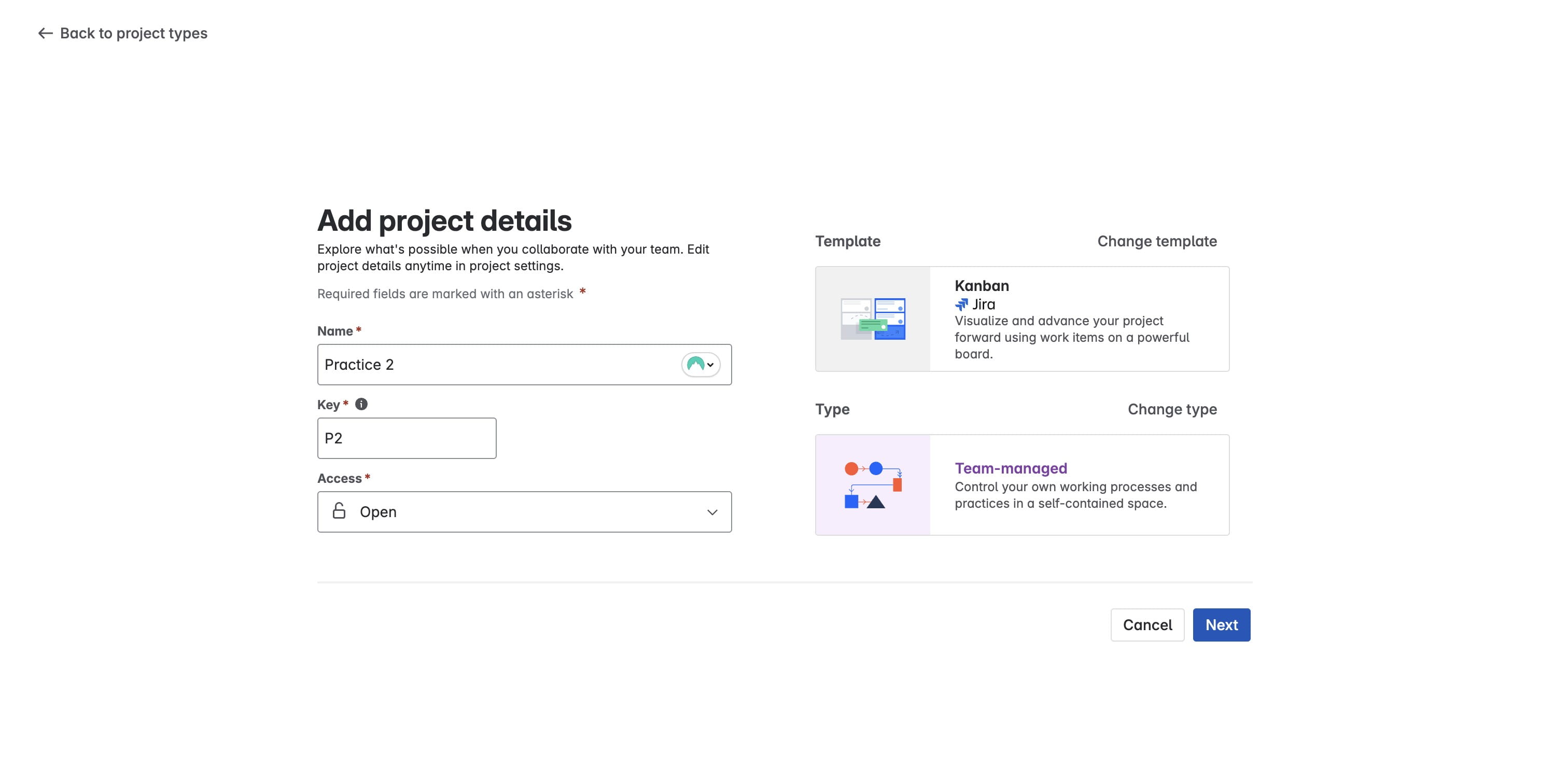
11

Click on "Next"

Click on "Next"
12

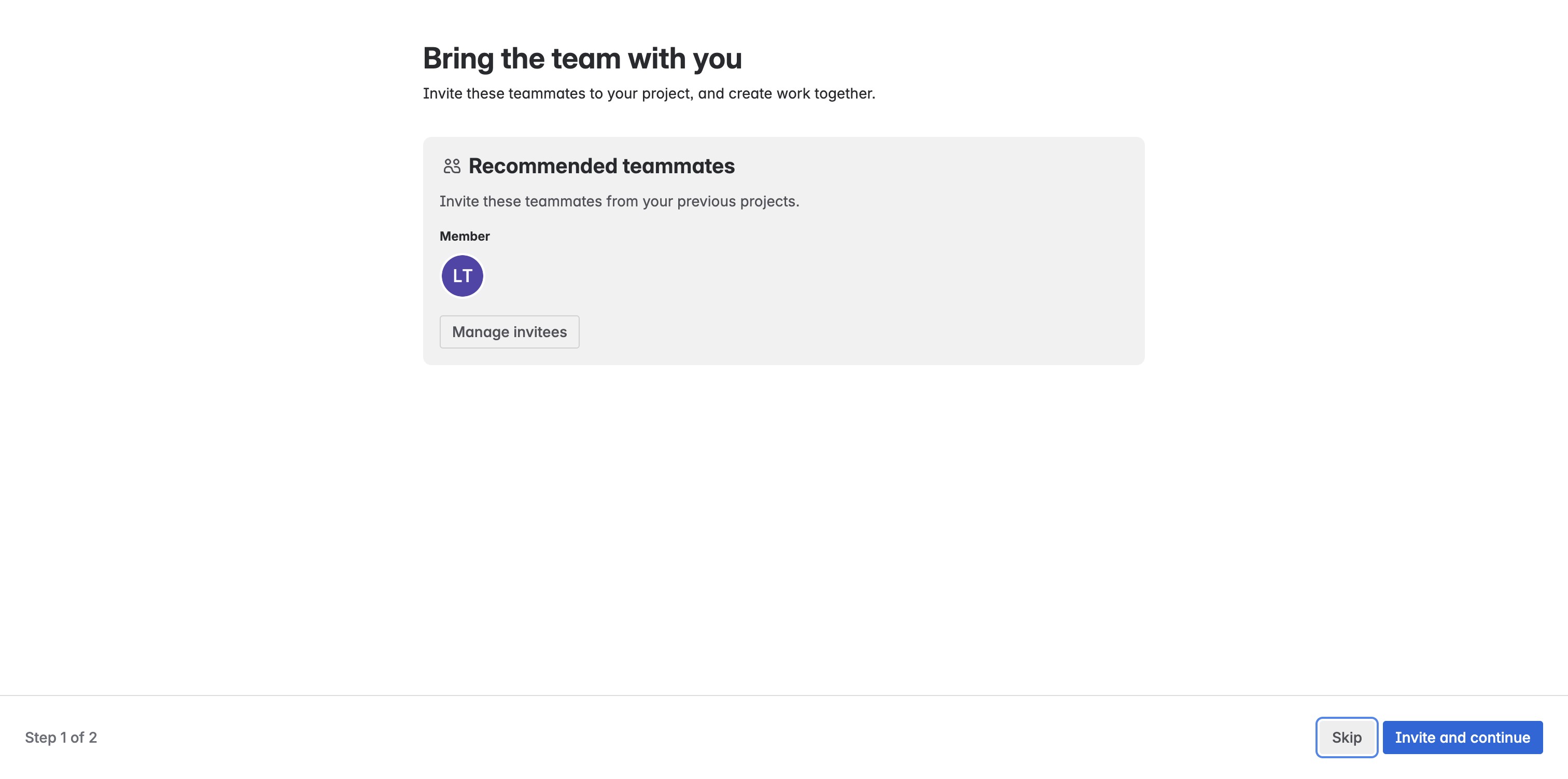
Click on "Skip"

Click on "Skip"
13

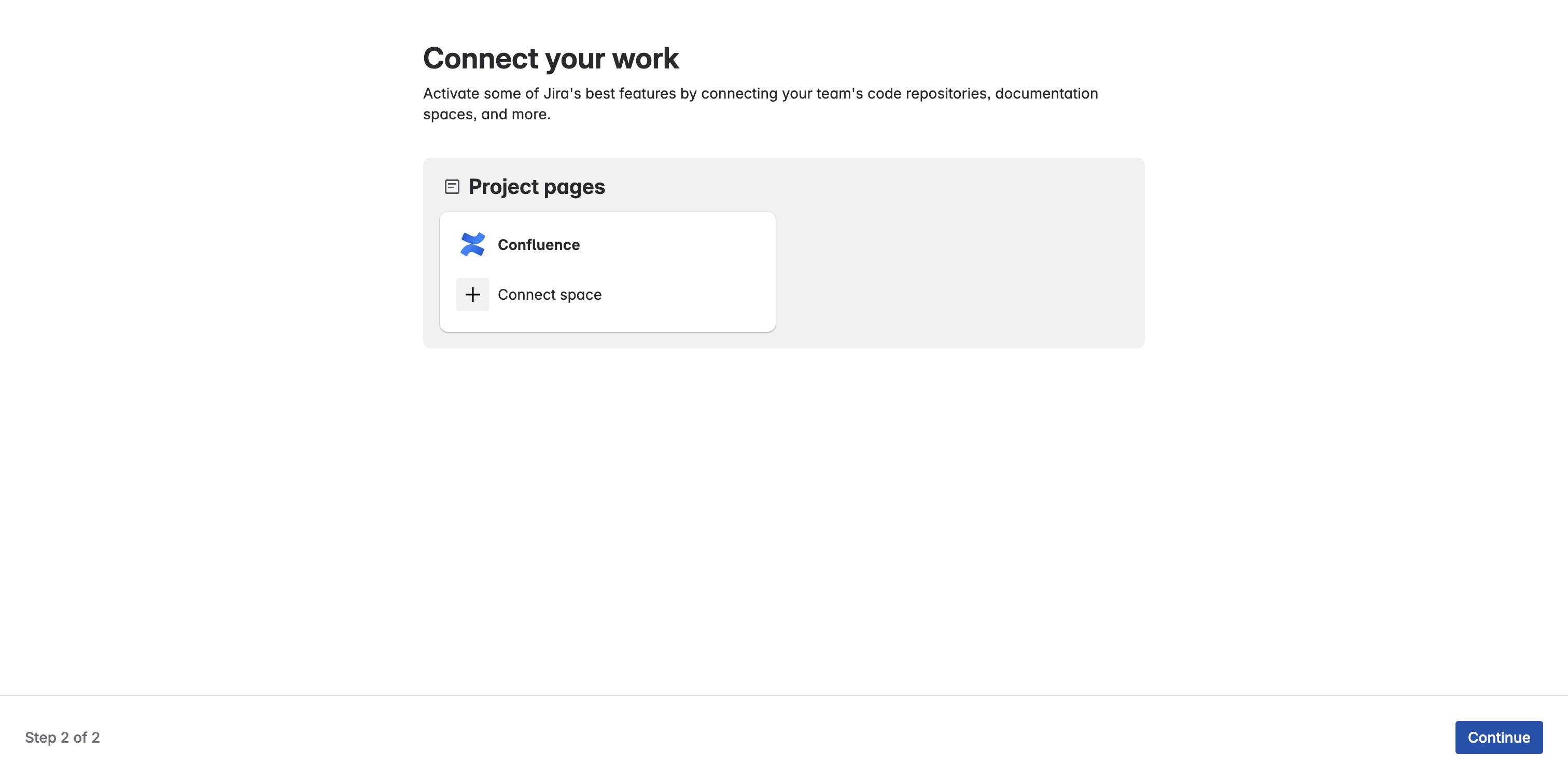
Click on "Continue"

Click on "Continue"

Add New Statuses/Swimlanes

14

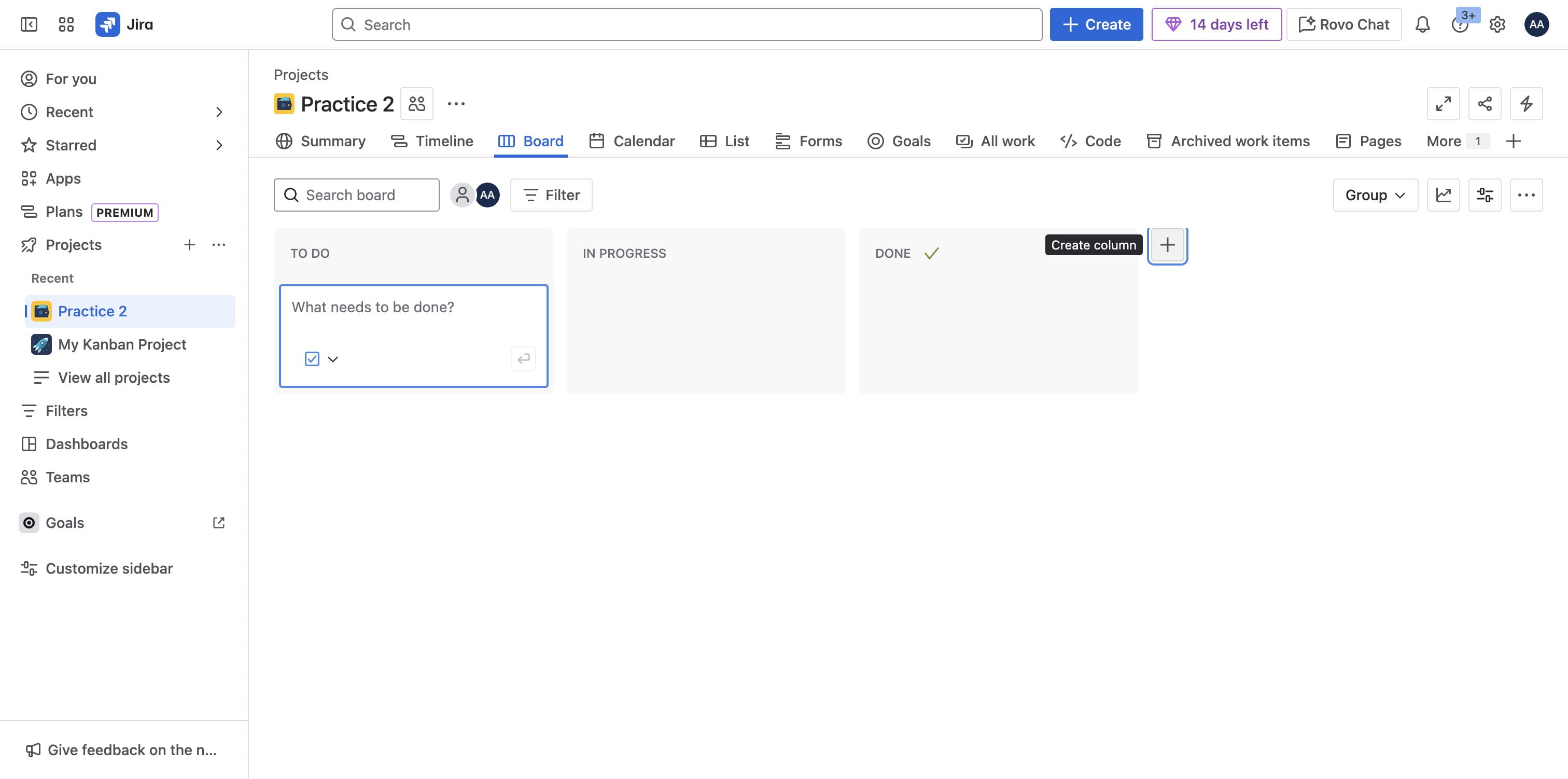
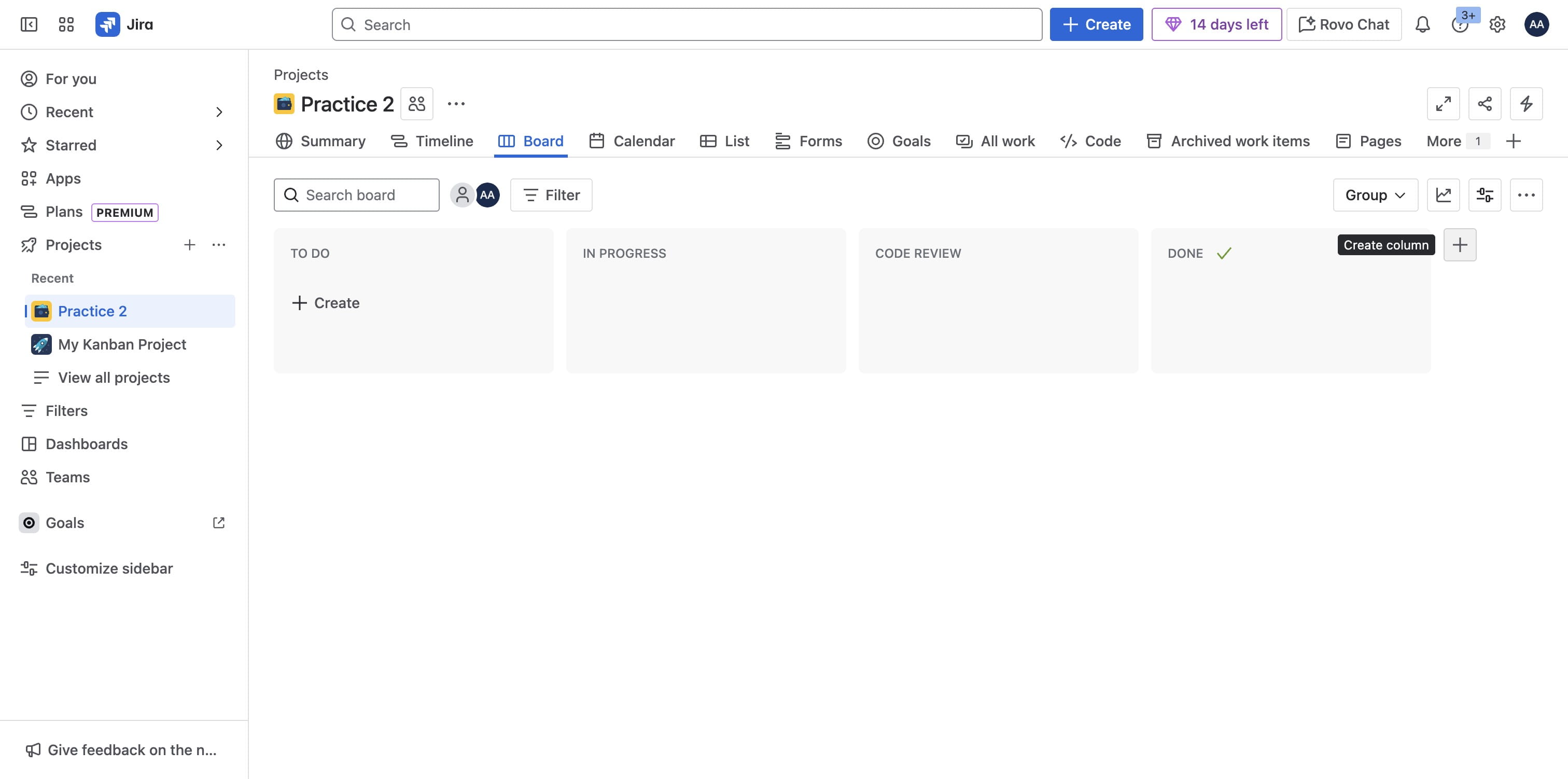
Click on plus icon

Click on plus icon
15

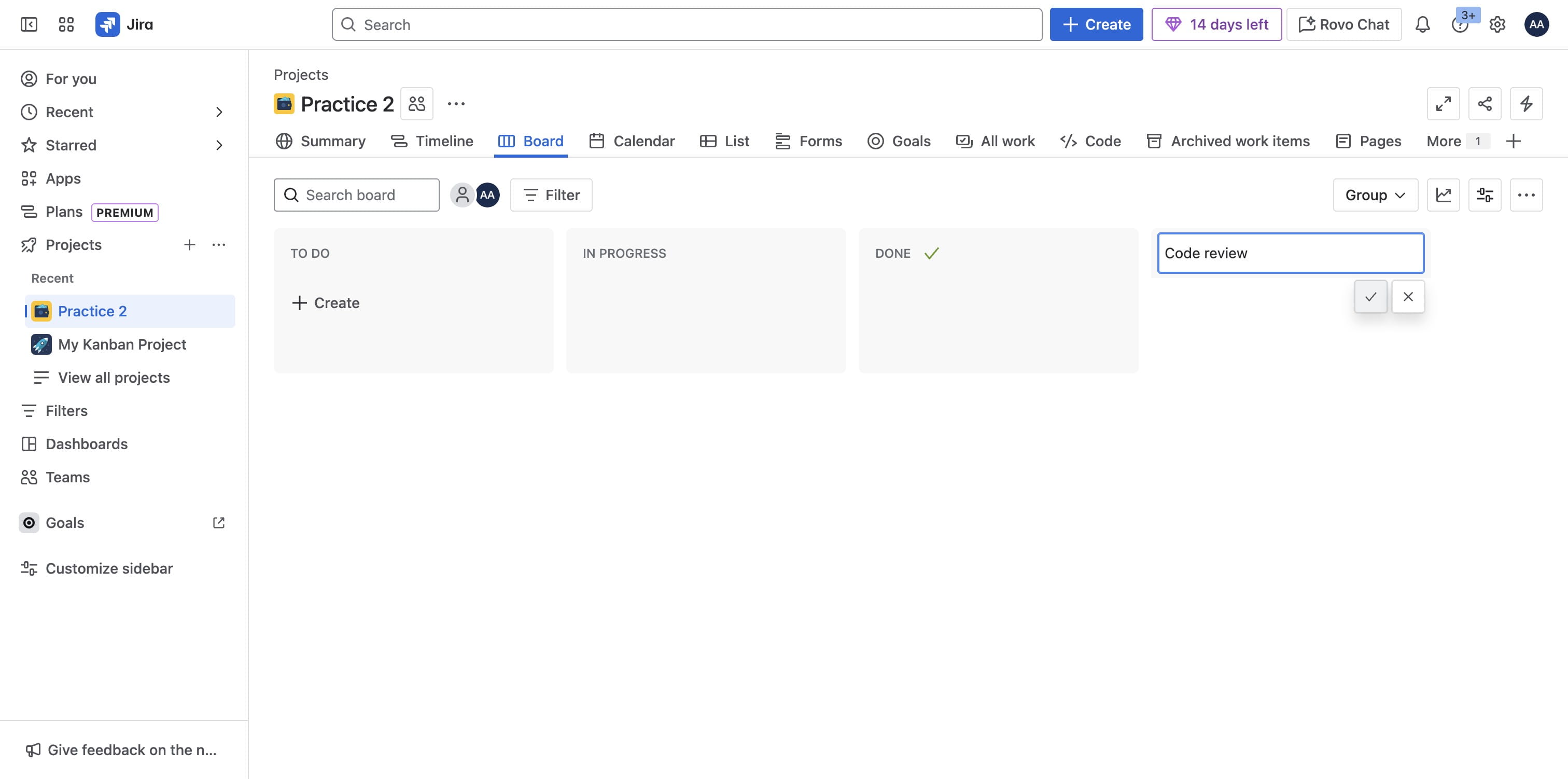
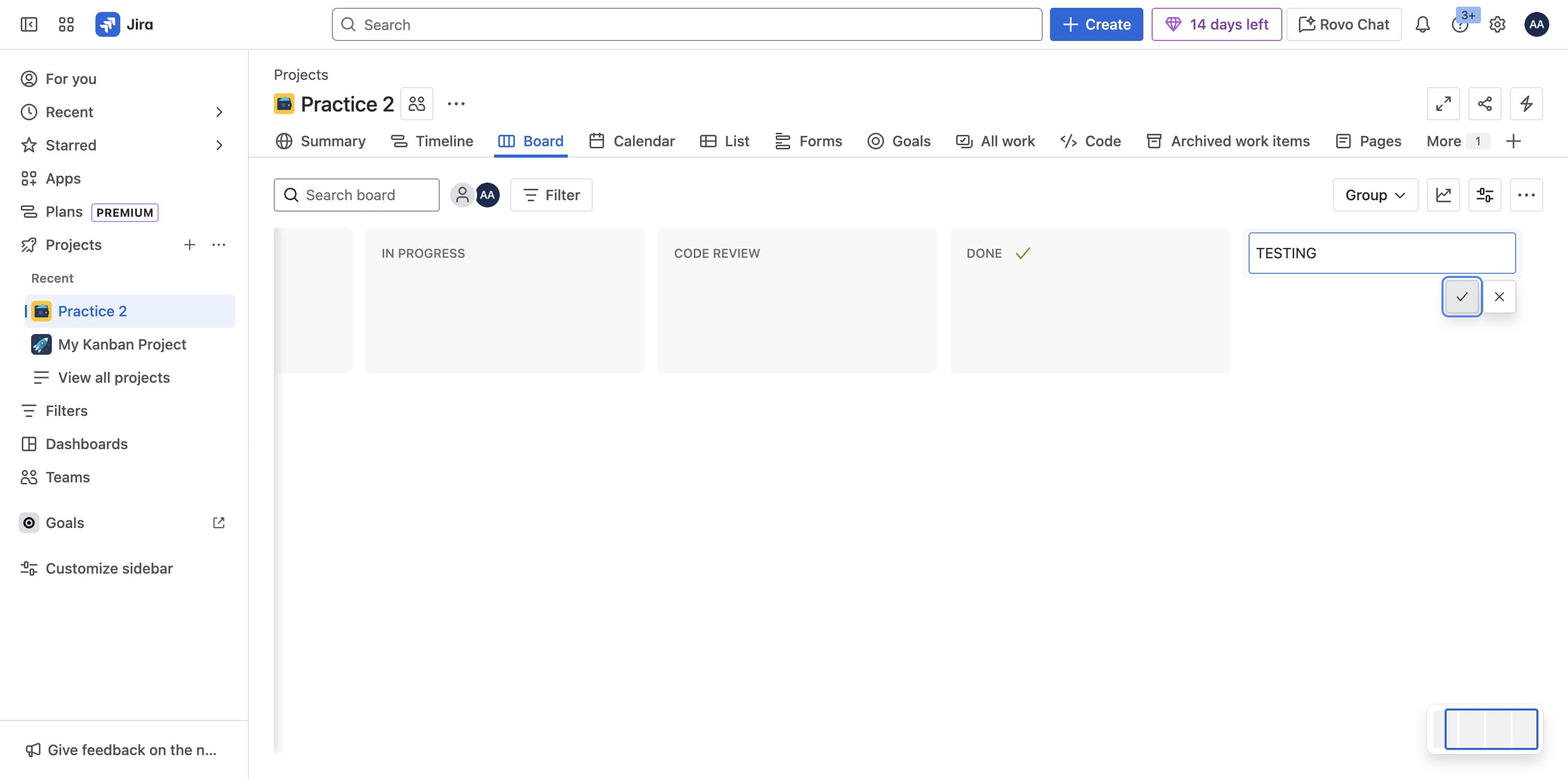
Add data and save

Add data and save
16

Click on "Code review" and drag to position
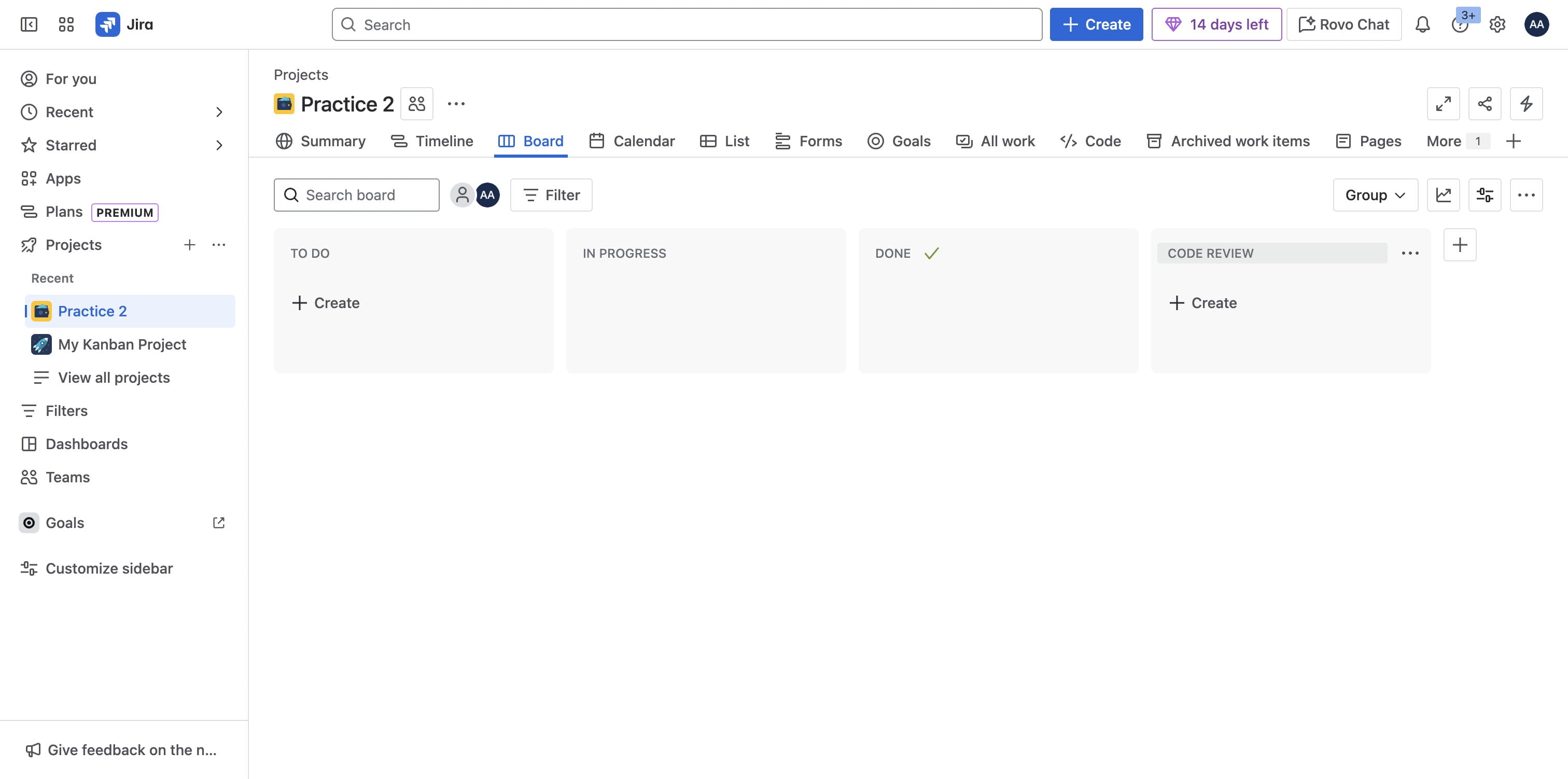
Click on "Code review" and drag to position
17

Click on plus icon

Click on plus icon
18

Add testing and save

Add testing and save
19

Drag "TESTING" to position before Done status
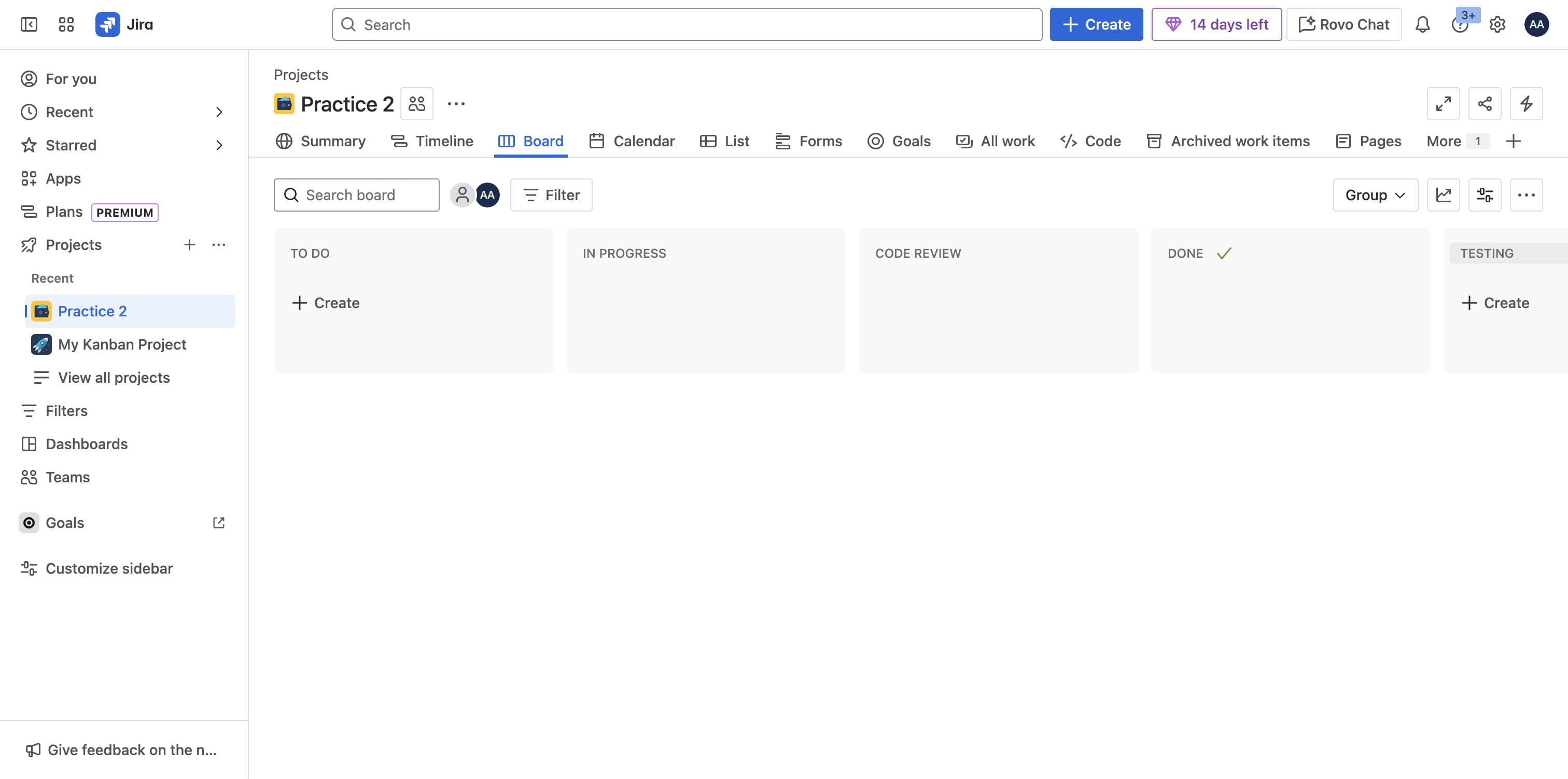
Drag "TESTING" to position before Done status
20

Click on plus icon to add next status and save
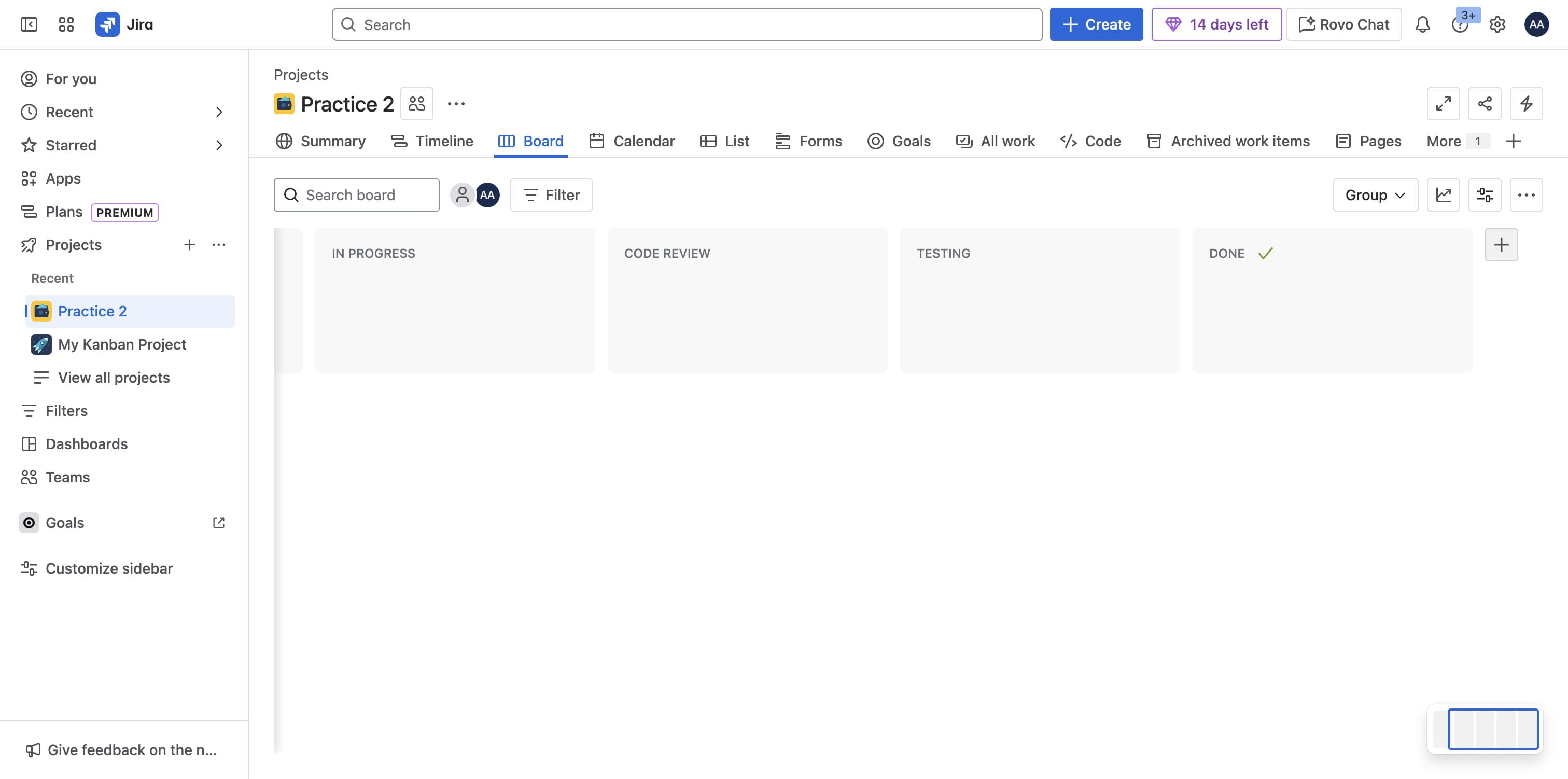
Click on plus icon to add next status and save
21

Drag "UAT" to position. Do same for any other status left.
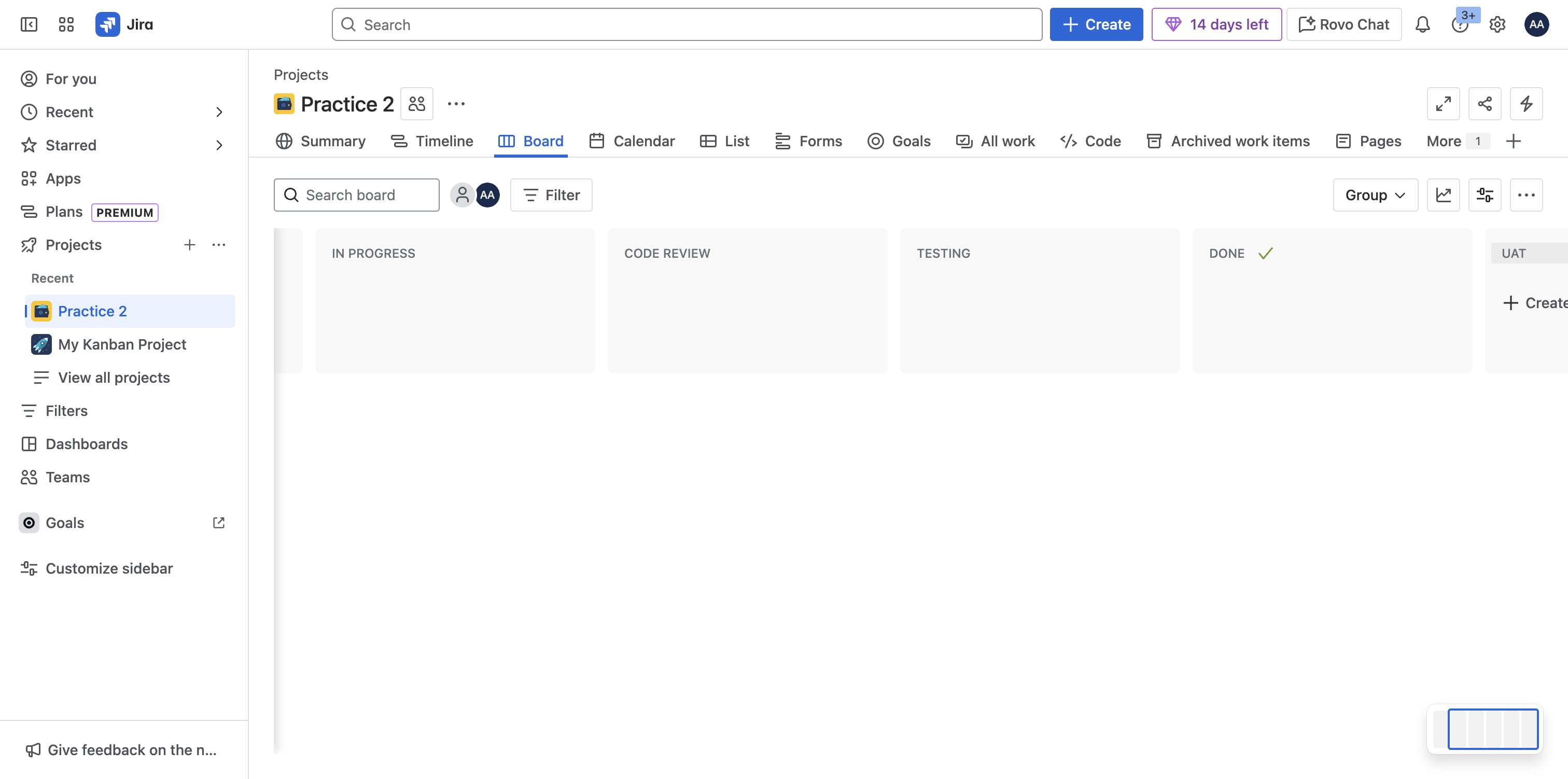
Drag "UAT" to position. Do same for any other status left.

Configure Board with Custom Fields

22

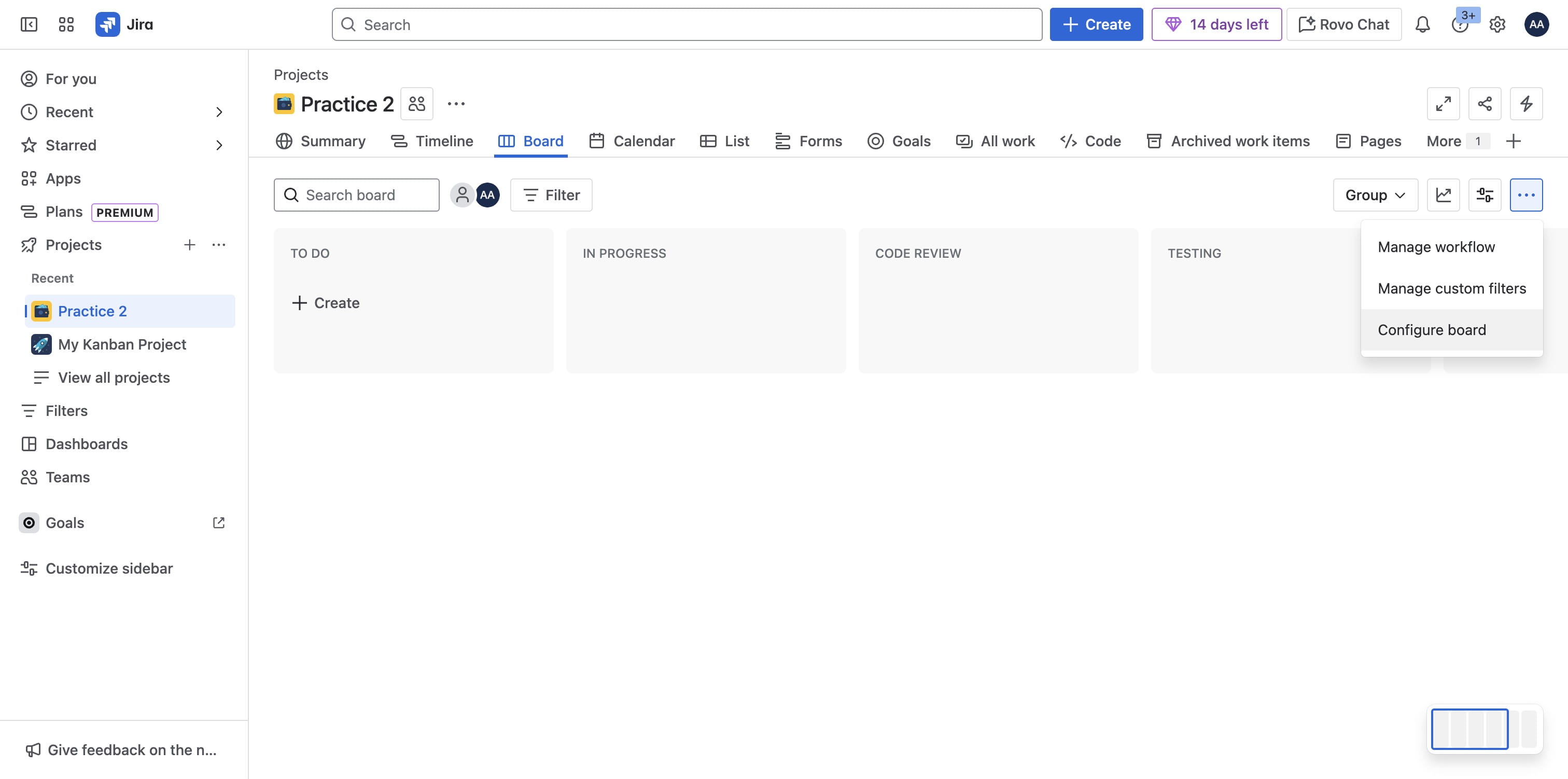
To Configure Board with Custom Fields, select More actions at top right above status lanes
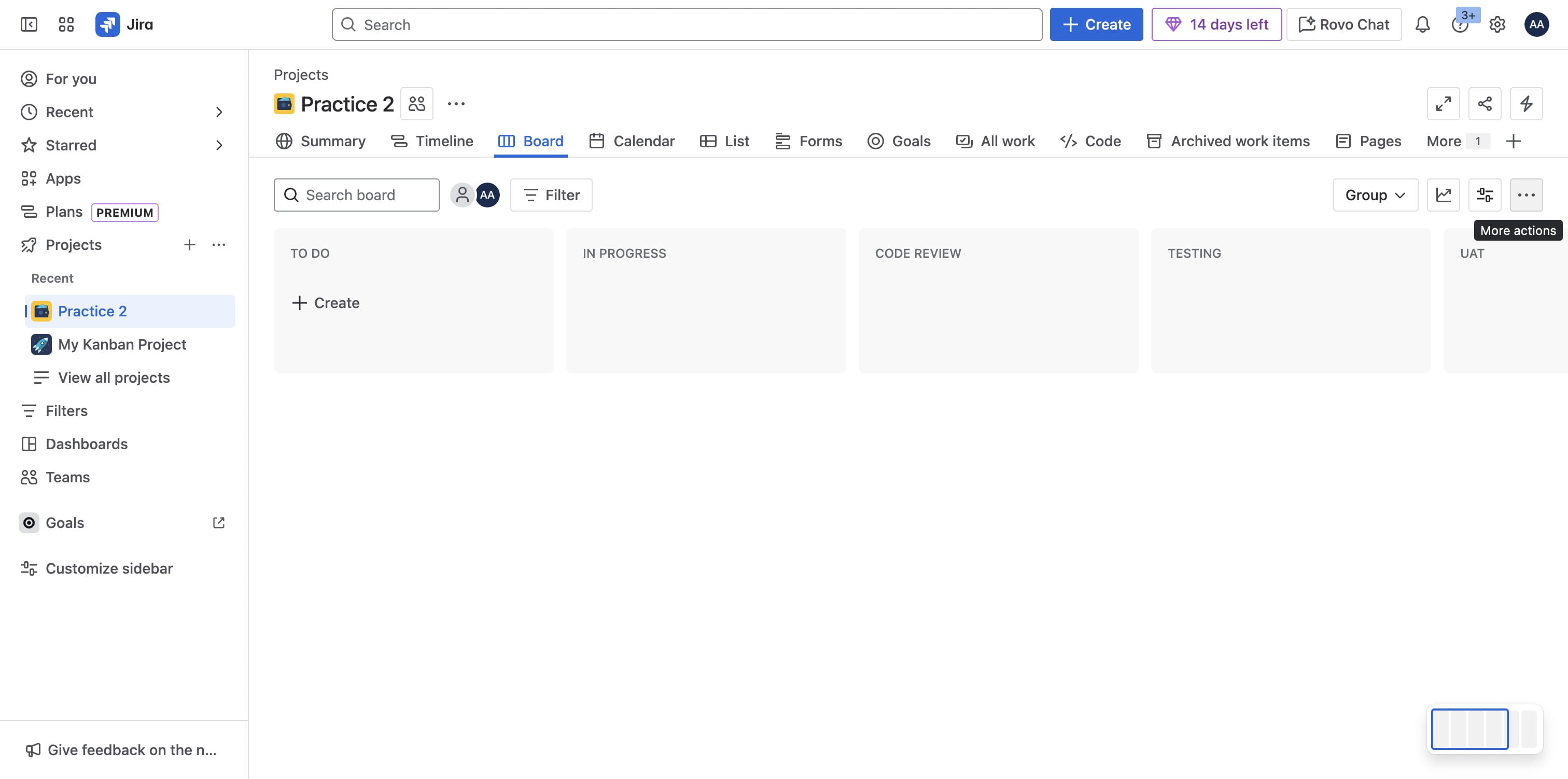
To Configure Board with Custom Fields, select More actions at top right above status lanes
23

Click on "Configure board"

Click on "Configure board"
24

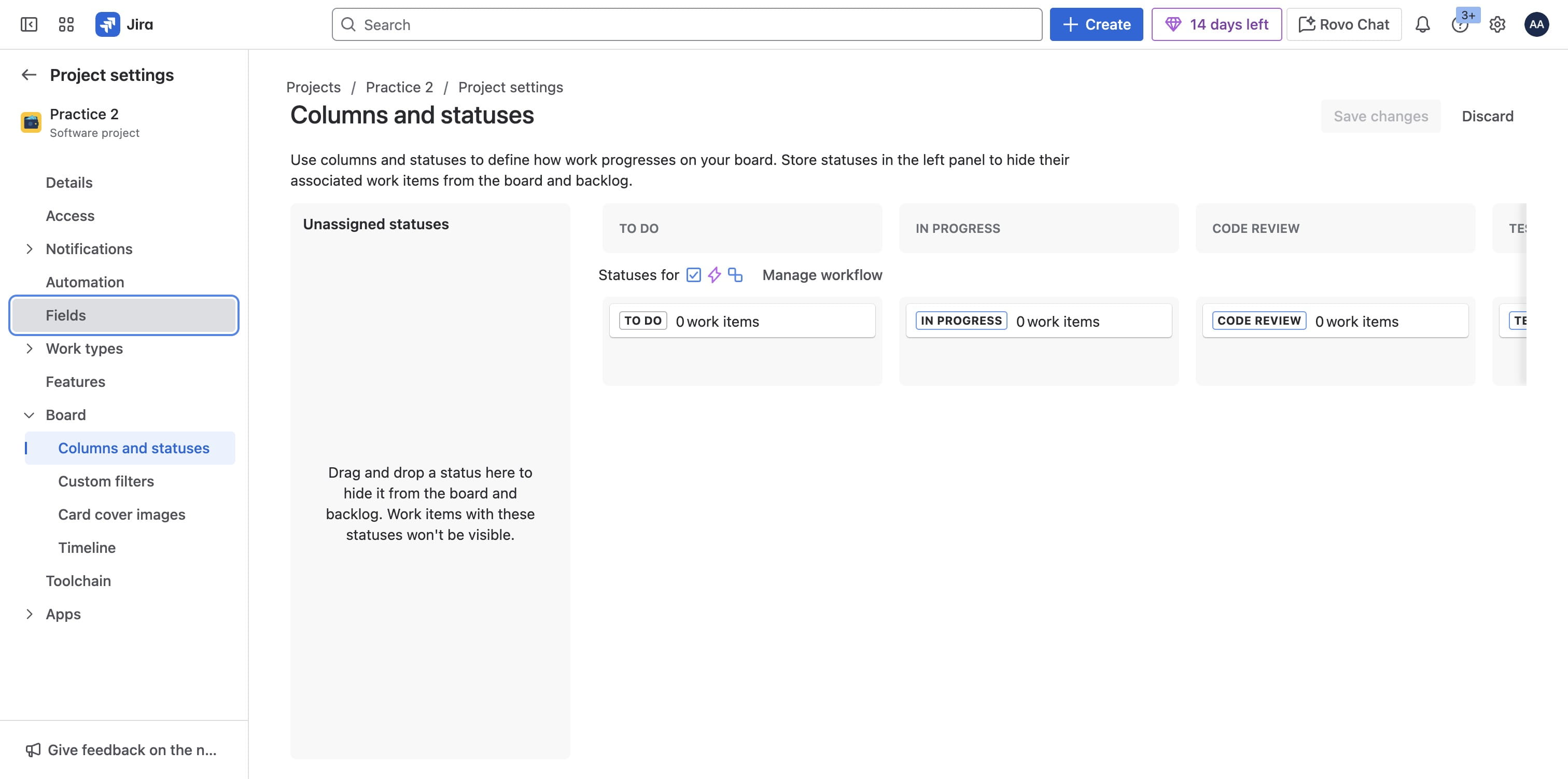
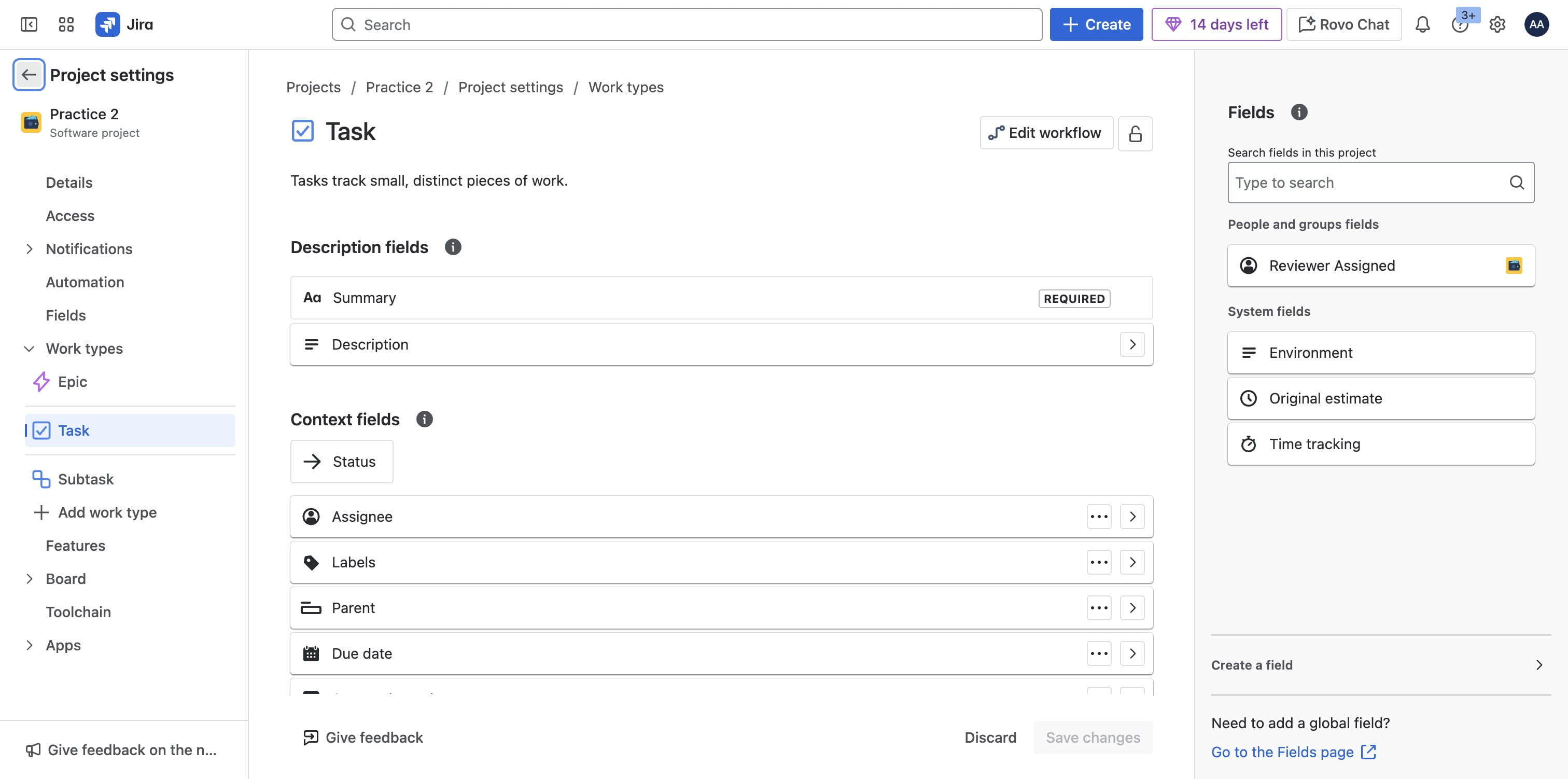
Click Fields

Click Fields
25

Click on "Add field" to include a field that might not exist
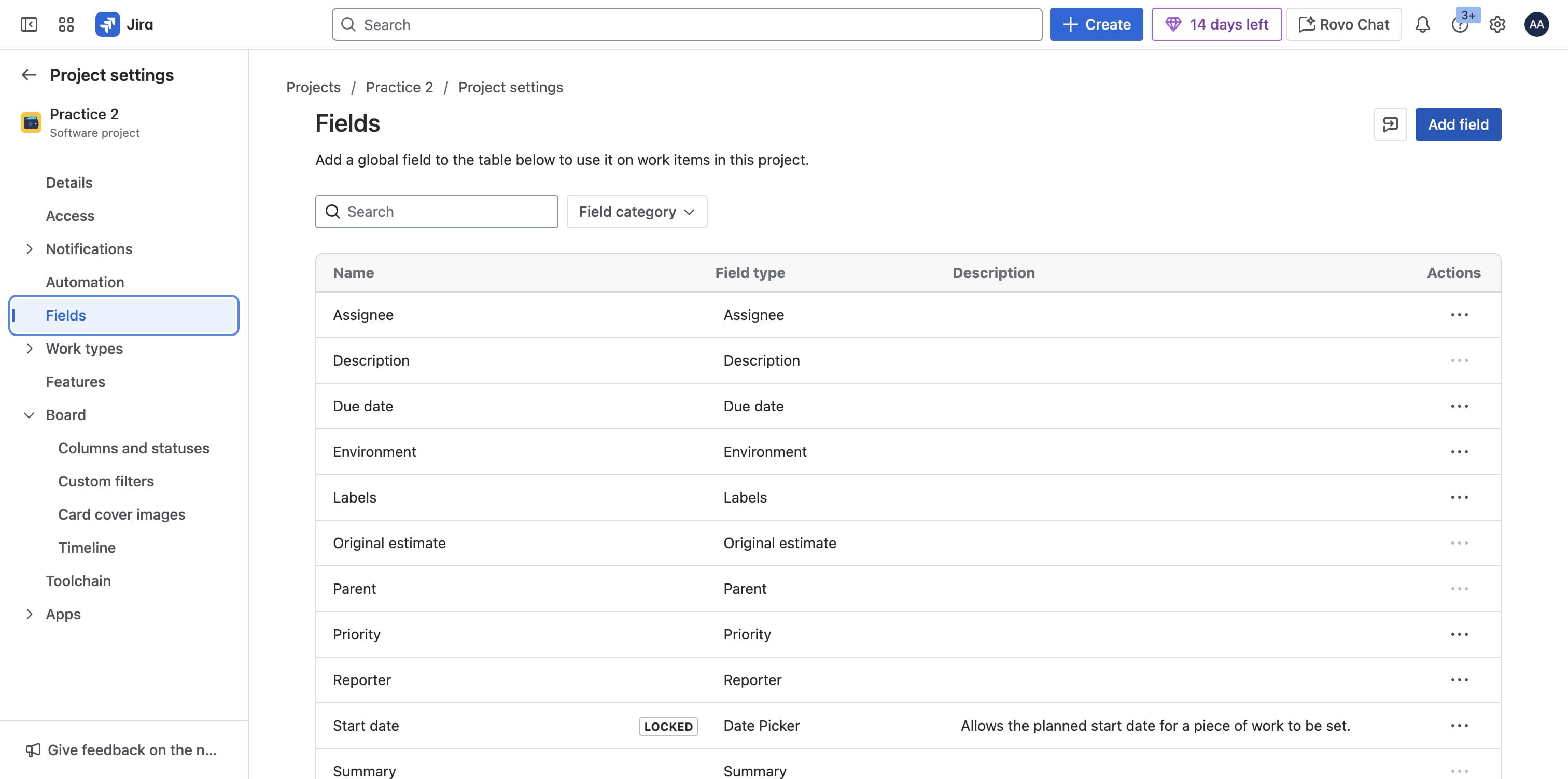
Click on "Add field" to include a field that might not exist
26

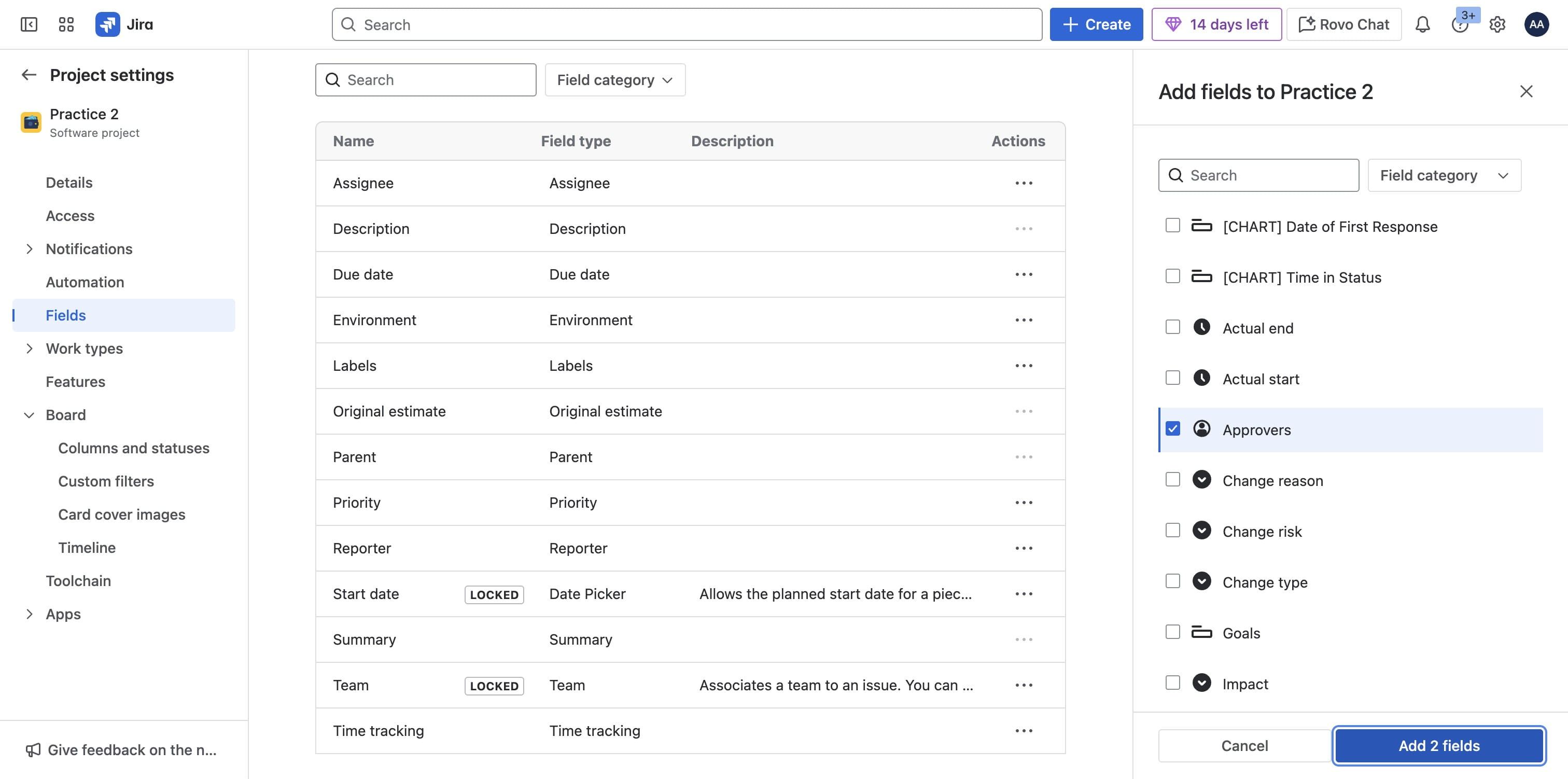
Click on "Approvers", this is a multi user selection field which can be used to add multiple users
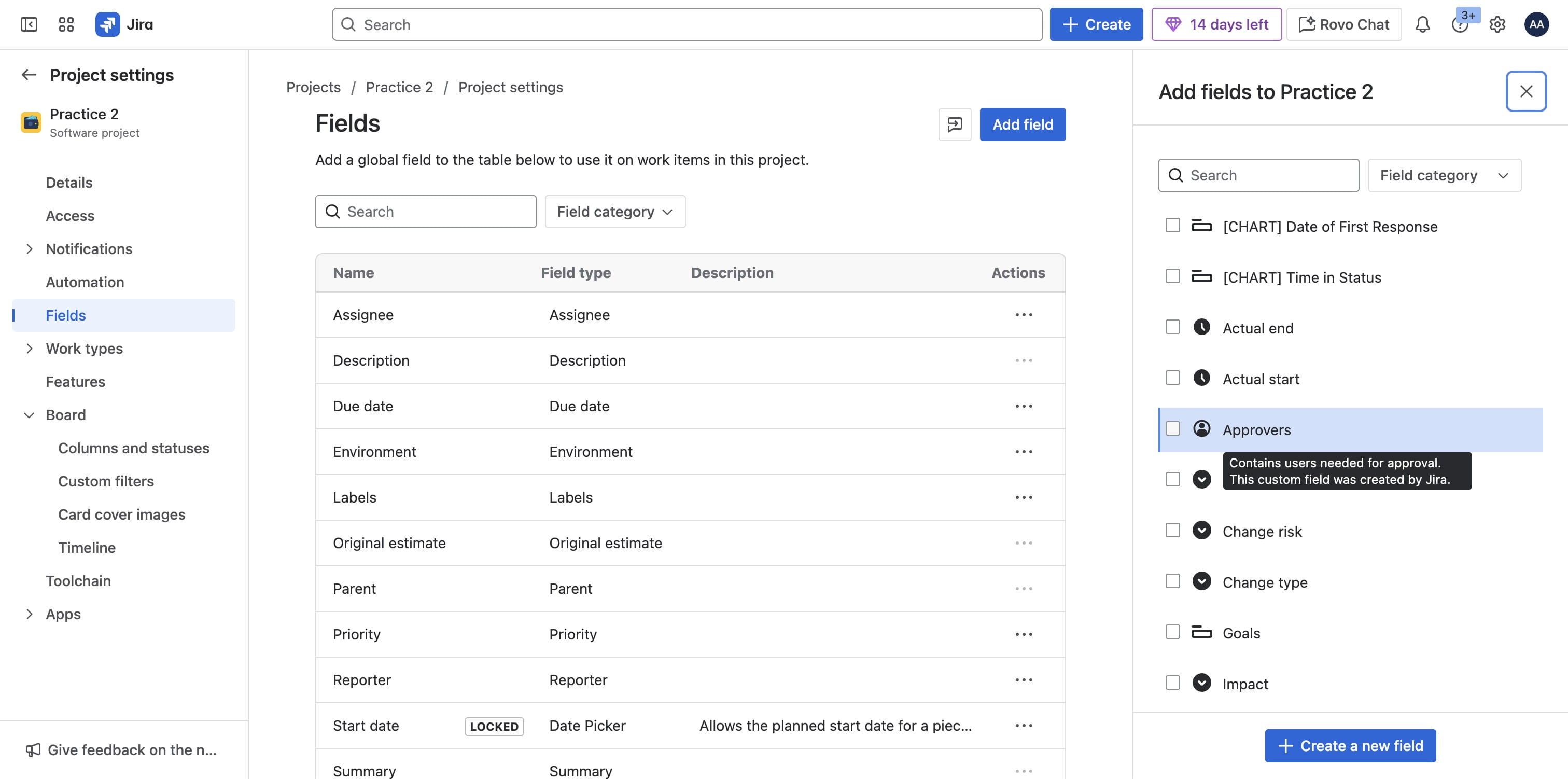
Click on "Approvers", this is a multi user selection field which can be used to add multiple users
27

You can also add any other fields as you'll like
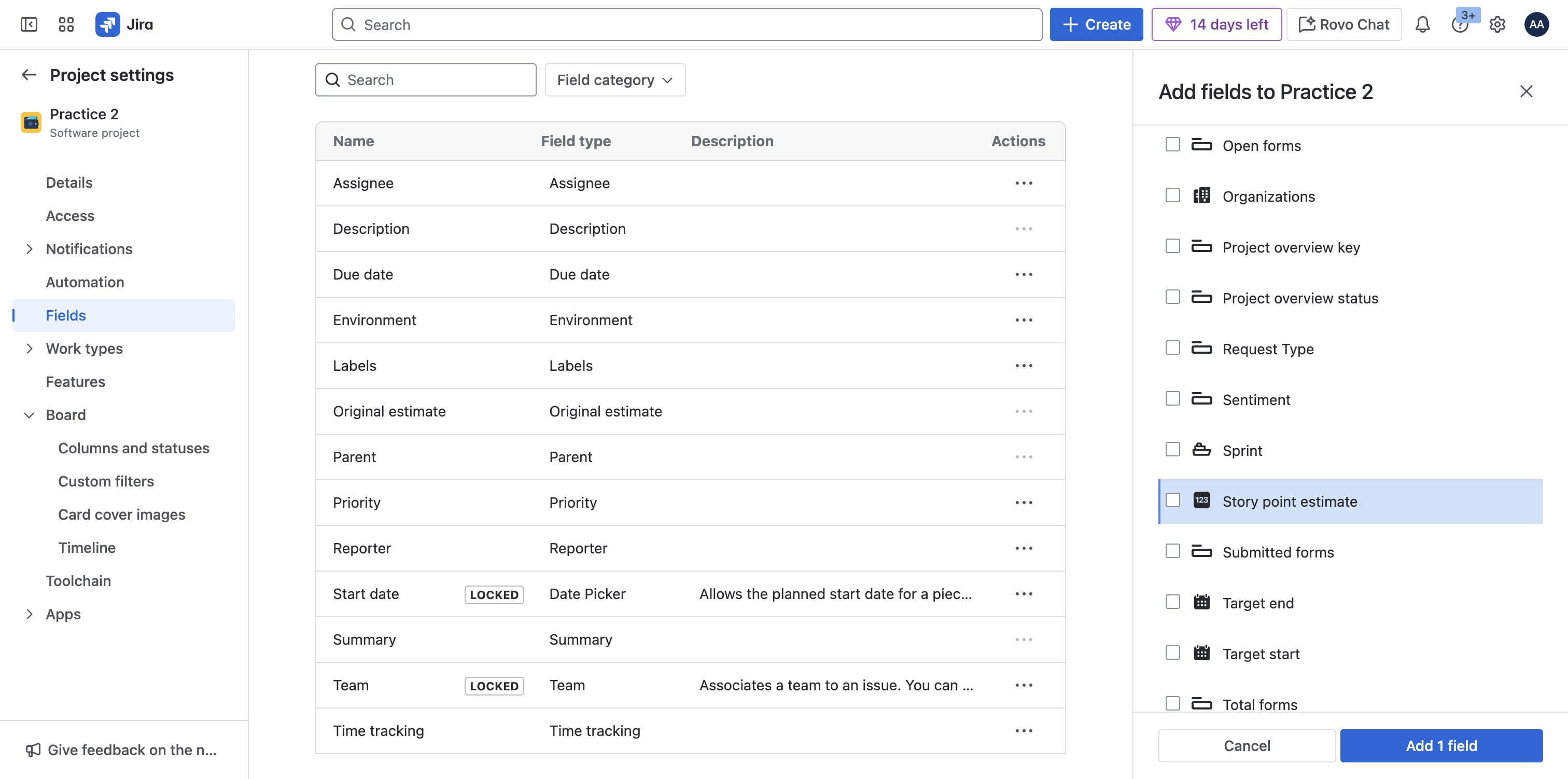
You can also add any other fields as you'll like
28

Click on "Add 2 fields"

Click on "Add 2 fields"
29

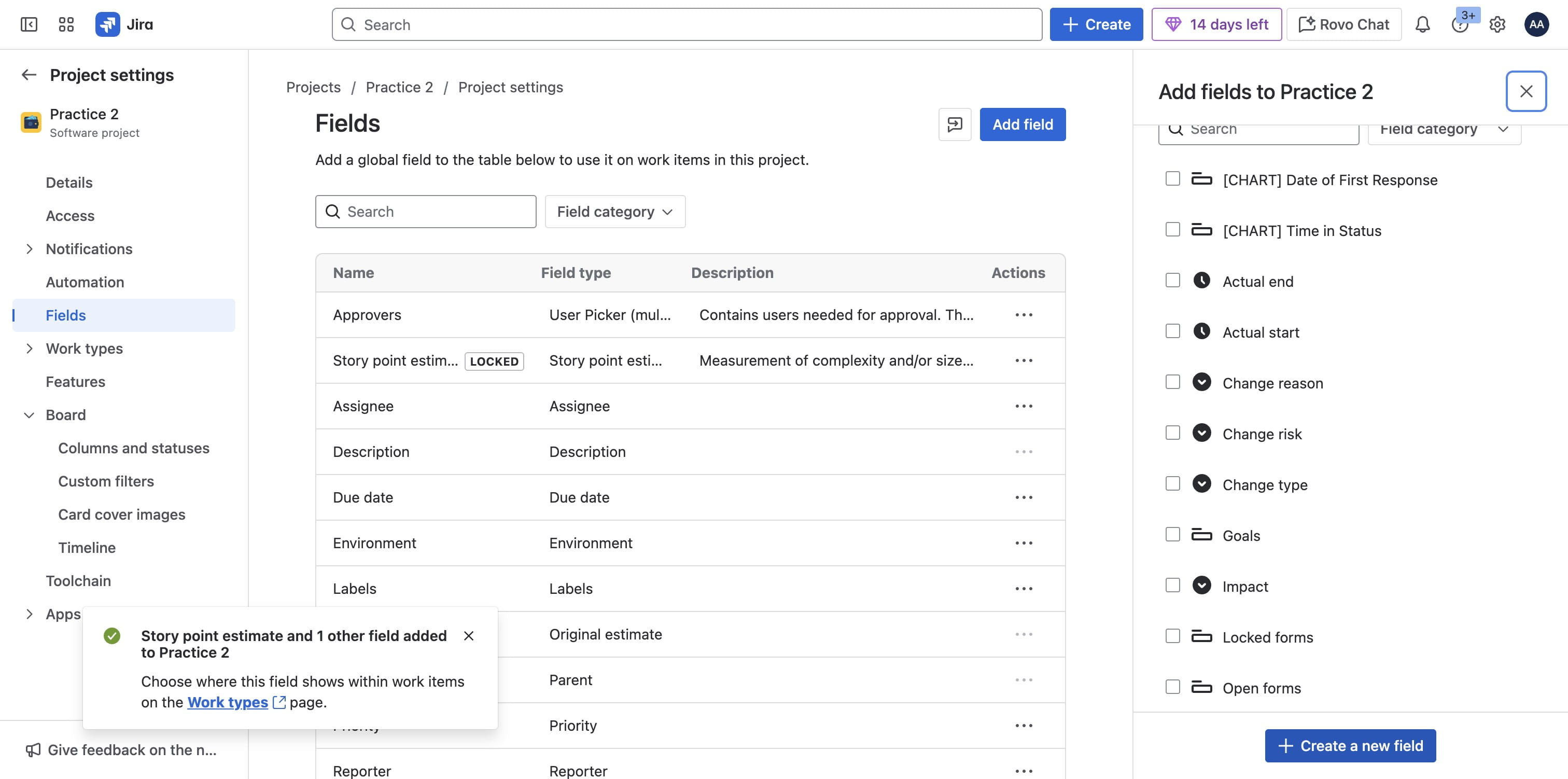
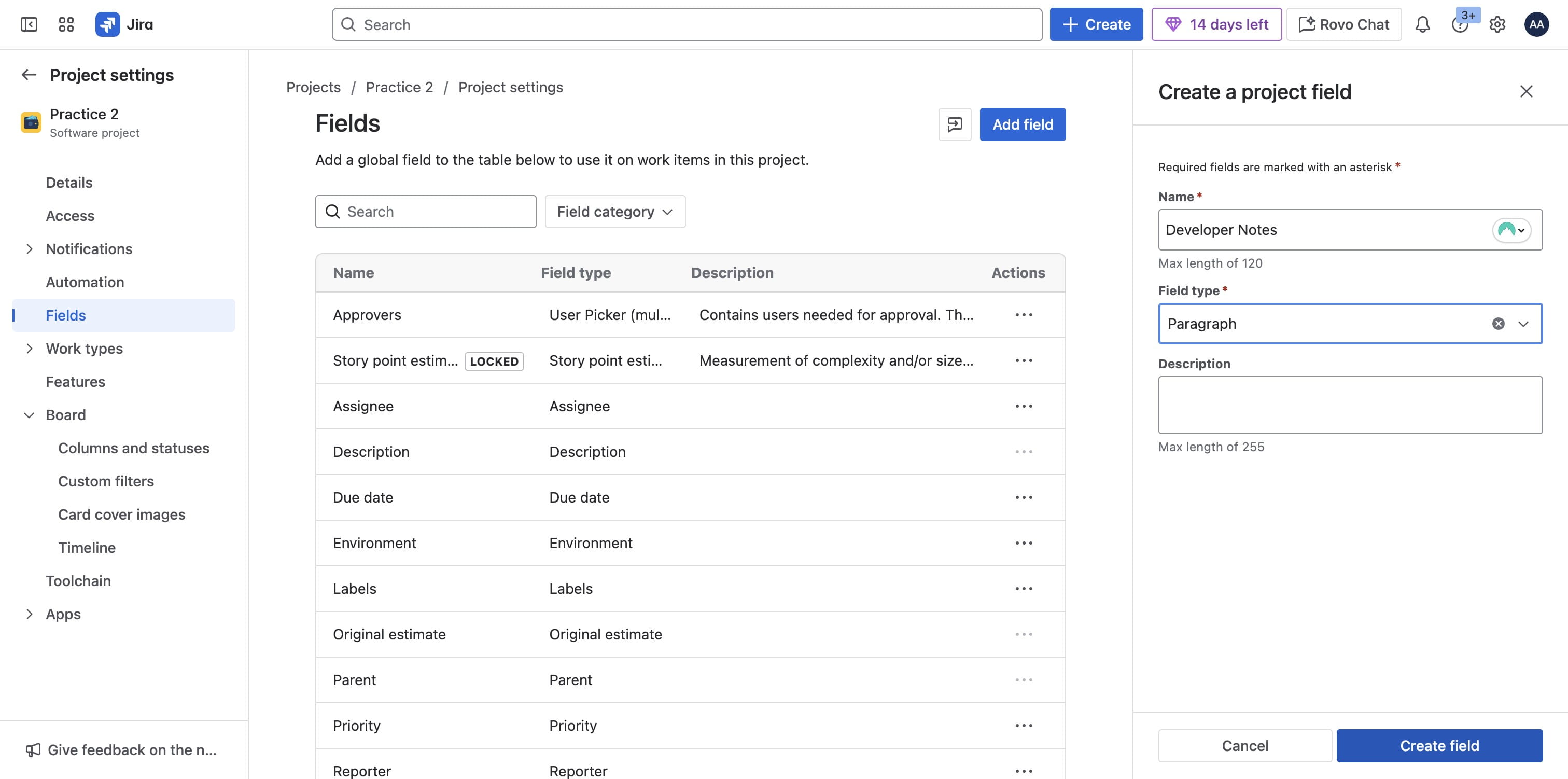
To add your own fields, Click on "Add field"
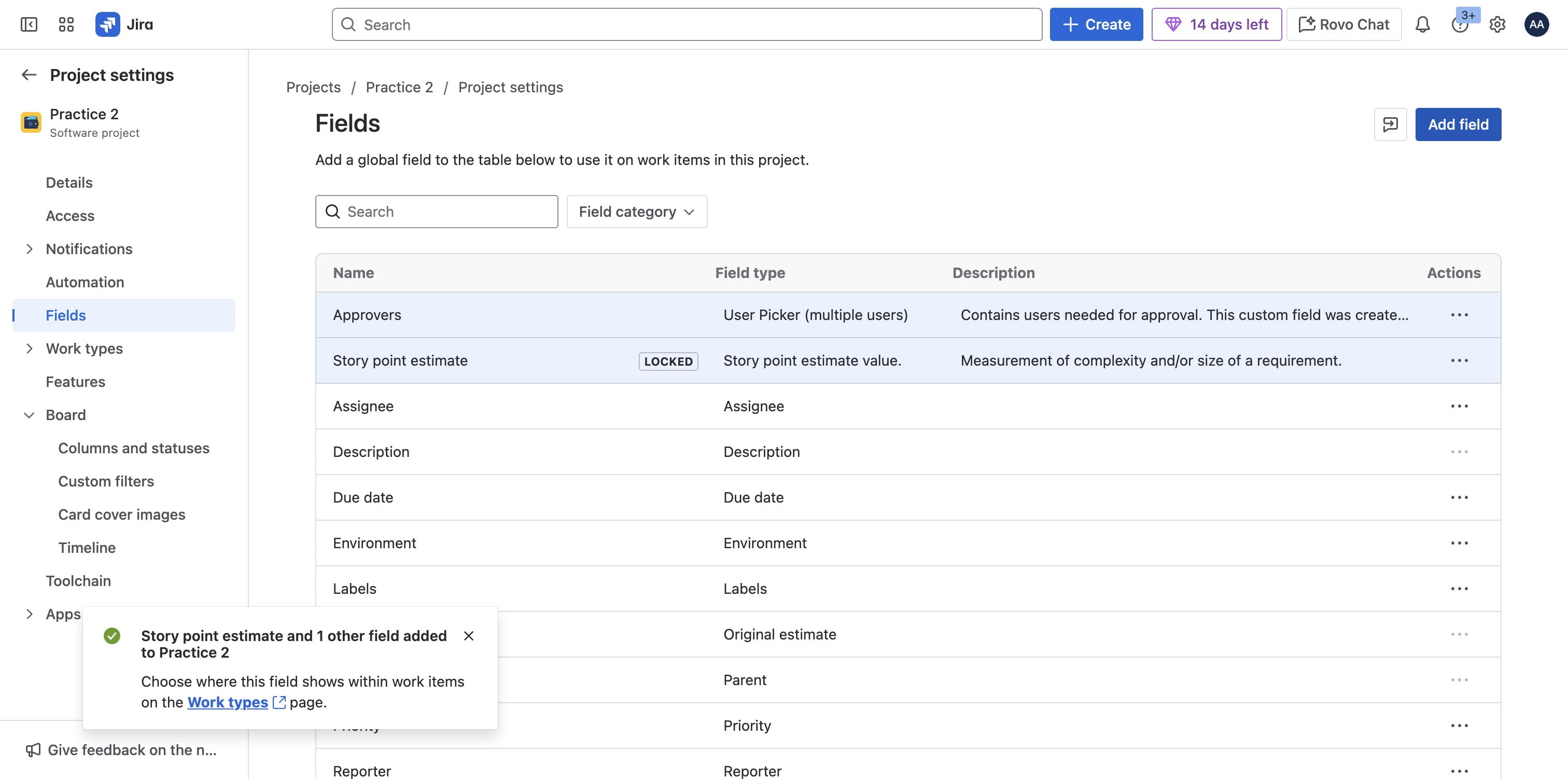
To add your own fields, Click on "Add field"
30

Click on "Create a new field"

Click on "Create a new field"
31

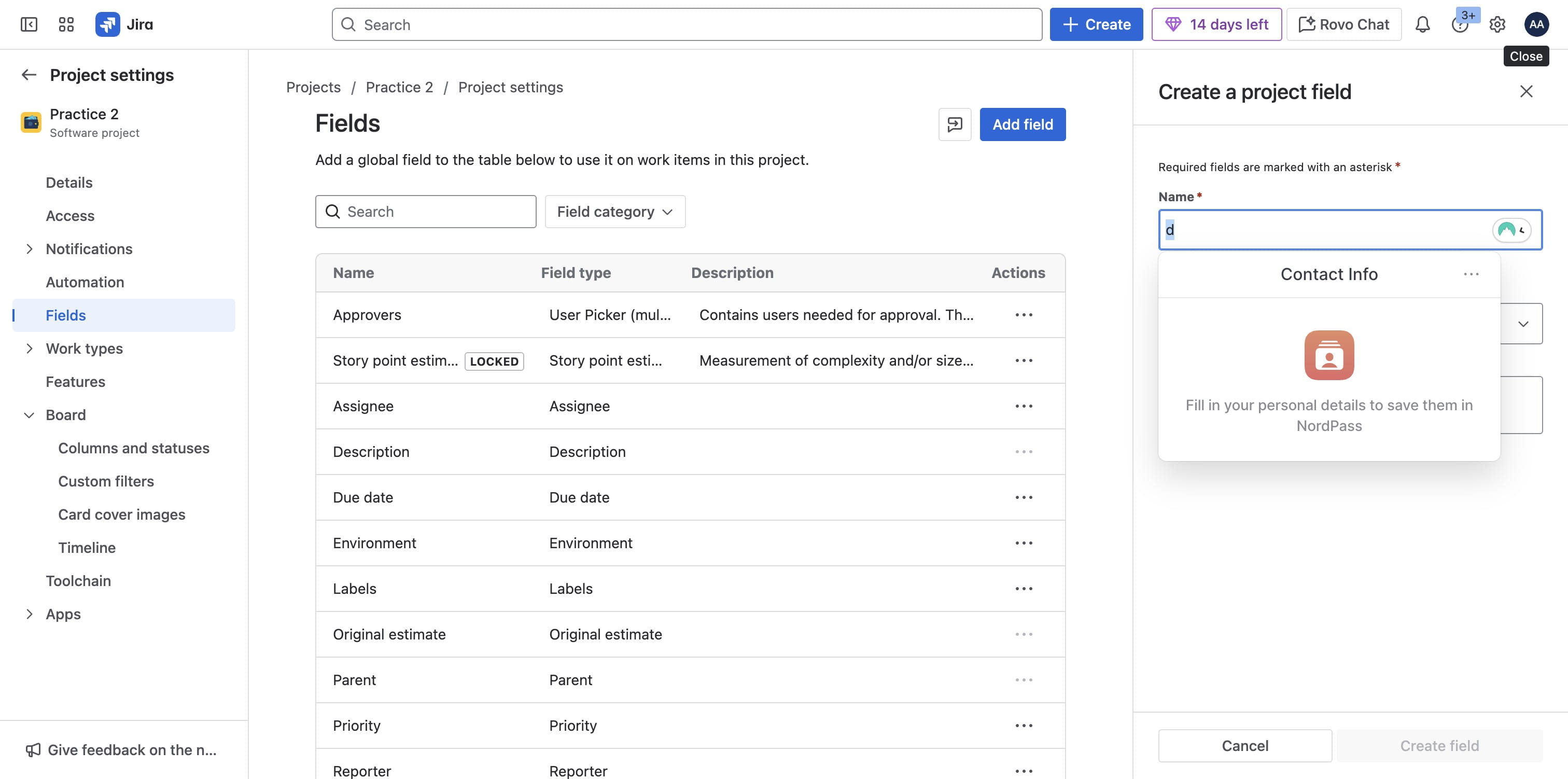
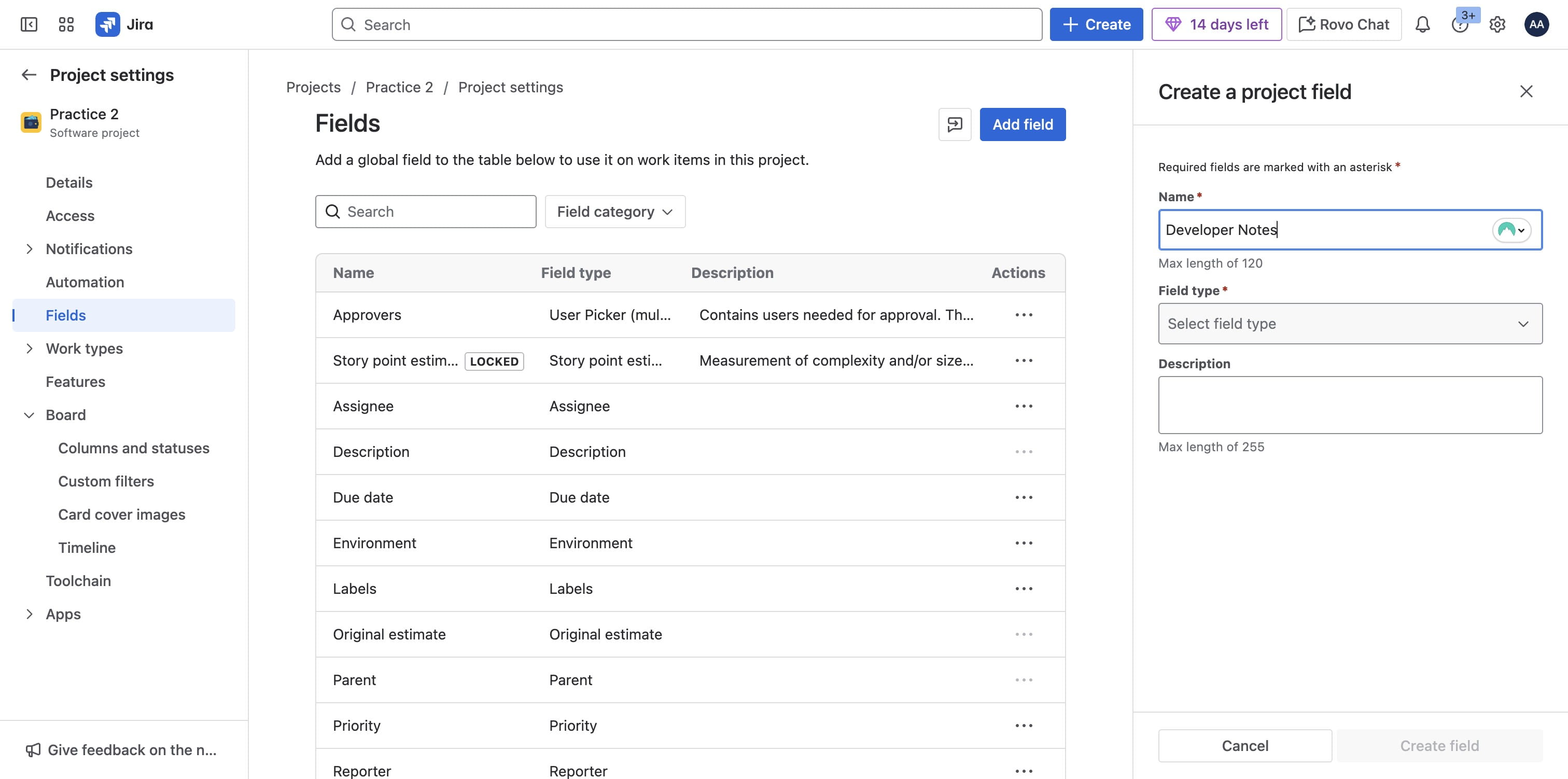
Add a name

Add a name
32

Select your field type

Select your field type
33

Select a field type that works for the field you are trying to add
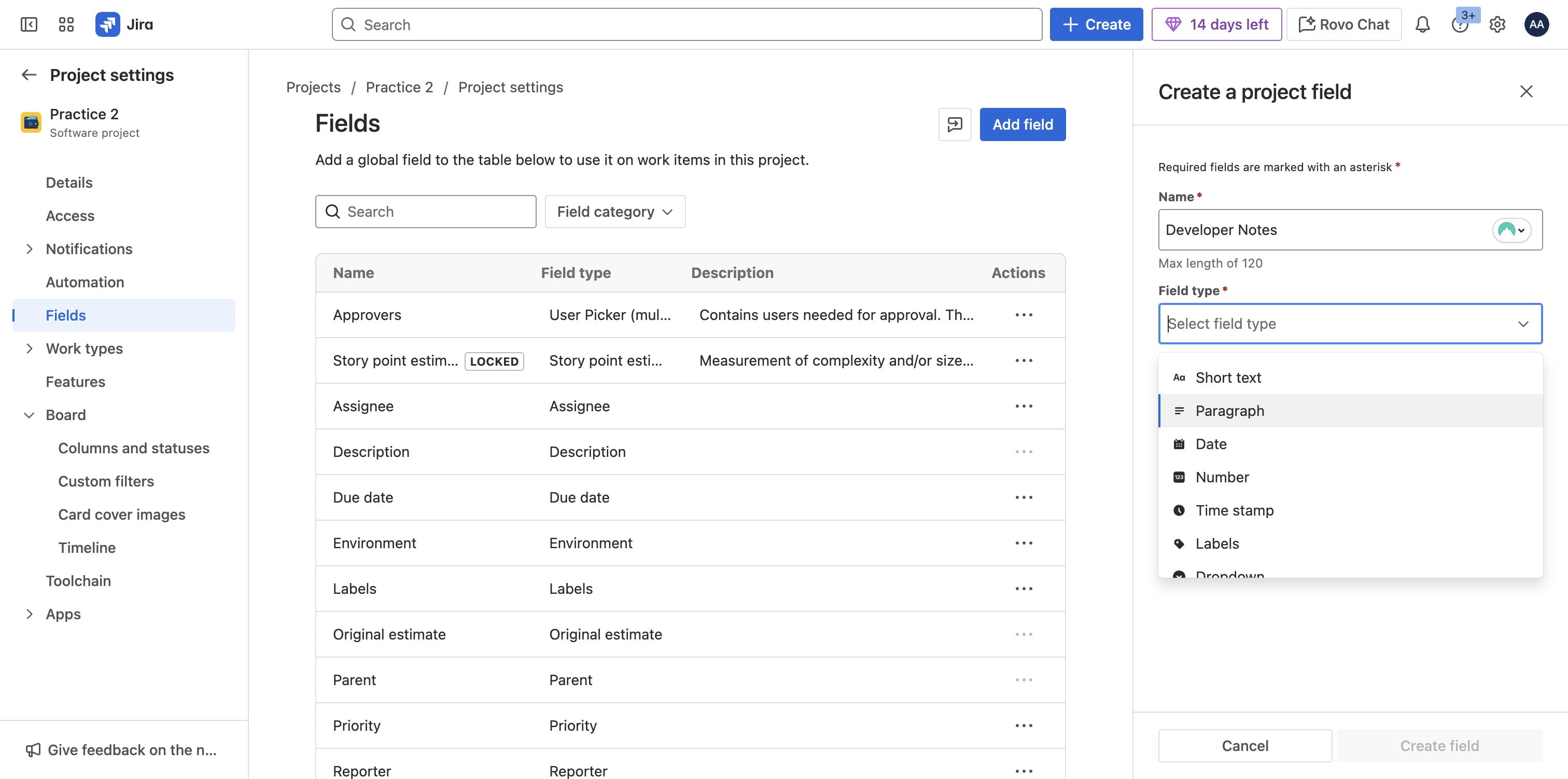
Select a field type that works for the field you are trying to add
34

Click on "Create field"

Click on "Create field"
35

Create more fields as needed and Click on create field button
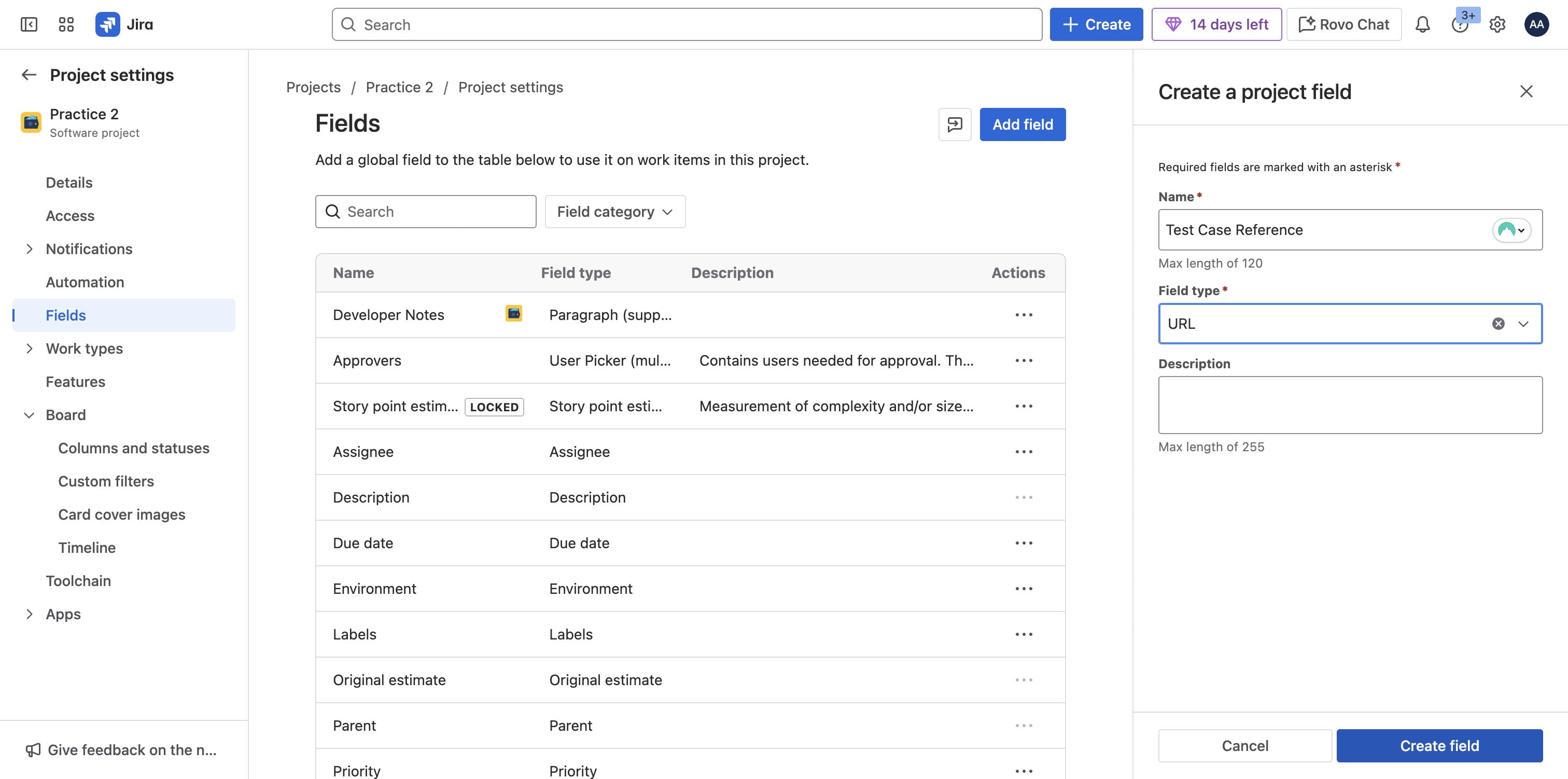
Create more fields as needed and Click on create field button
36

Once done, go back to project

Once done, go back to project
37

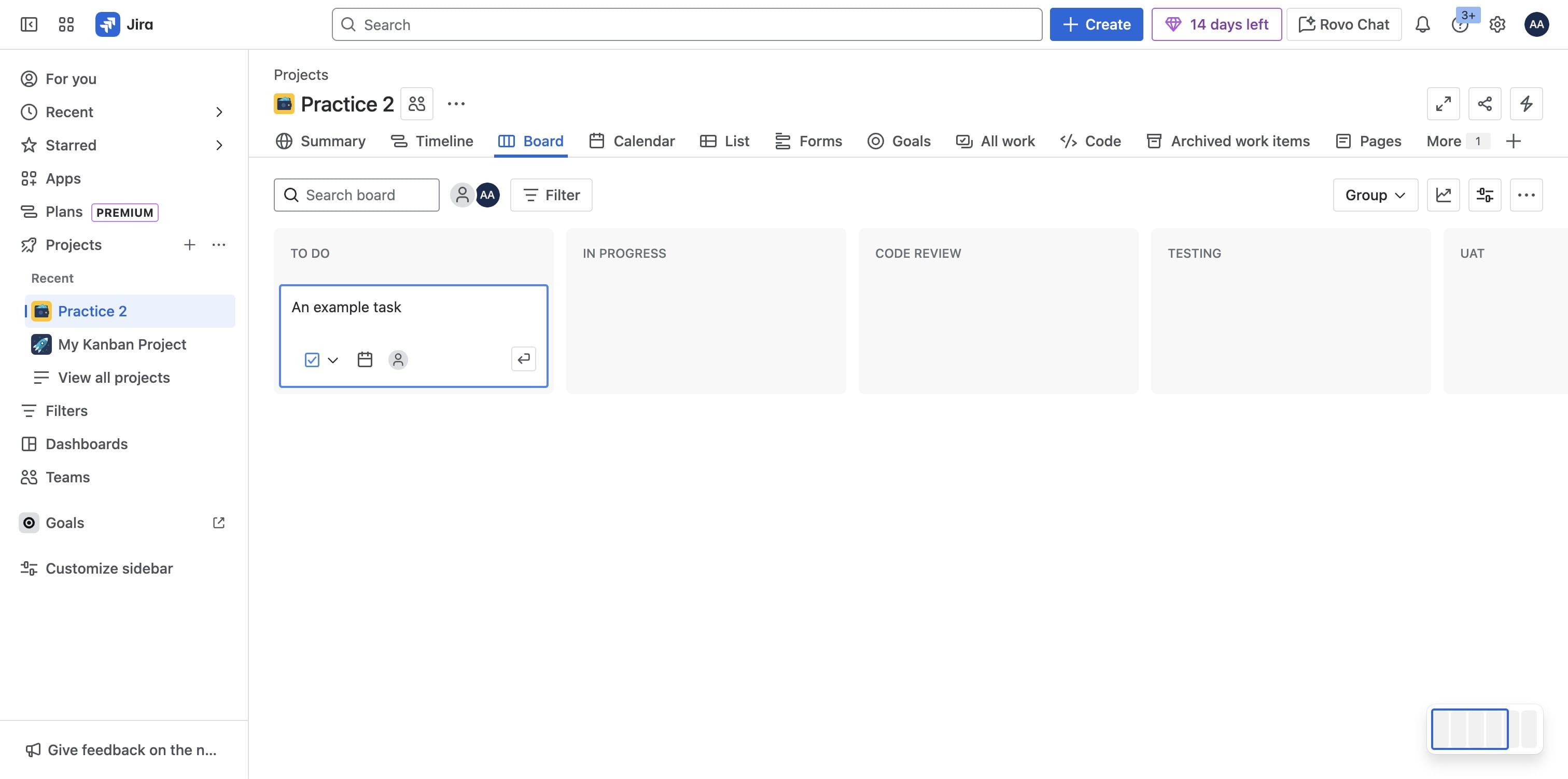
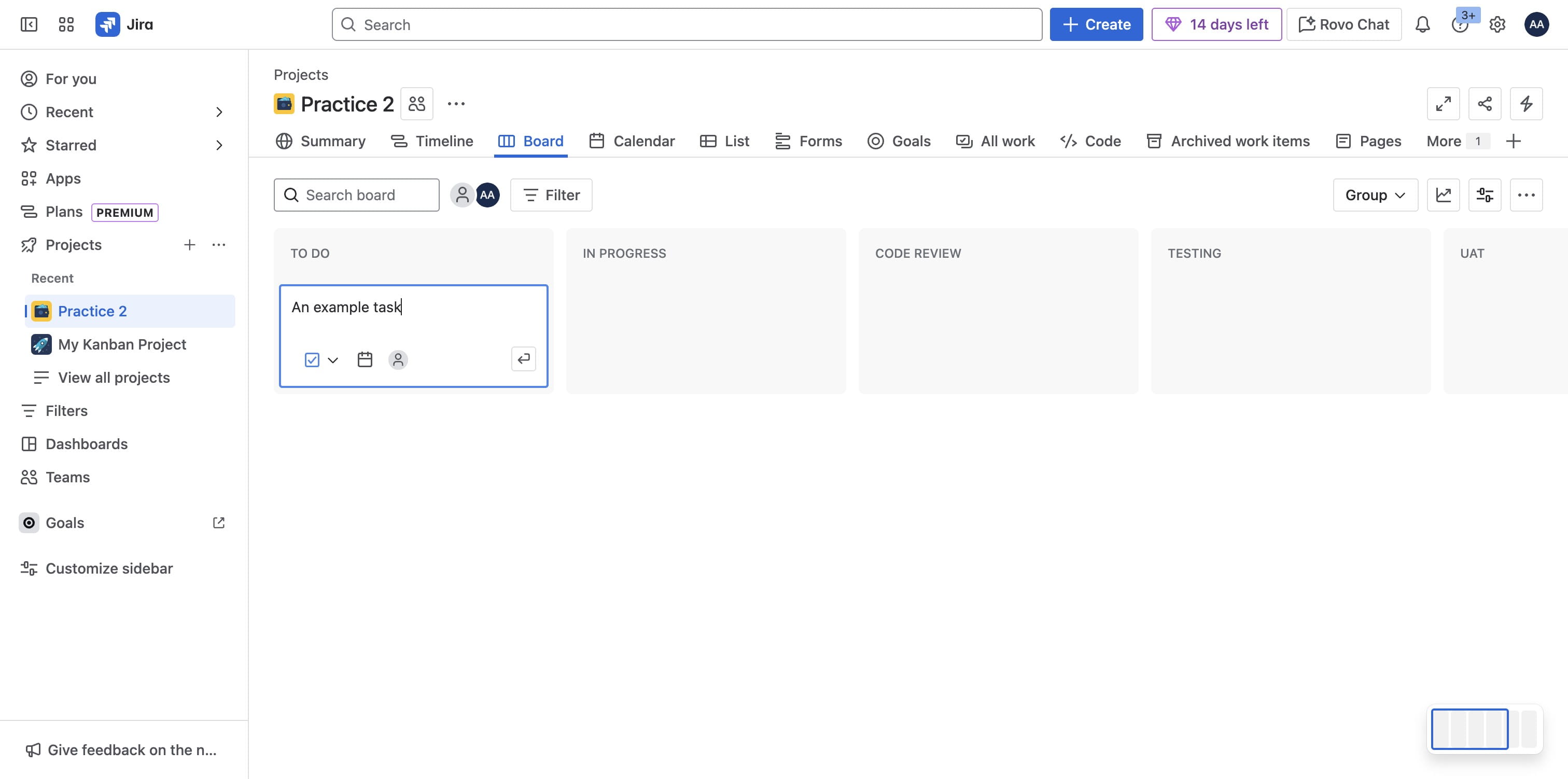
Click on "Create" under a lane to add a new task
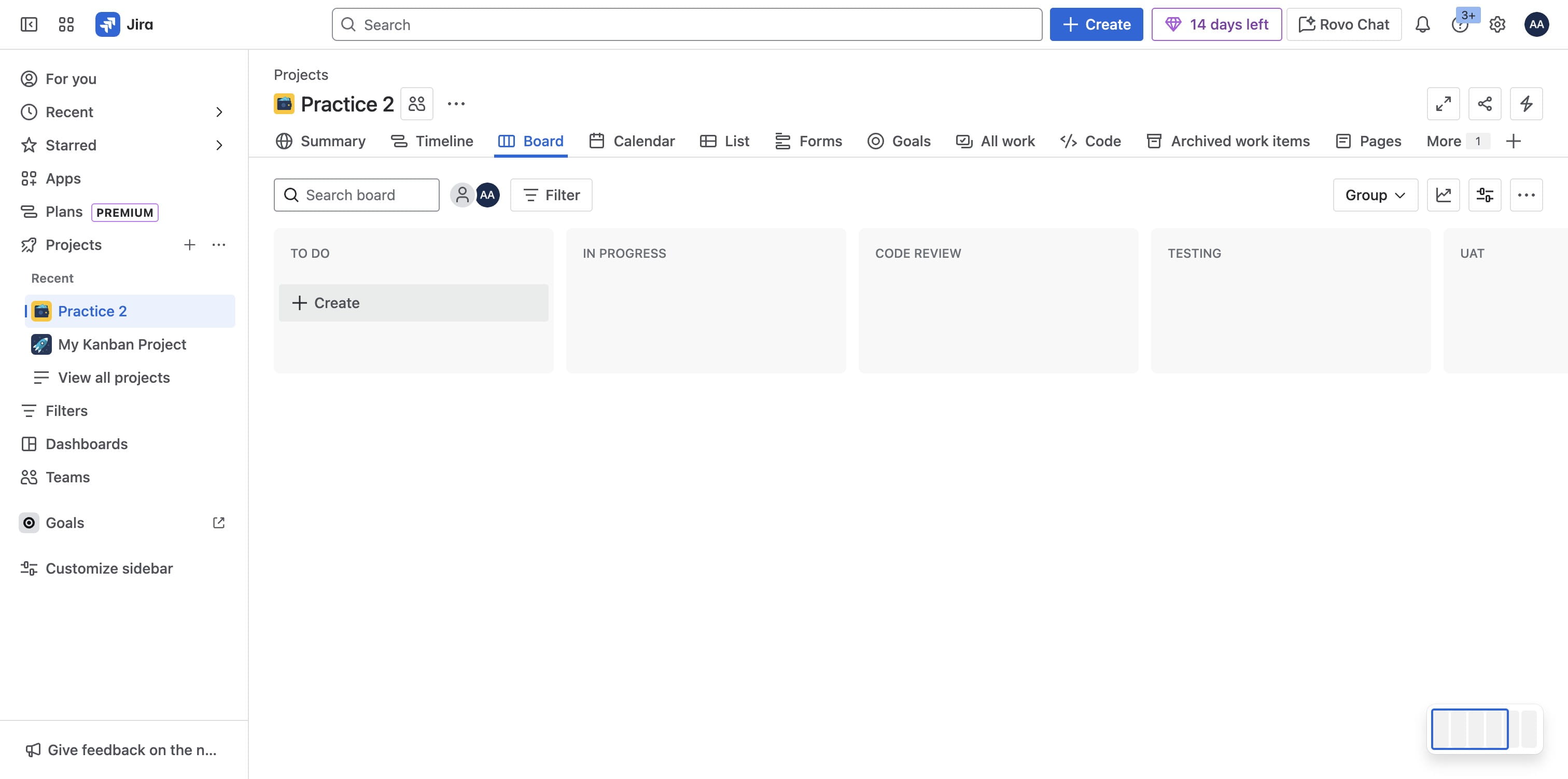
Click on "Create" under a lane to add a new task
38

Double click to open the task

Double click to open the task
39

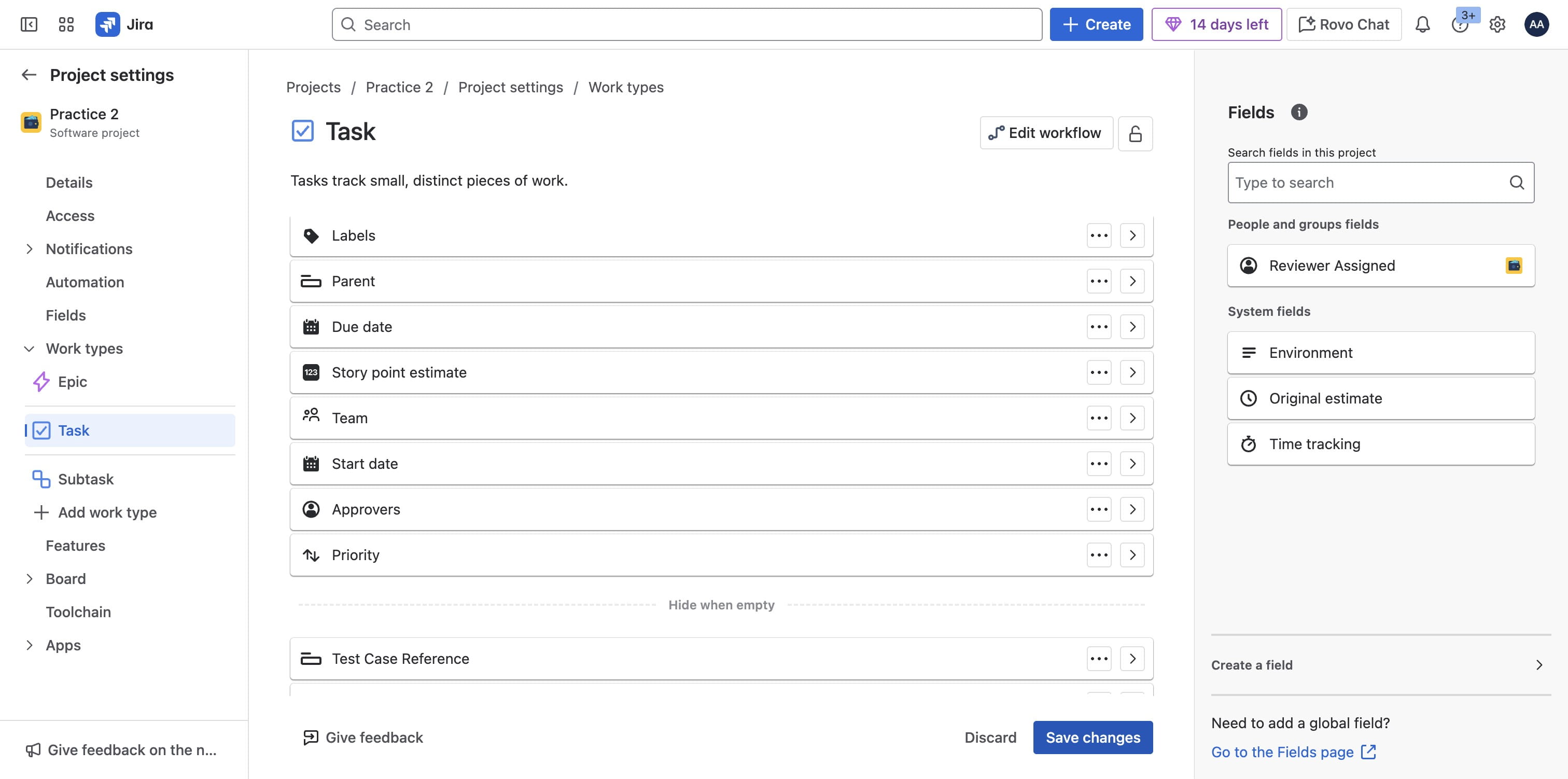
To add the fields to the task on this board, Click on "Configure"
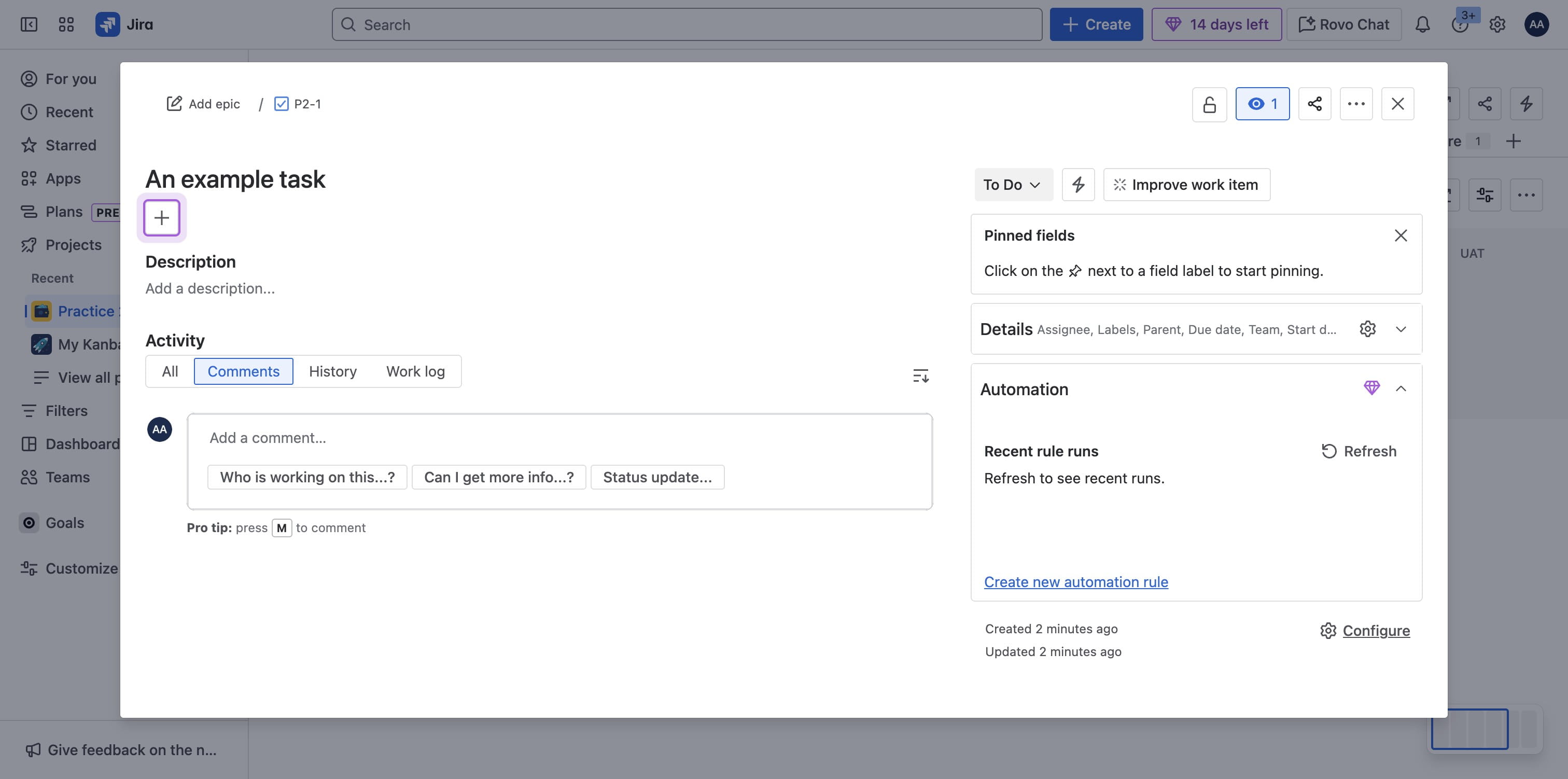
To add the fields to the task on this board, Click on "Configure"
40

Drag the fields you want to under the list of fields to the left
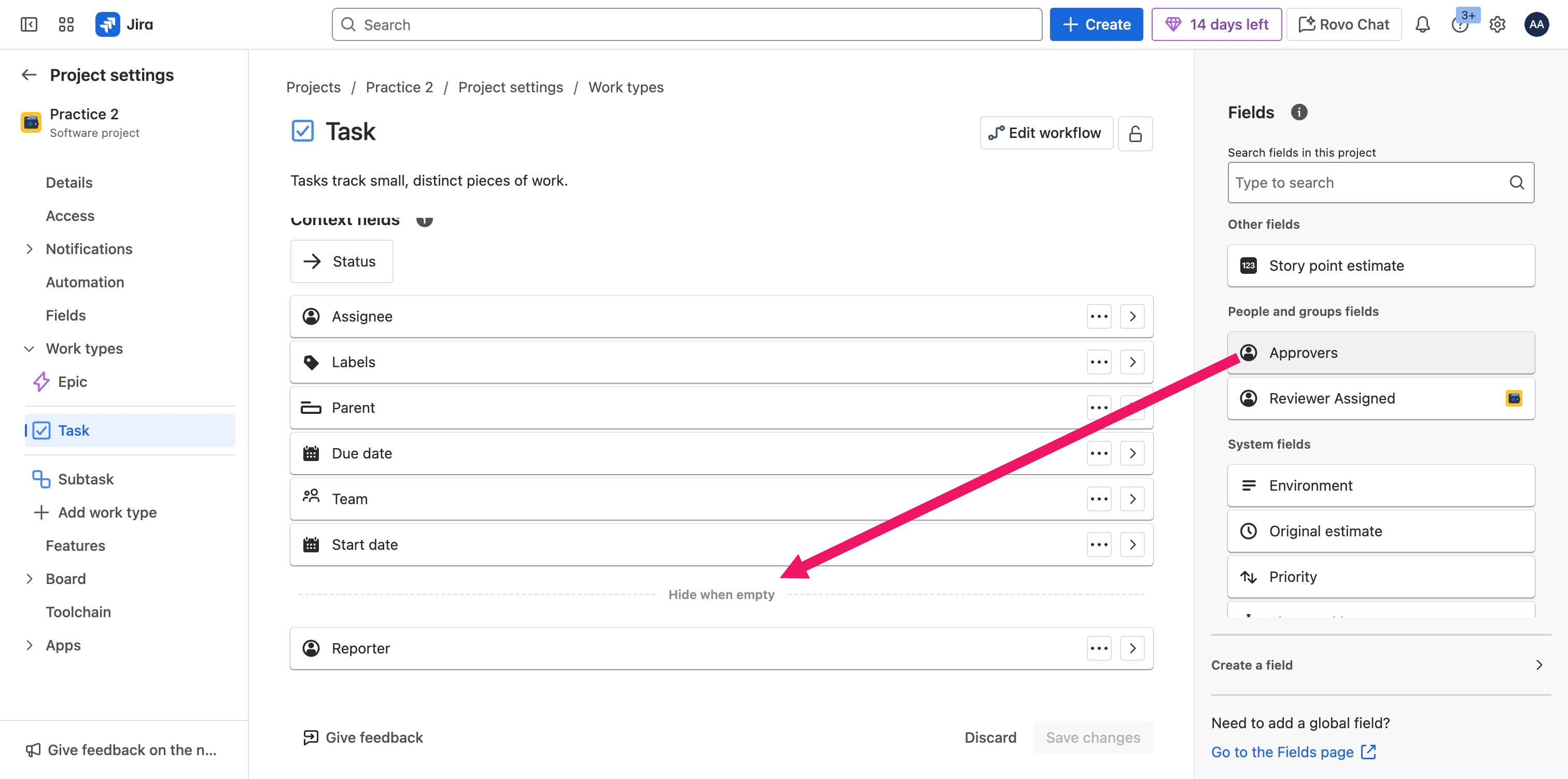
Drag the fields you want to under the list of fields to the left
41

Do same for other fields and save changes
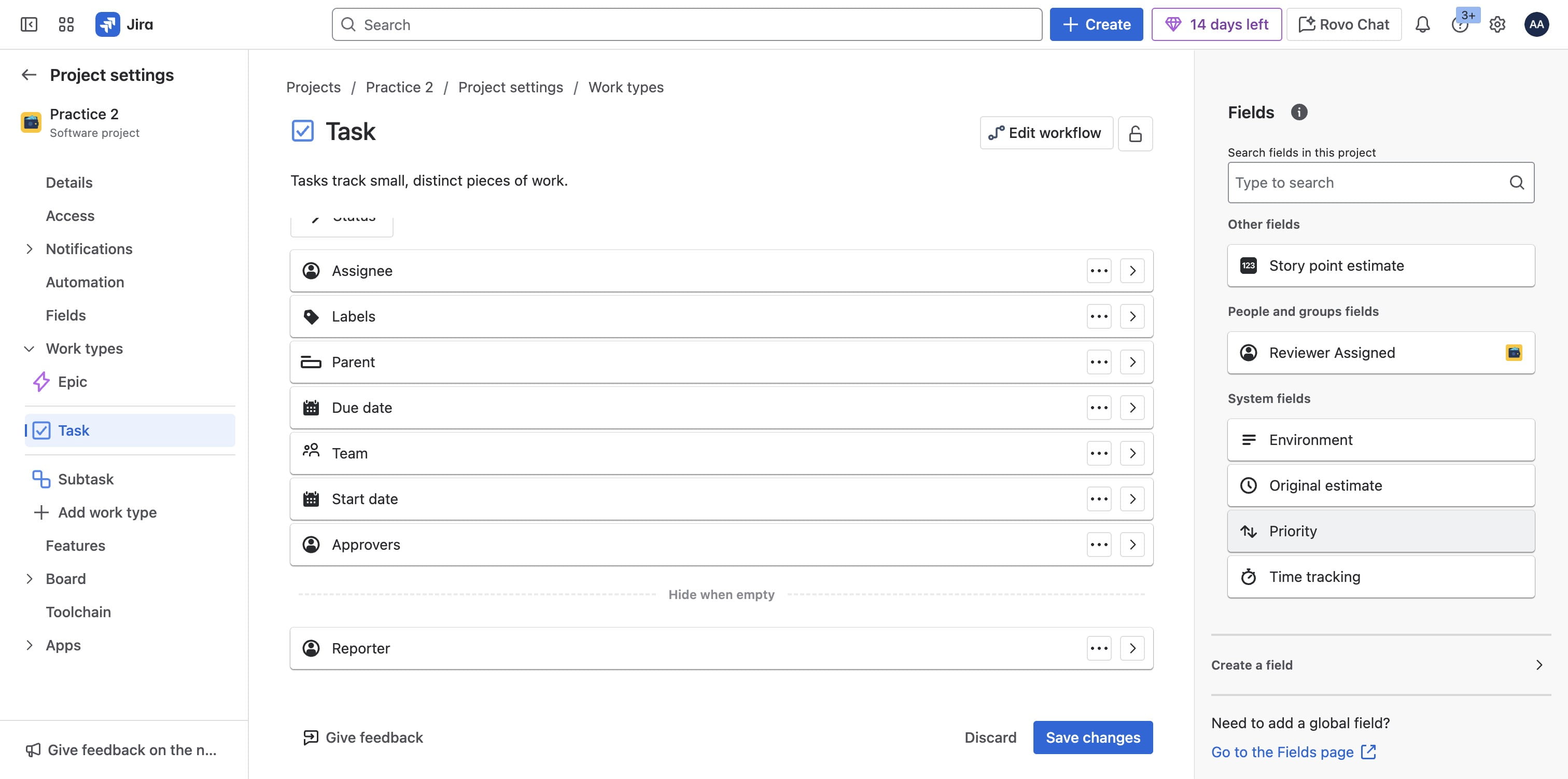
Do same for other fields and save changes
42

Click on "Save changes"

Click on "Save changes"
43

Once saved, go back to Project

Once saved, go back to Project
44

You should now see all the fields showing on the right side based on your selection. Click on "More fields" as needed
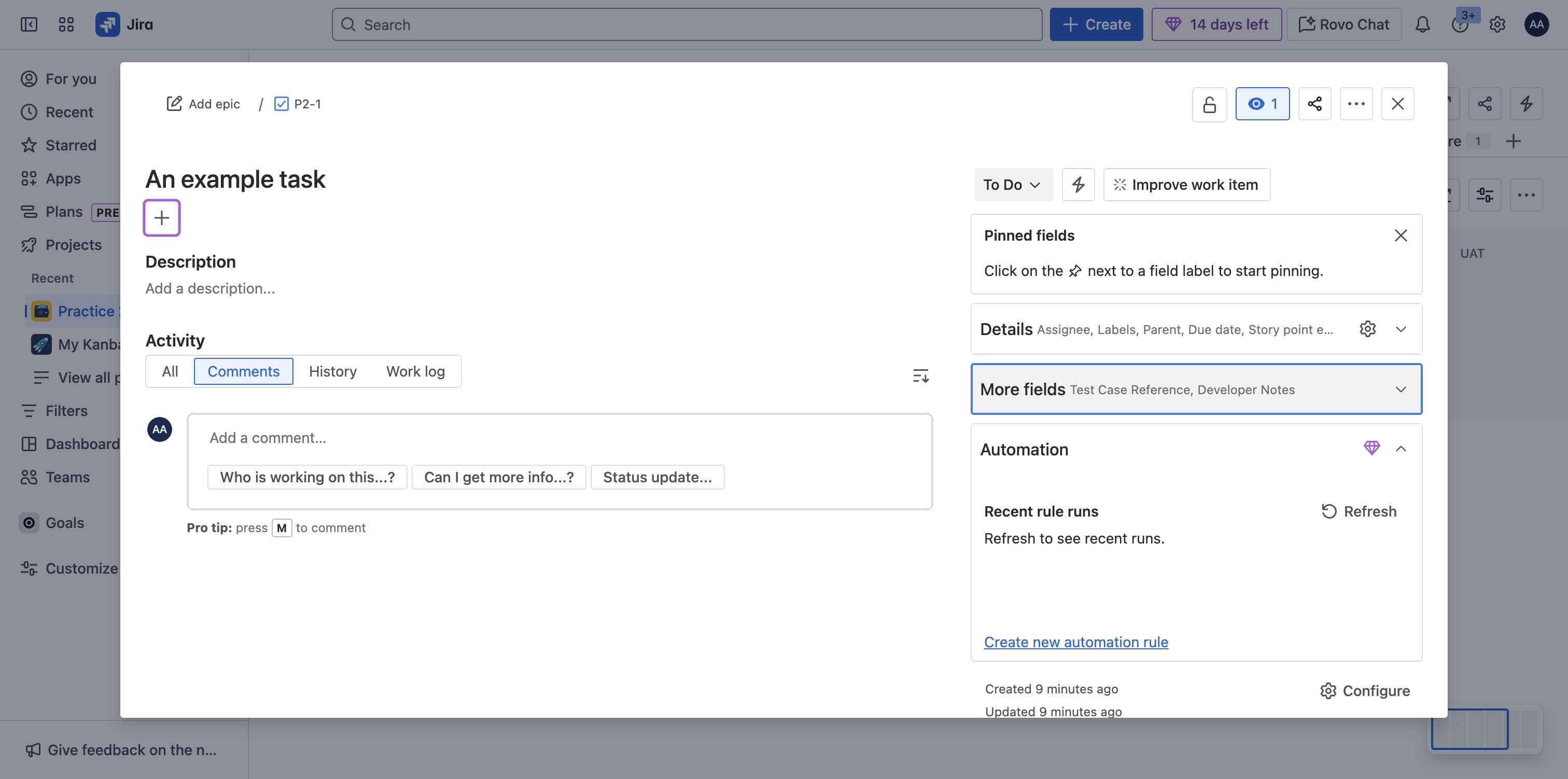
You should now see all the fields showing on the right side based on your selection. Click on "More fields" as needed
45

Click on the fields forms to enter details
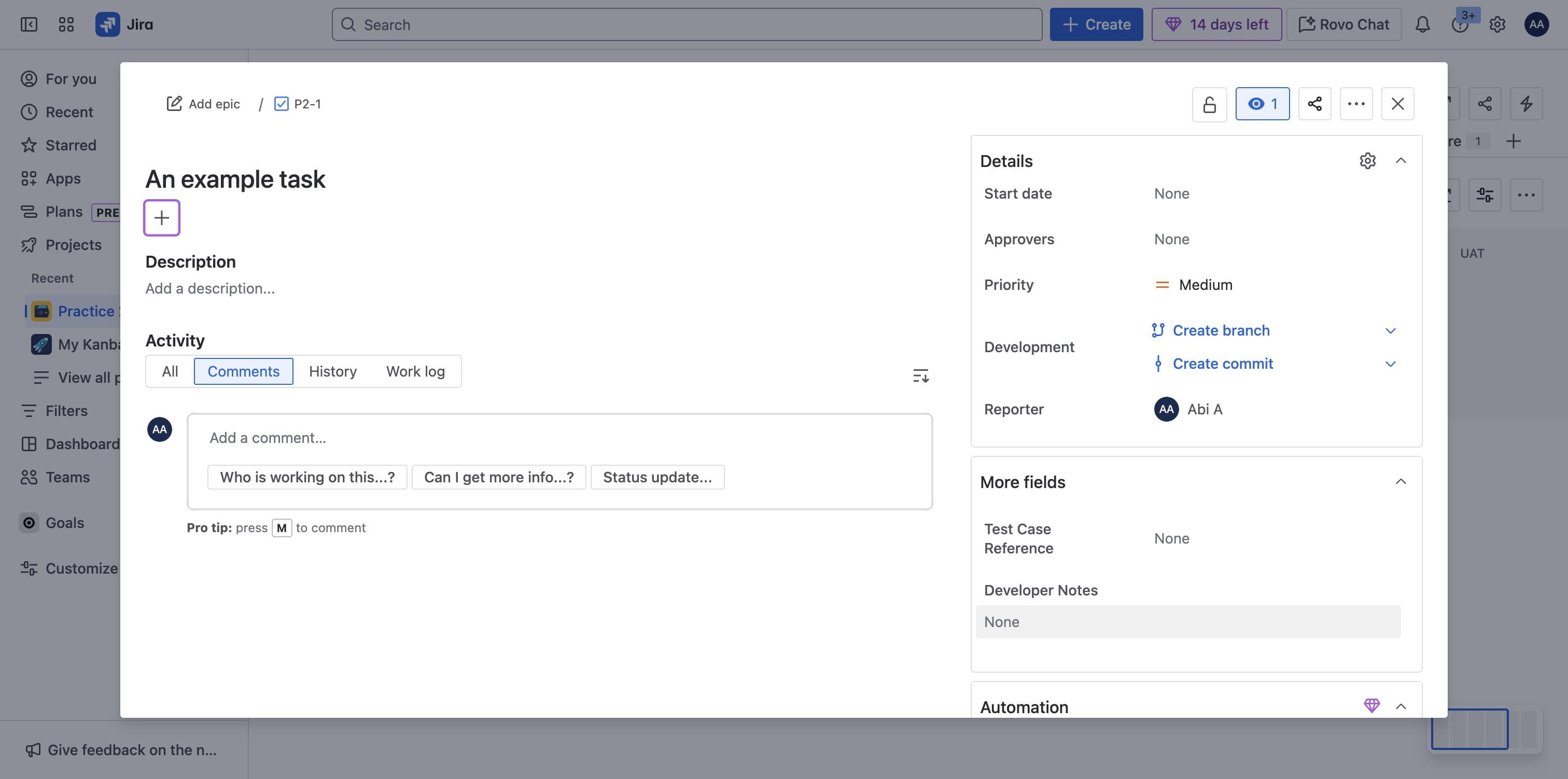
Click on the fields forms to enter details
46

You should be able to edit content for each field
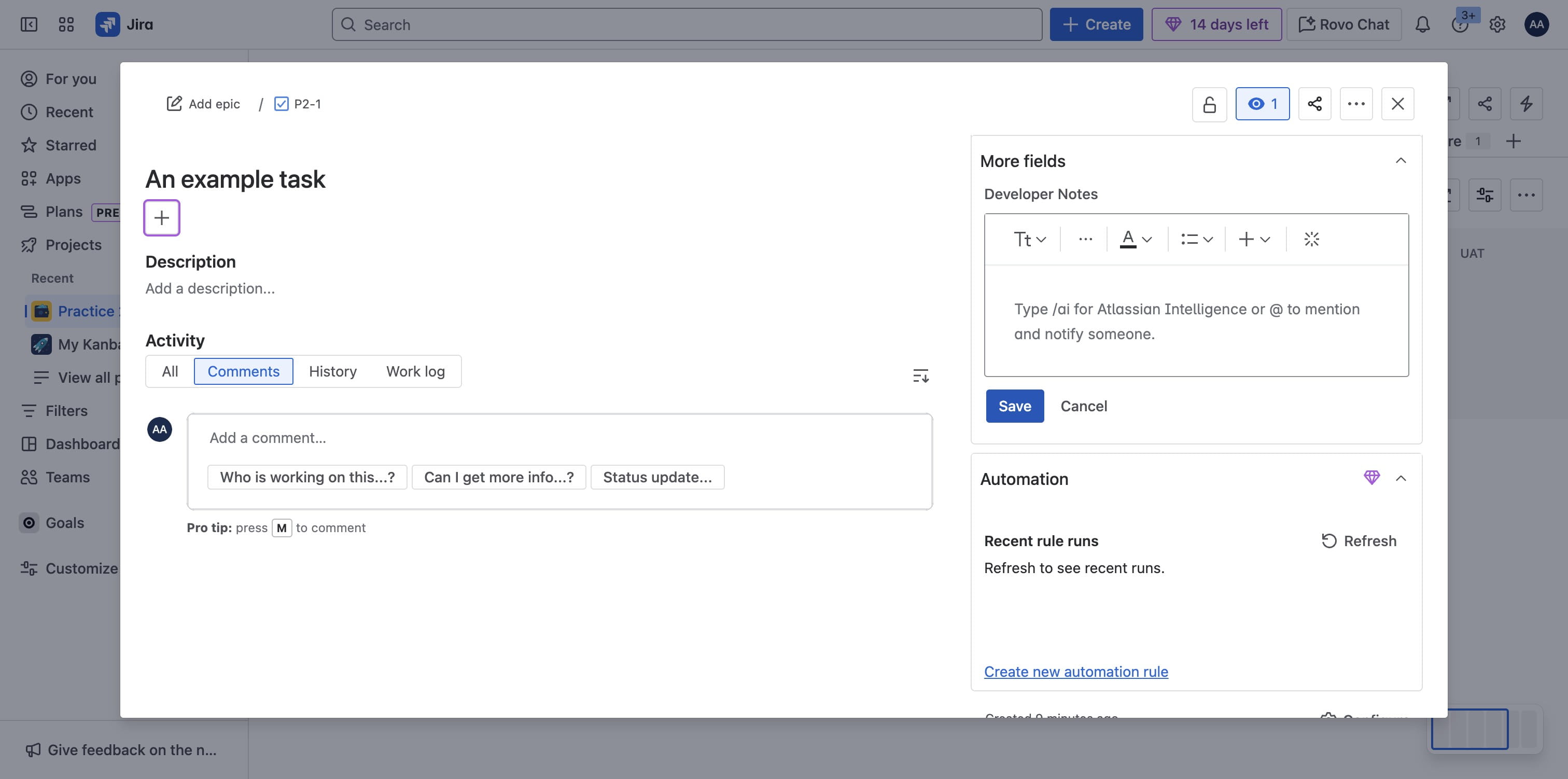
You should be able to edit content for each field