

Jira Workflows
This guide explains how to configure Jira workflows to enforce data validation during transitions. It focuses on setting rules to ensure specific fields are populated before an issue can move to the next stage, enhancing data integrity and workflow consistency.
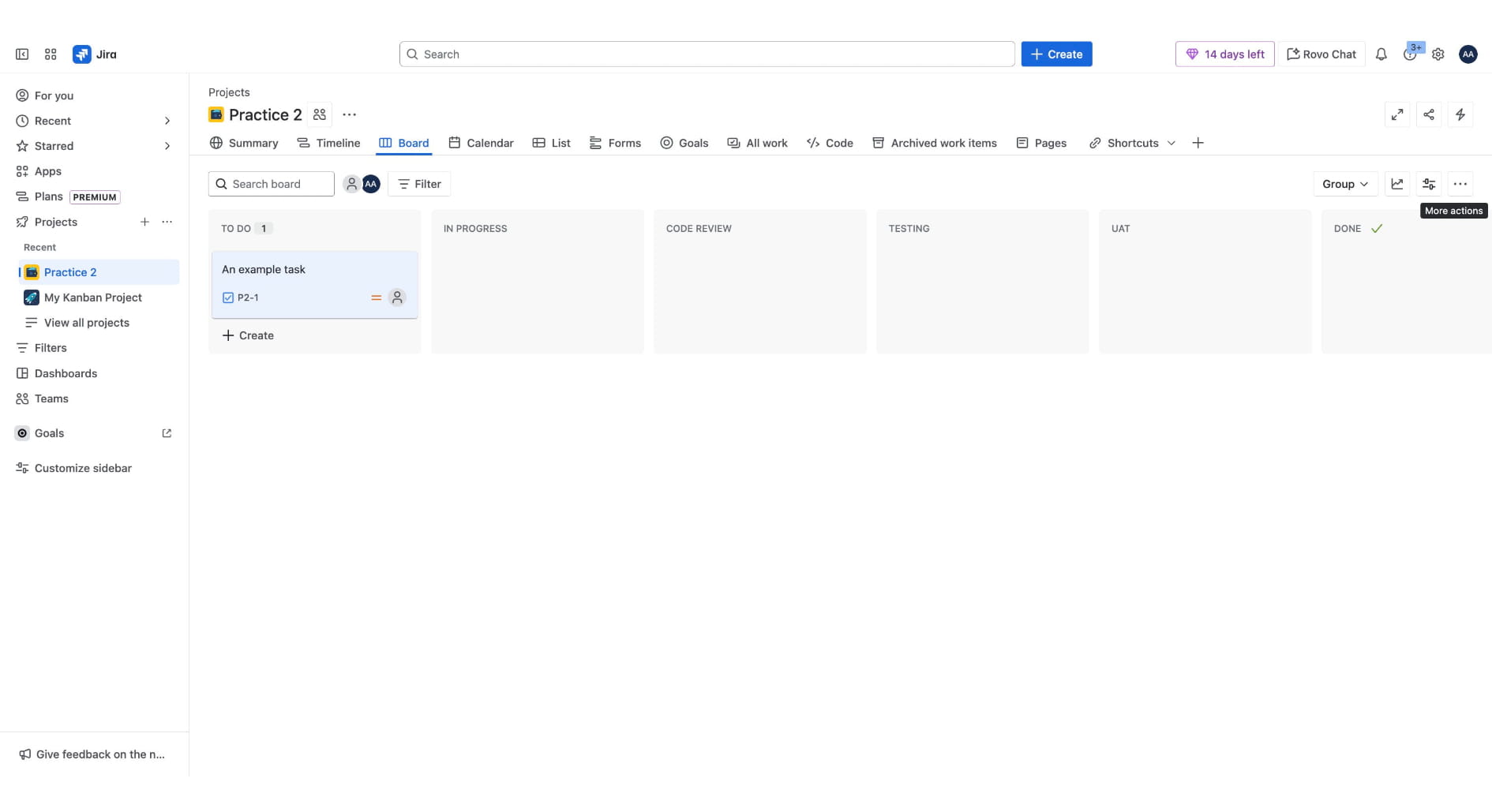
In this guide, we will work you through how to configure Jira workflows to enforce data validation during transitions. To begin, Navigate to your Jira instance and go to your List of Projects and select a project you want to use. In your project, Click on More Actions icon using the board view
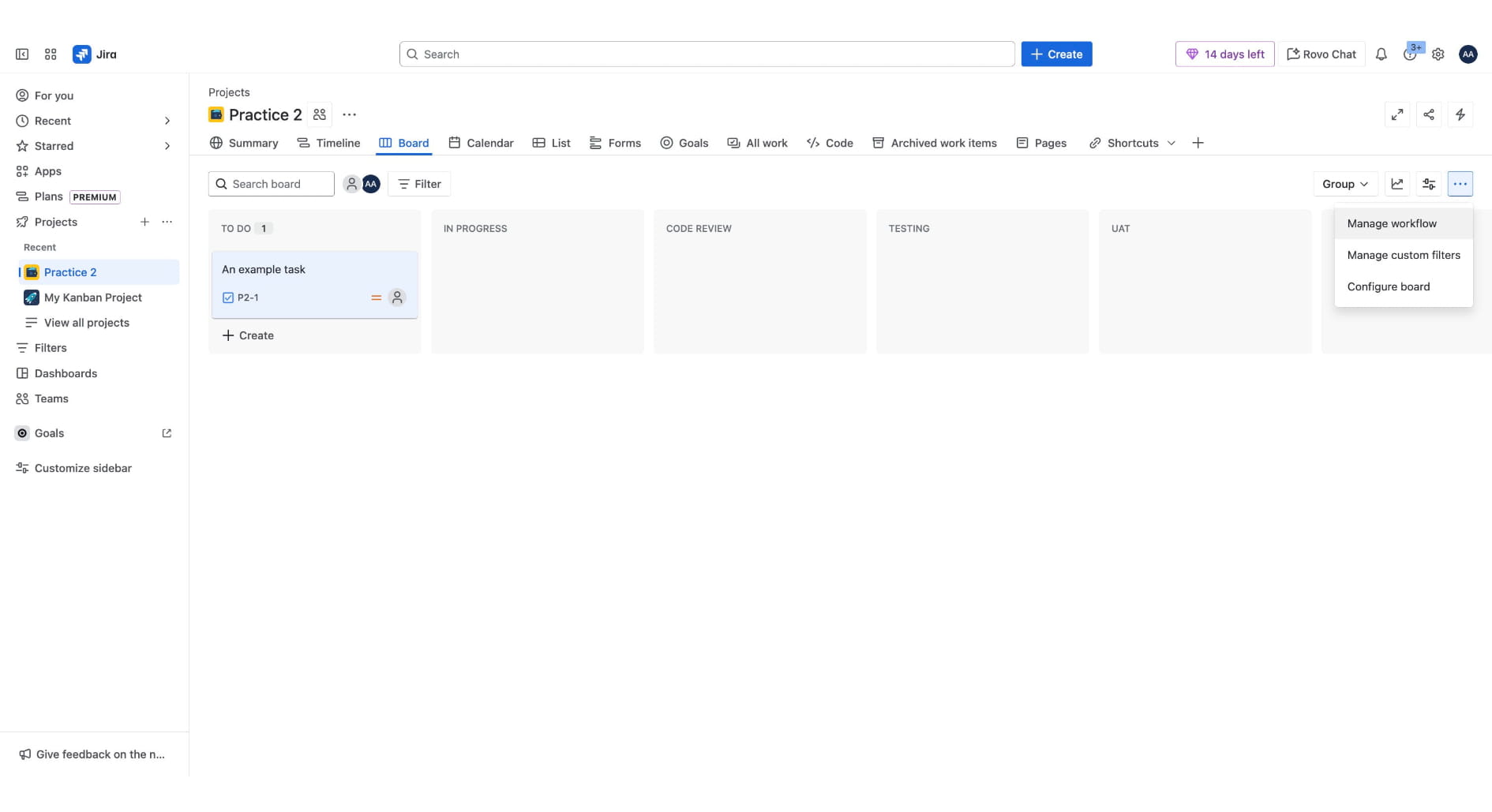
Click on "Manage workflow"
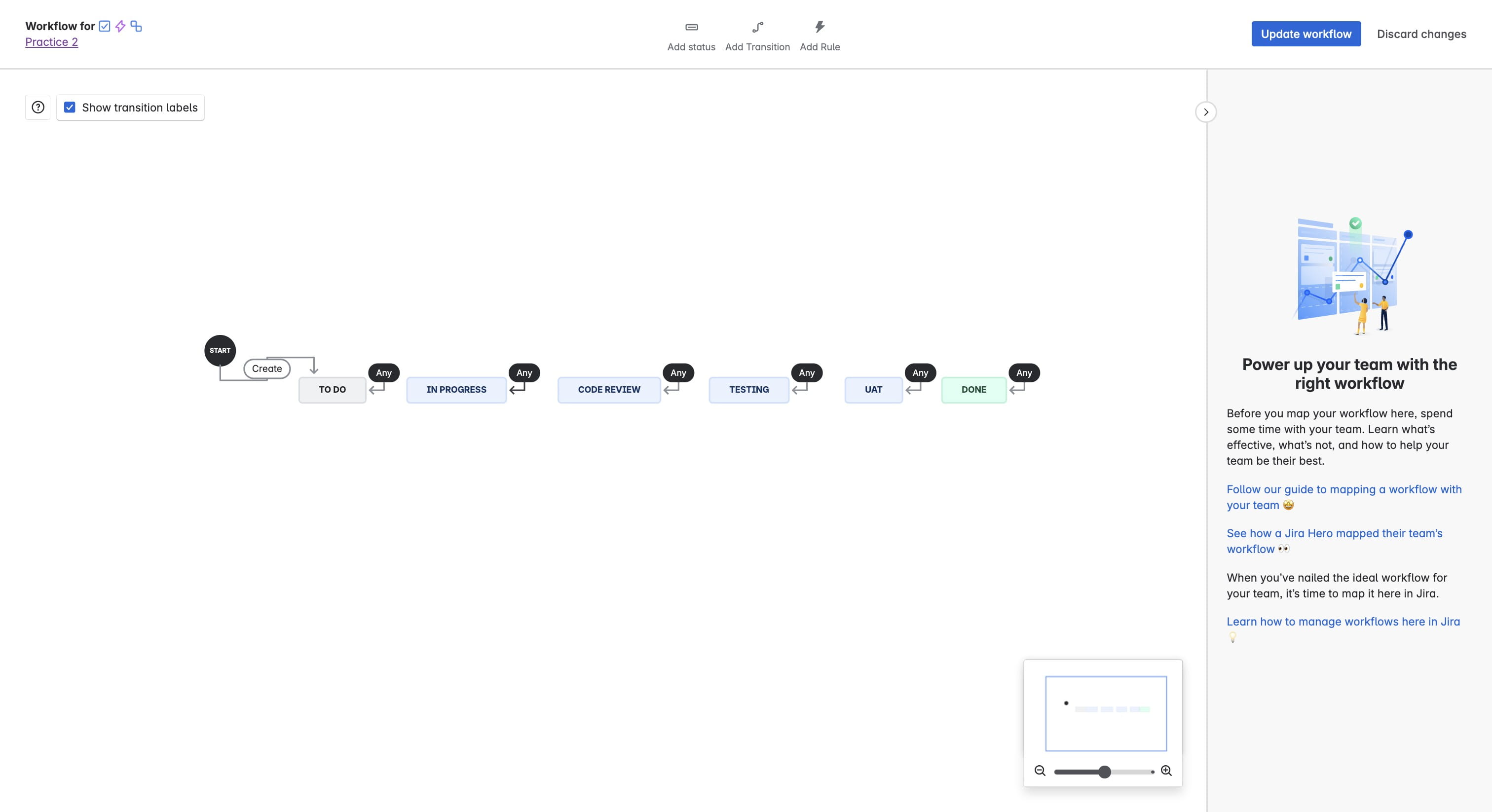
To add the first rule about Story point estimation. Click on the "Any" action above the "In Progress" card
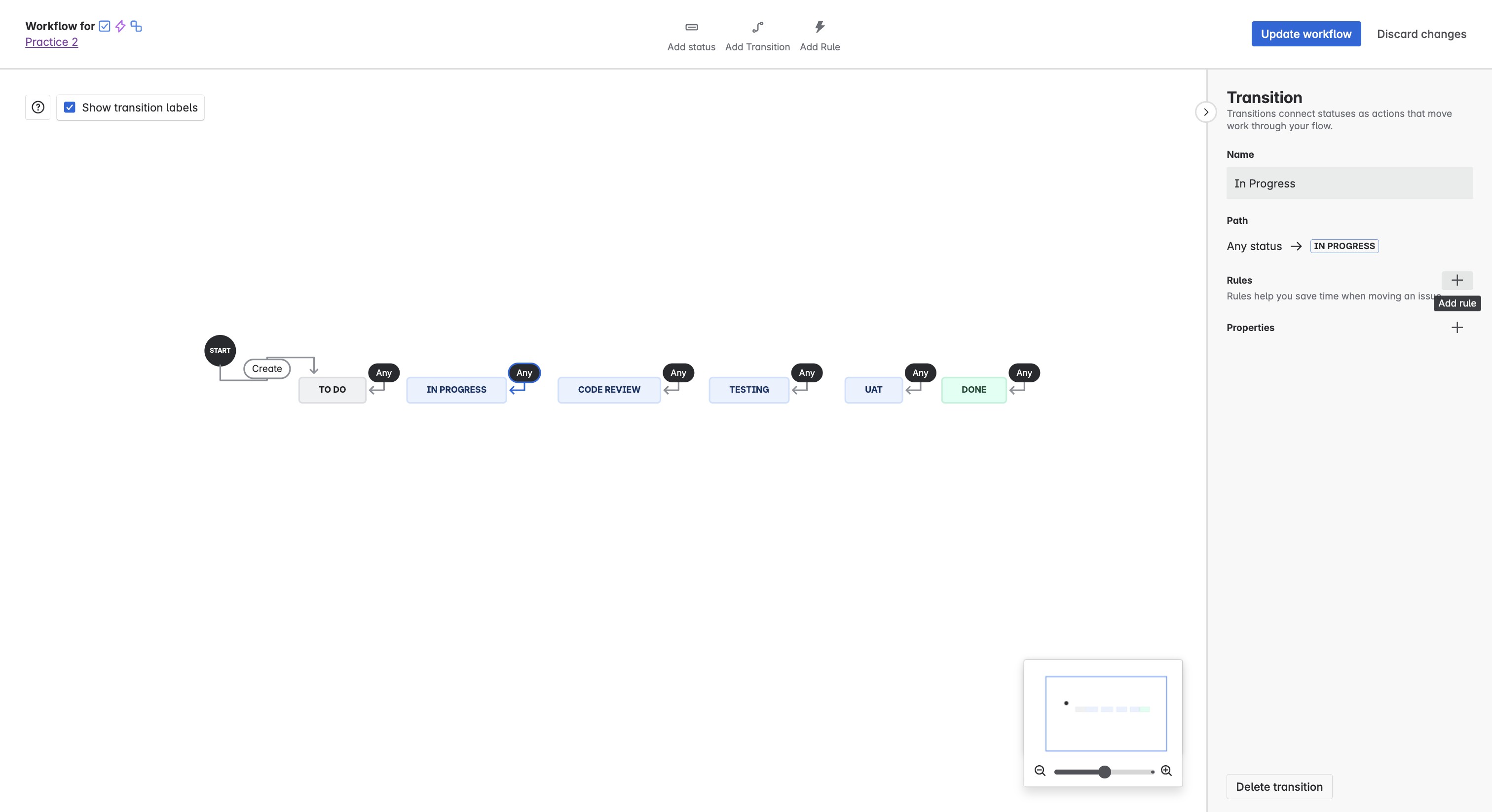
Click on the Add icon near rule
Click on "Validate a field"
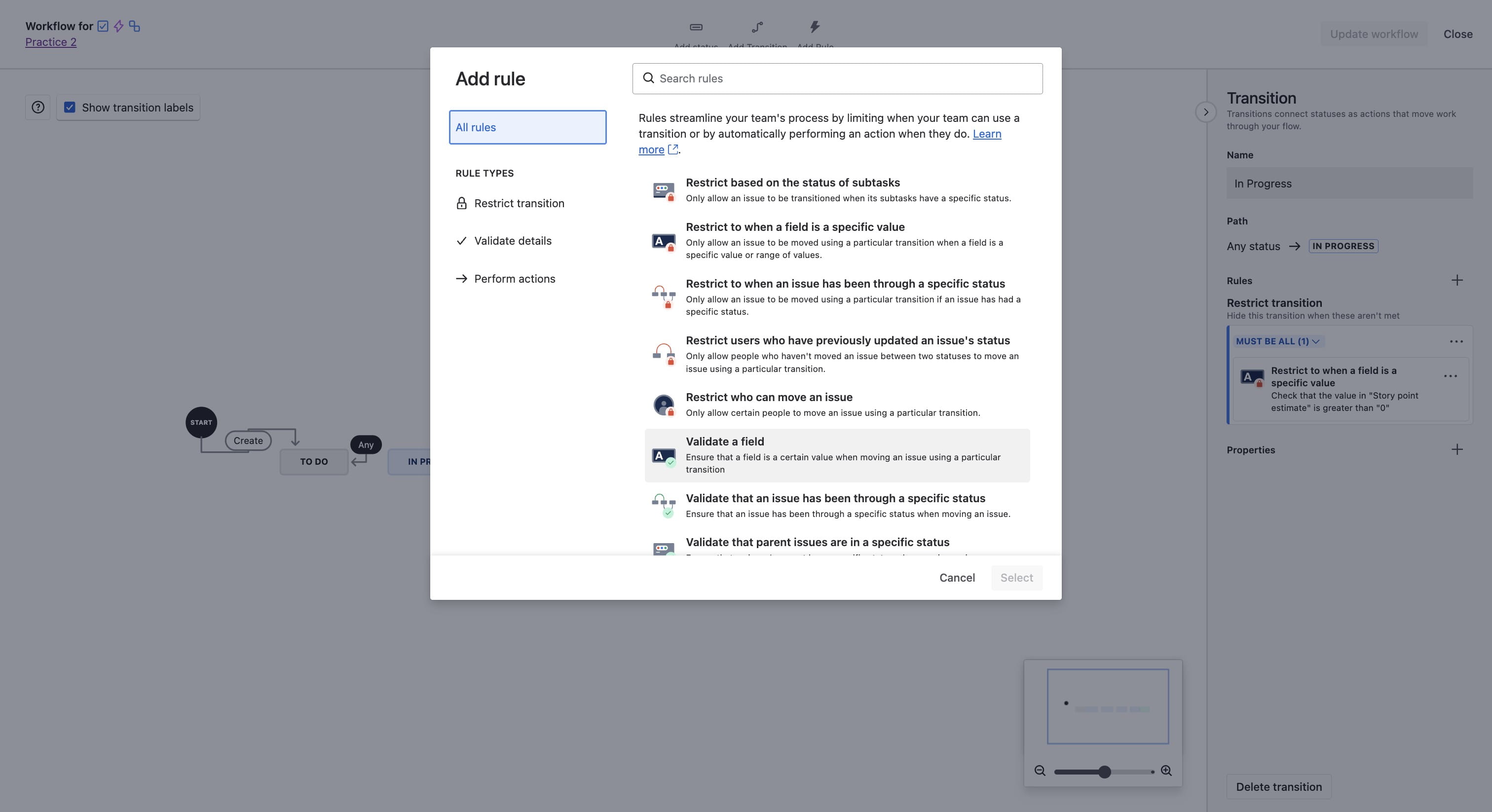
Click on "Select"
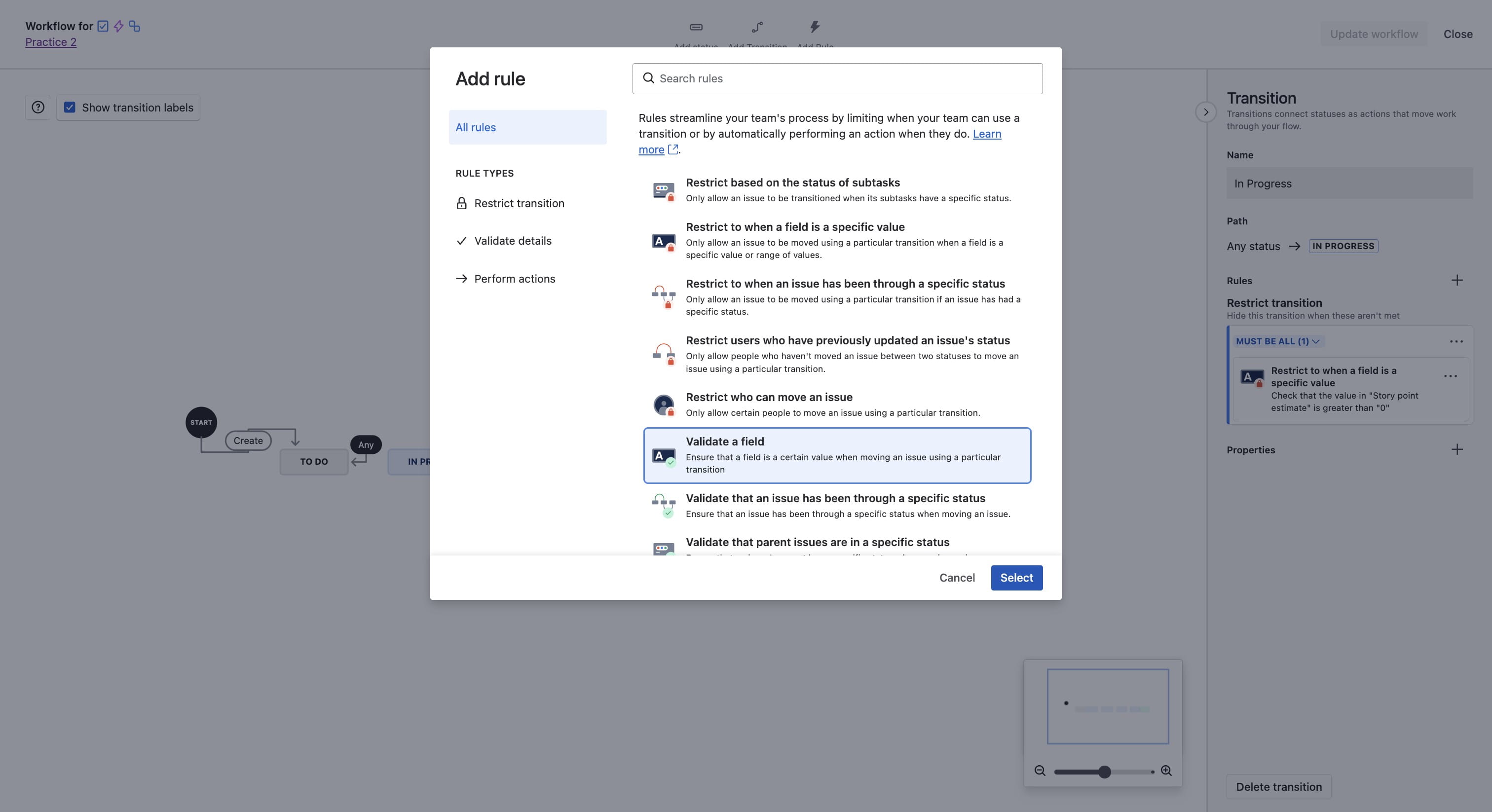
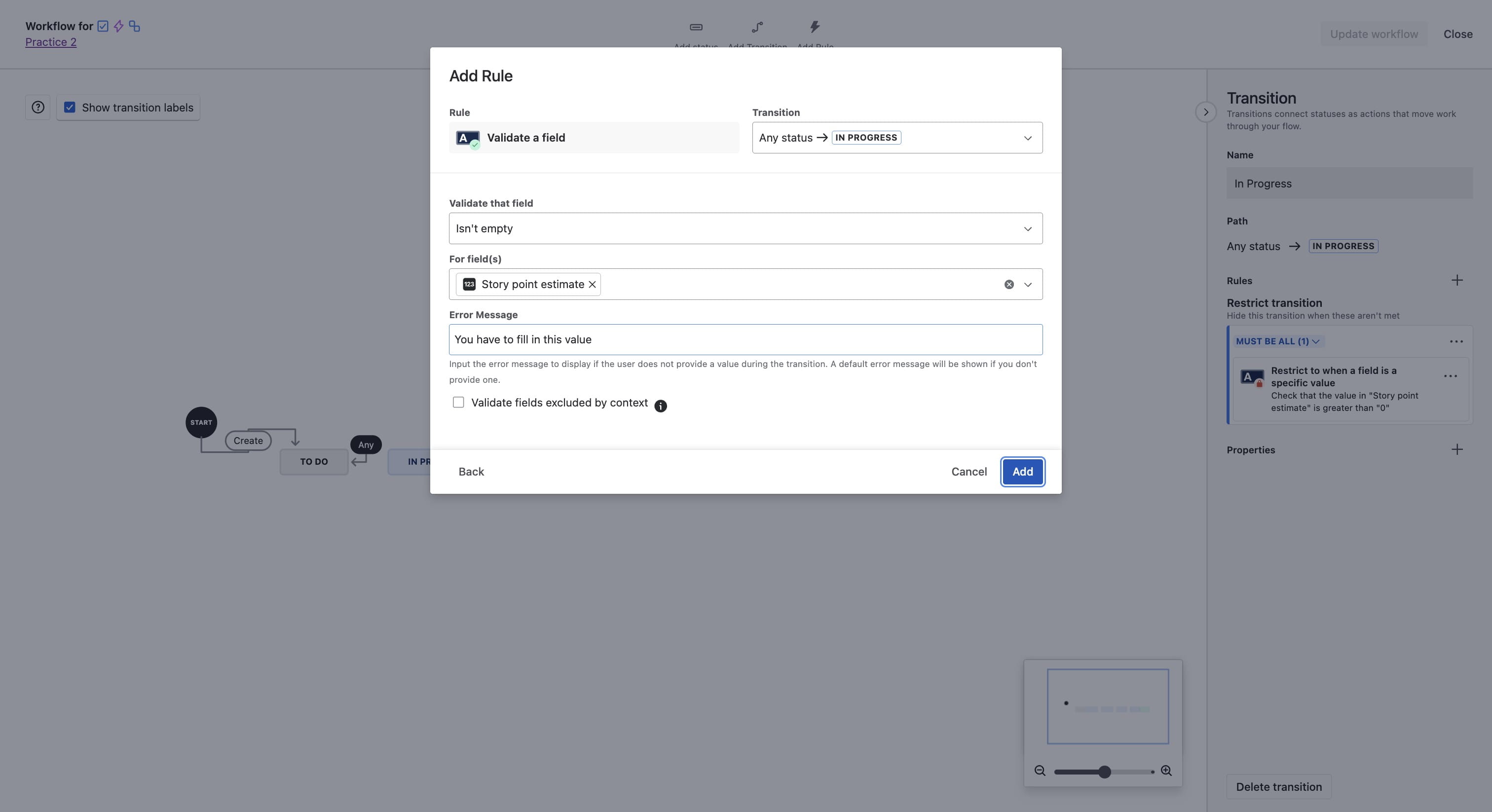
Ensure the transition shows correctly "Any Status -> In Progress"
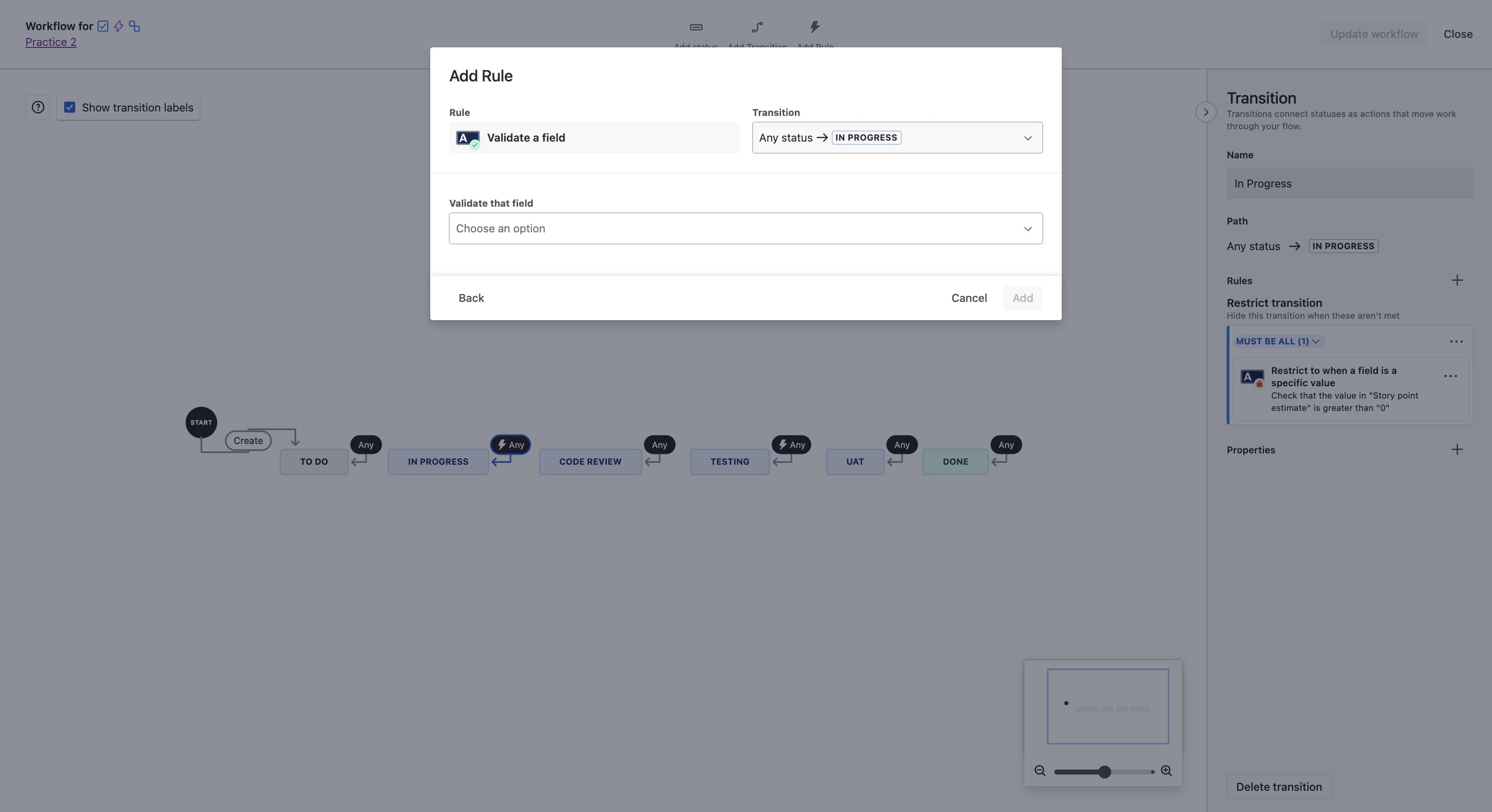
Click on Validate that field and select "Isn't Empty"
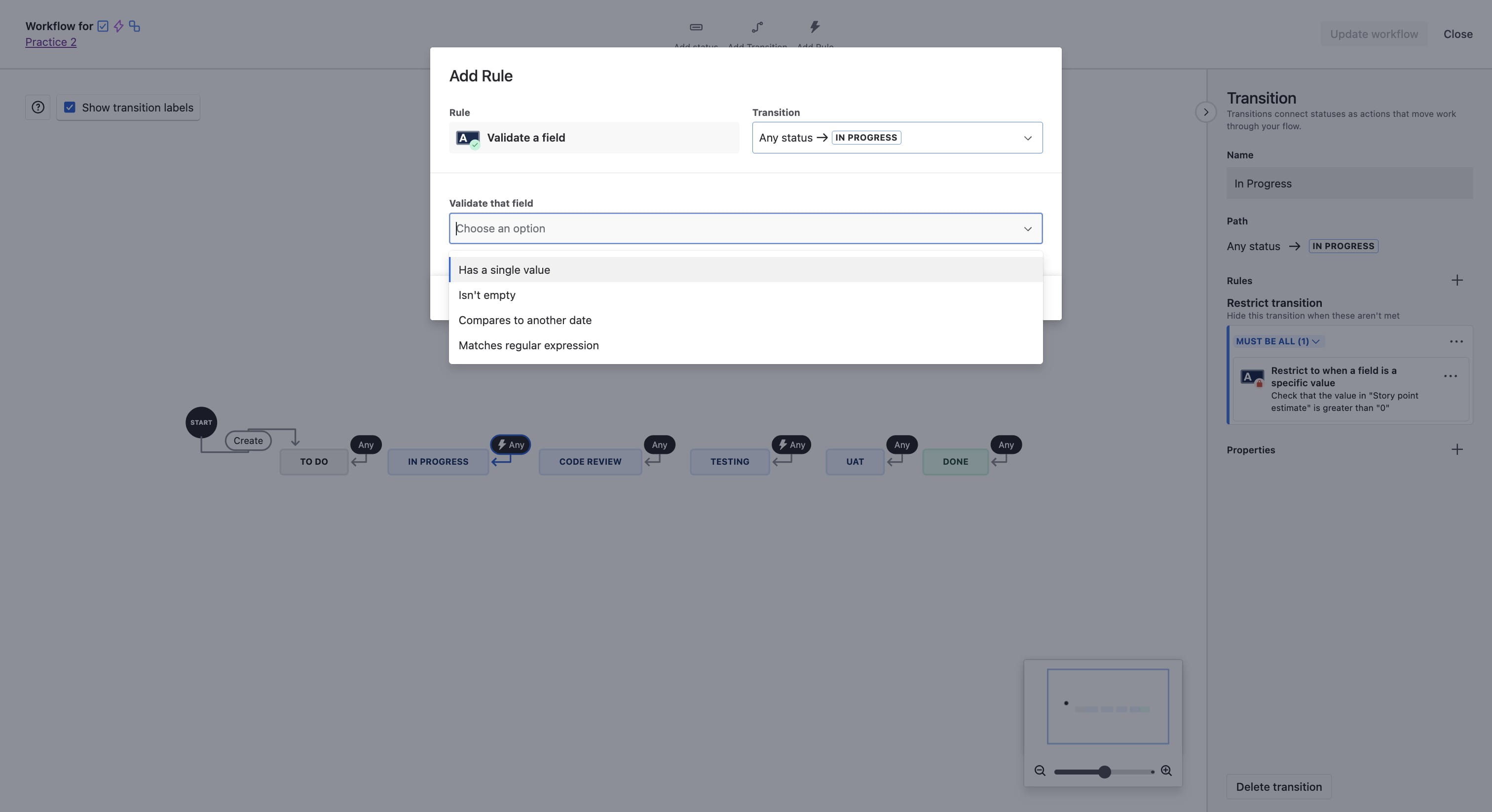
Click on "Isn't empty"
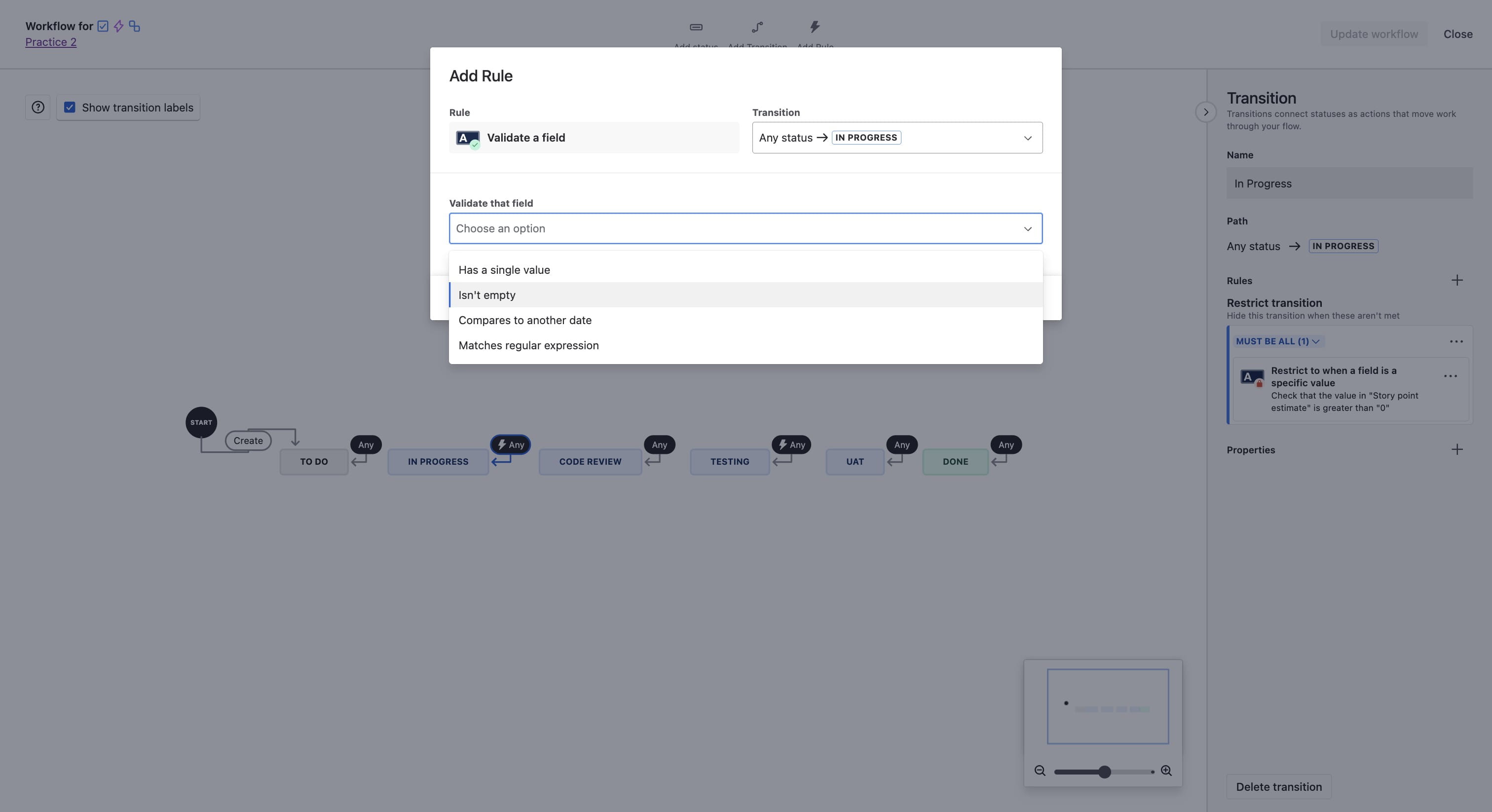
Click on "For field"
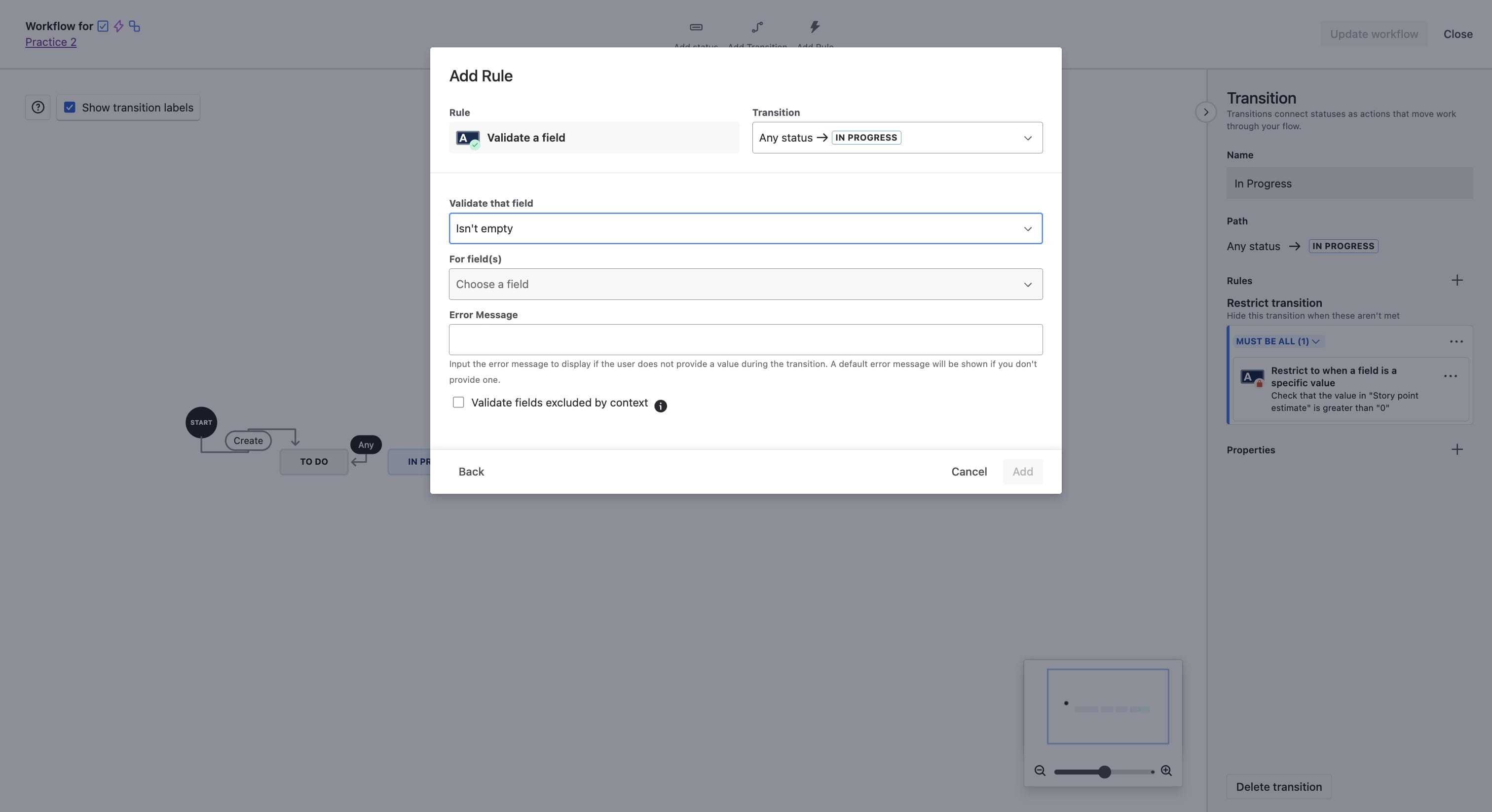
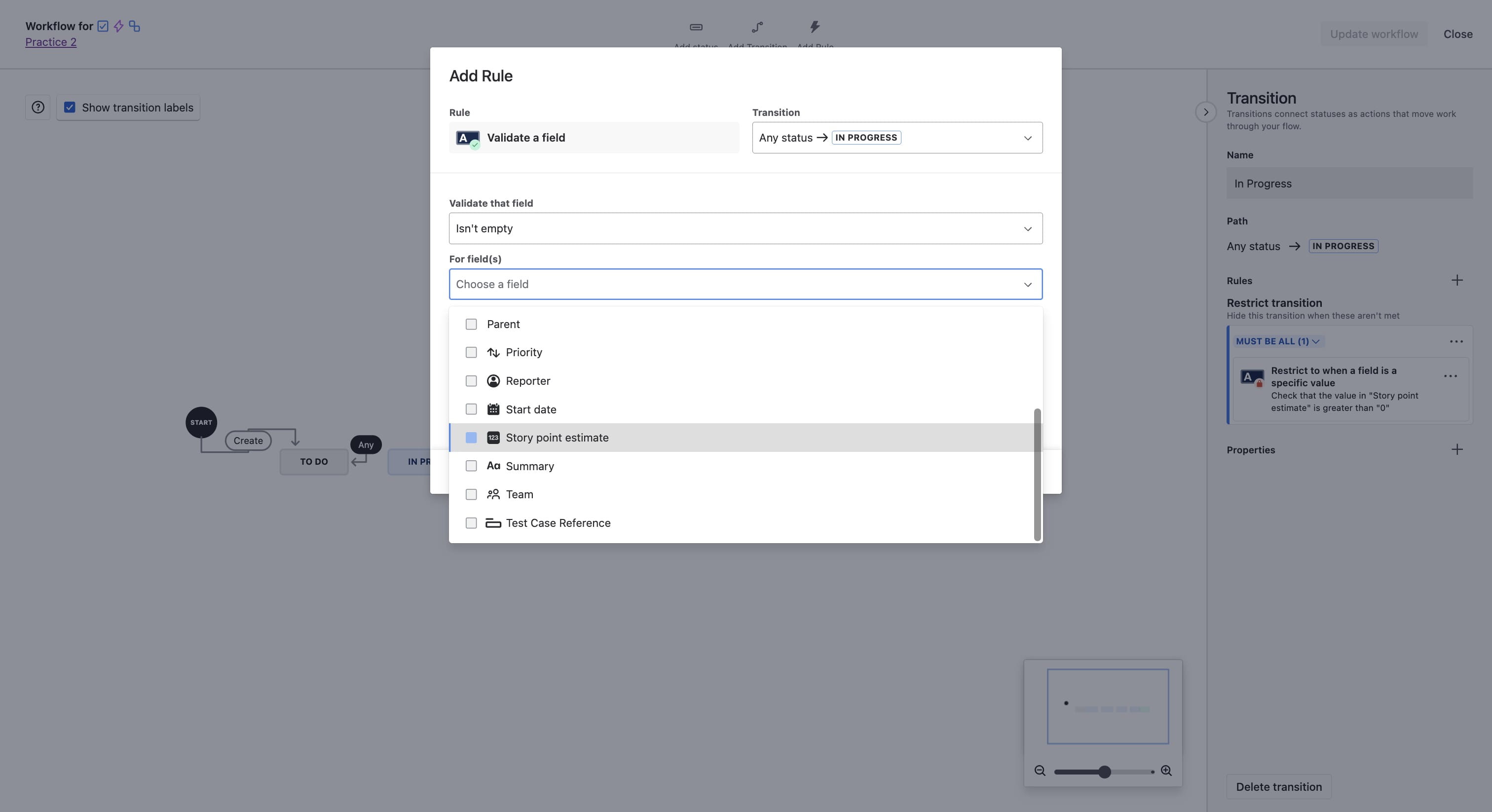
Choose the story point estimate field
Enter an error message in the text field
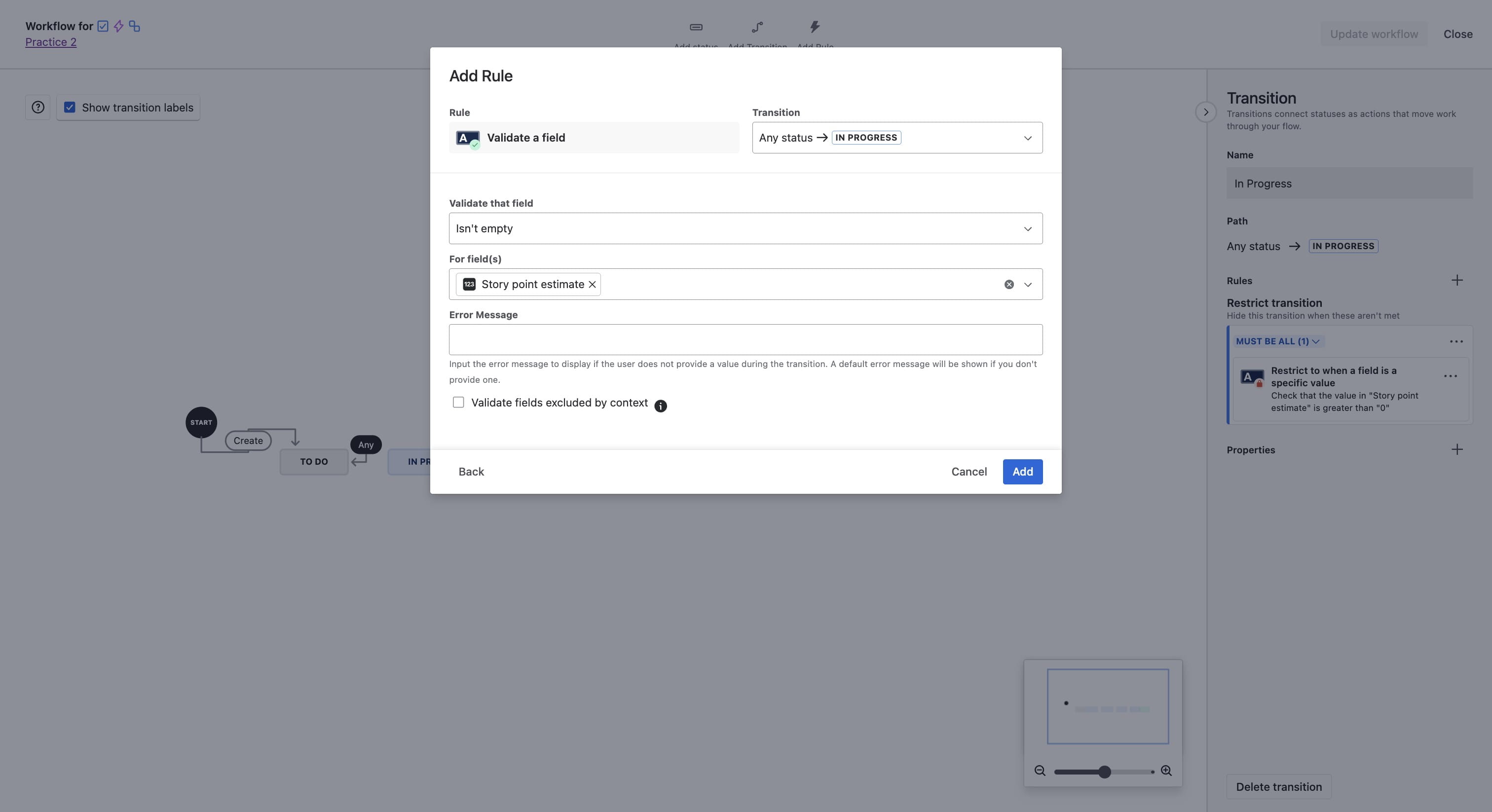
Click on "Add"
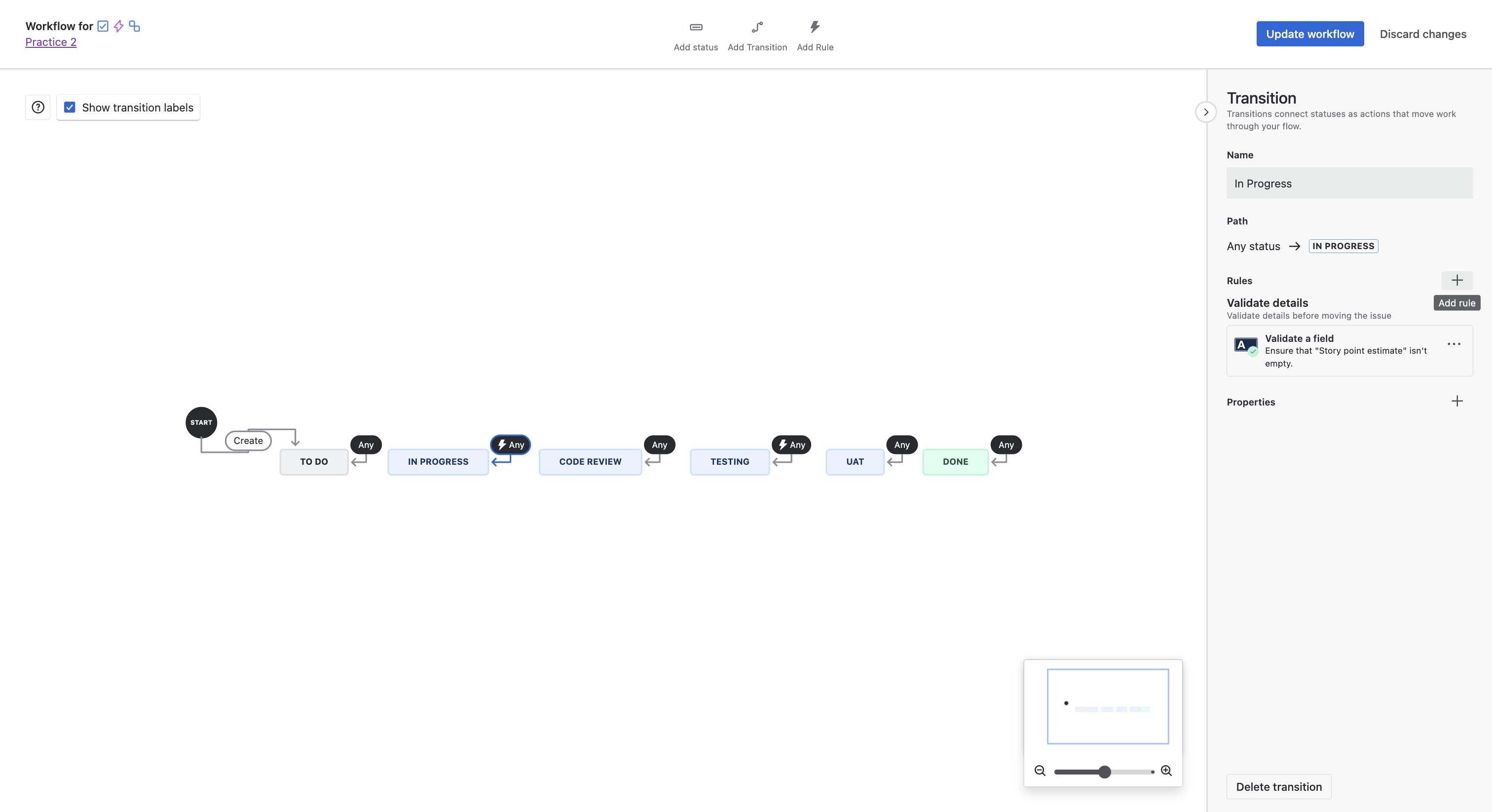
You should see the details in the right section
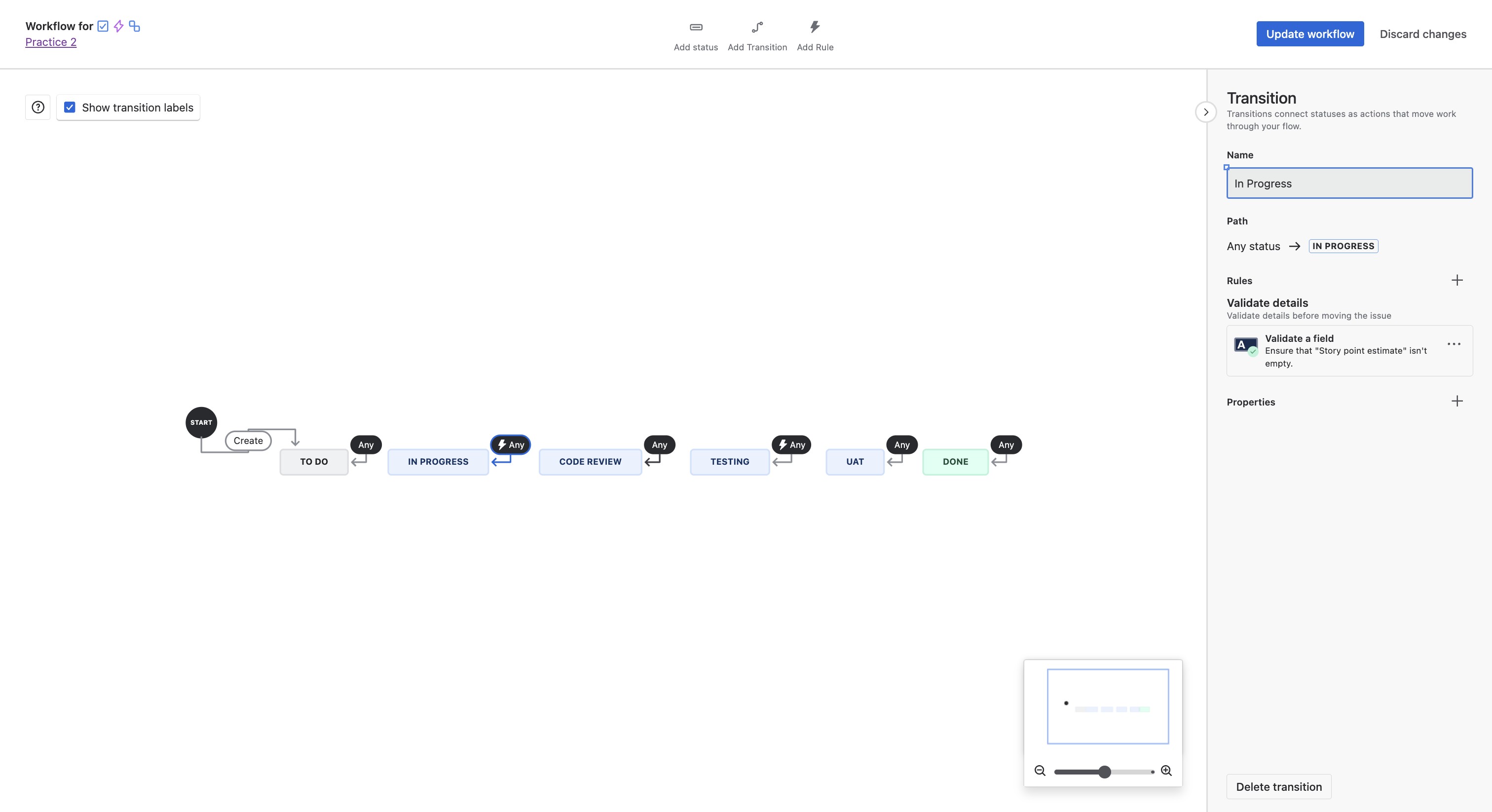
To apply similar rule on Developer Notes, Click on "Any" on Code Review
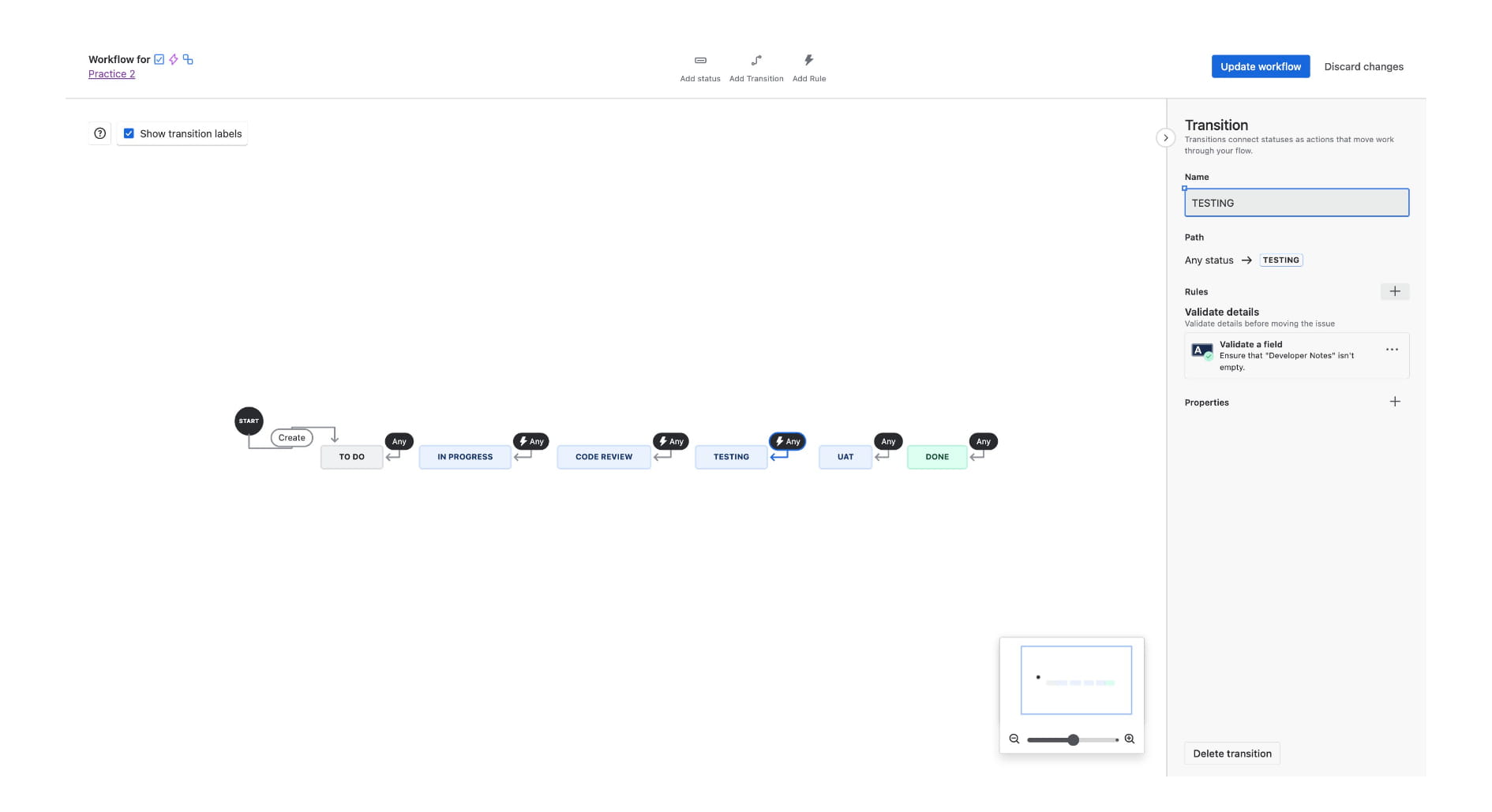
Add a similar rule to the Testing lane using the "Developer Notes" field
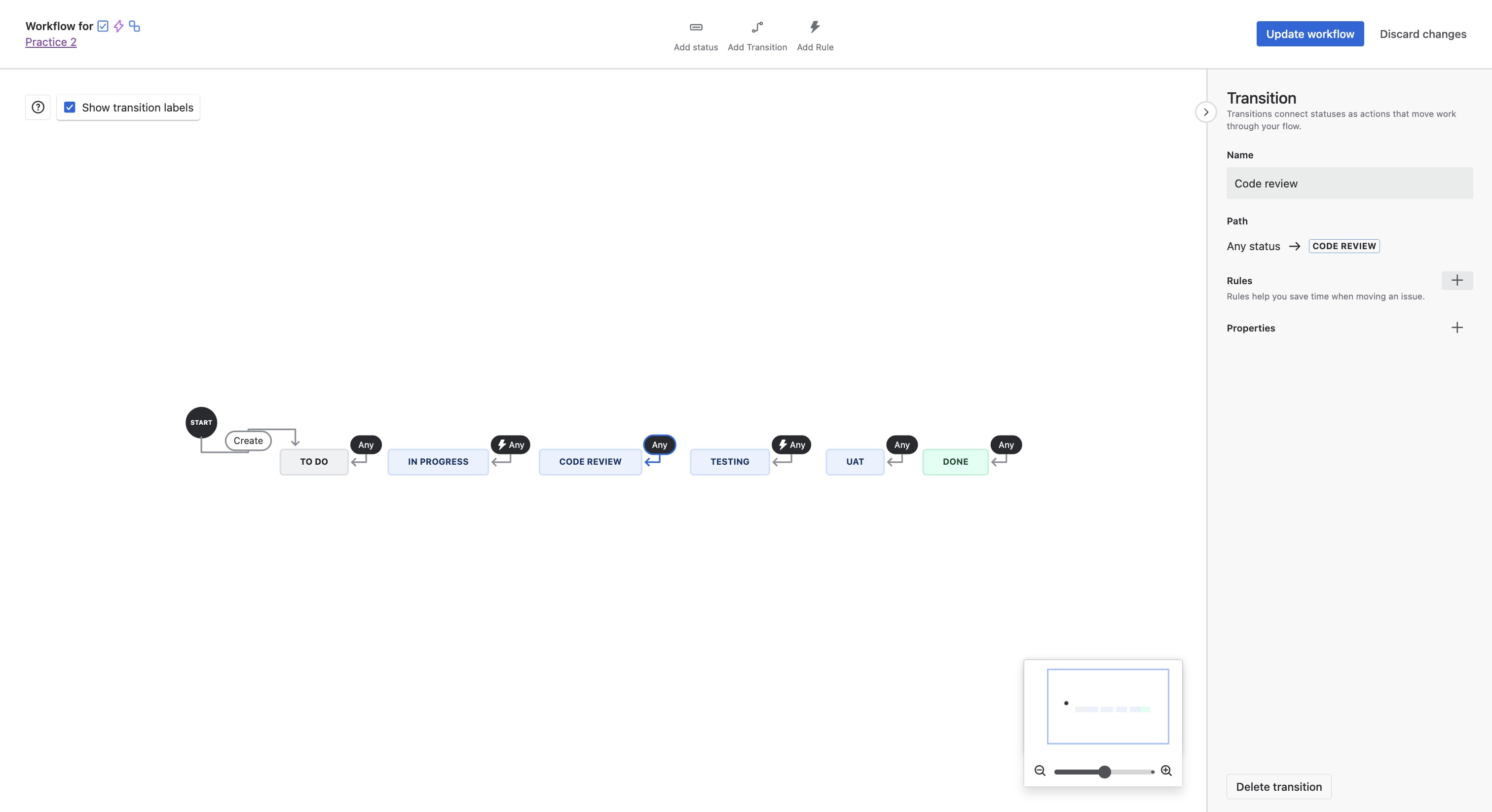
Click on the Add button near Rule
Click on "Validate a field"
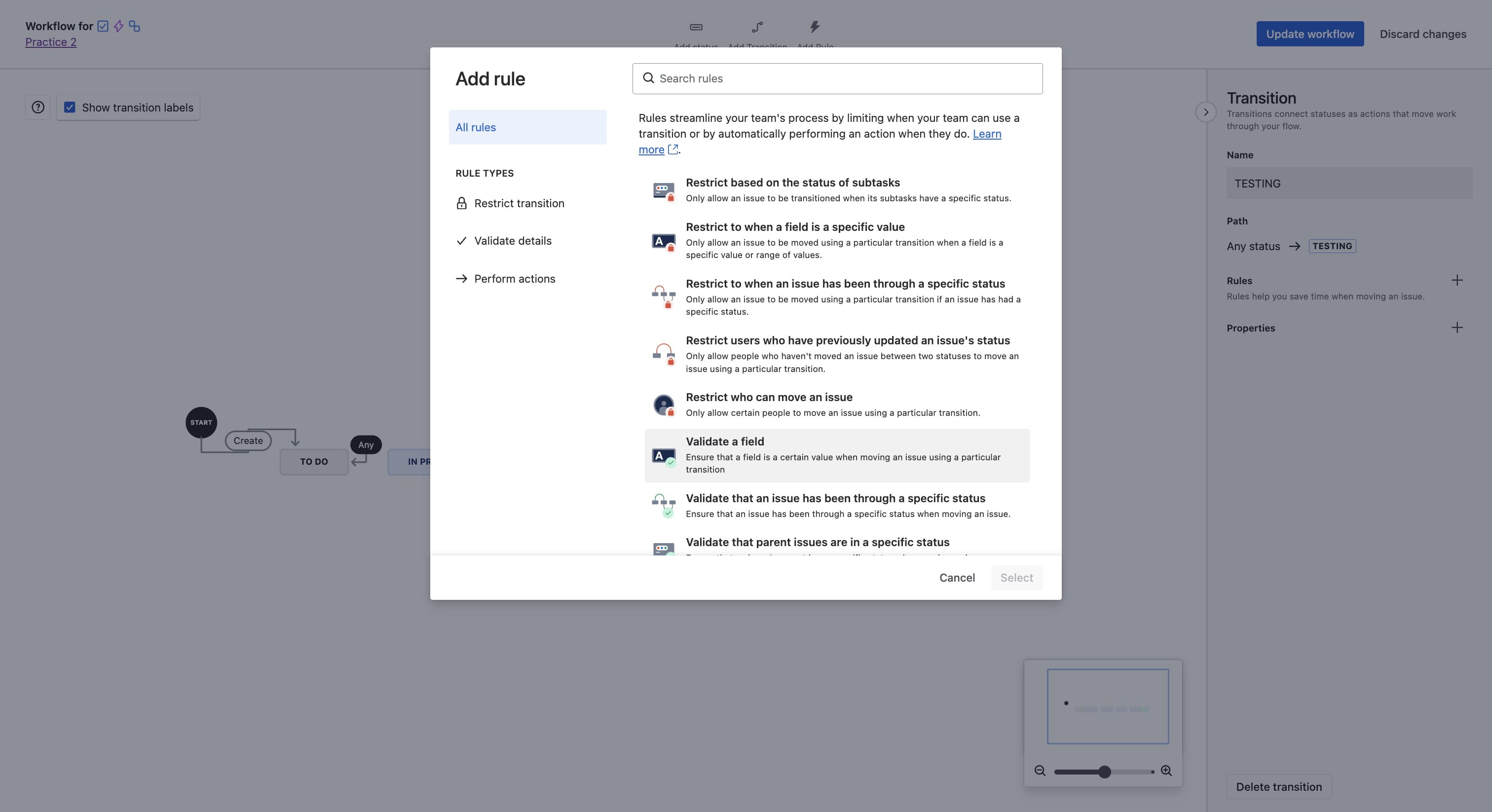
Click on "Select"
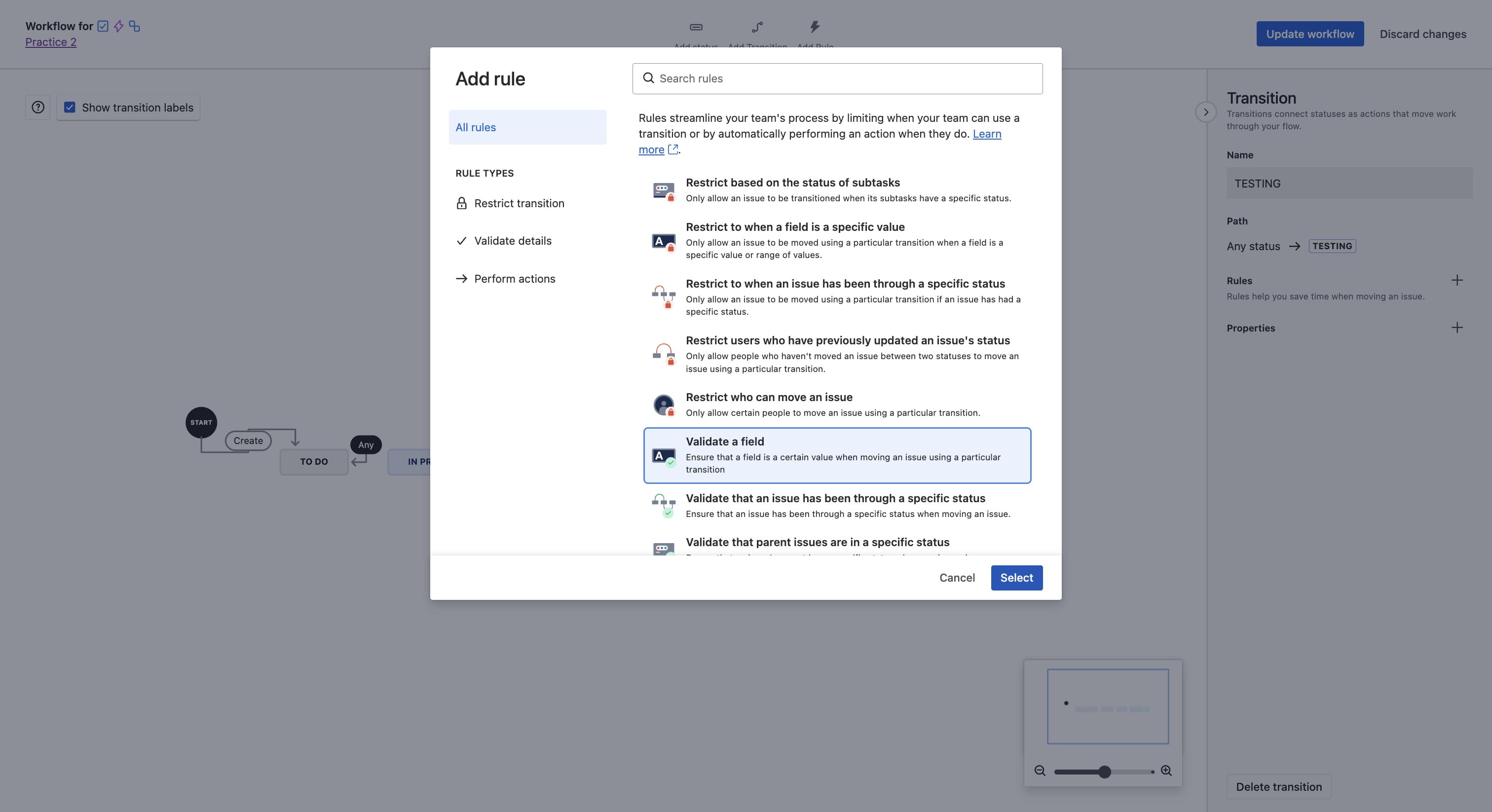
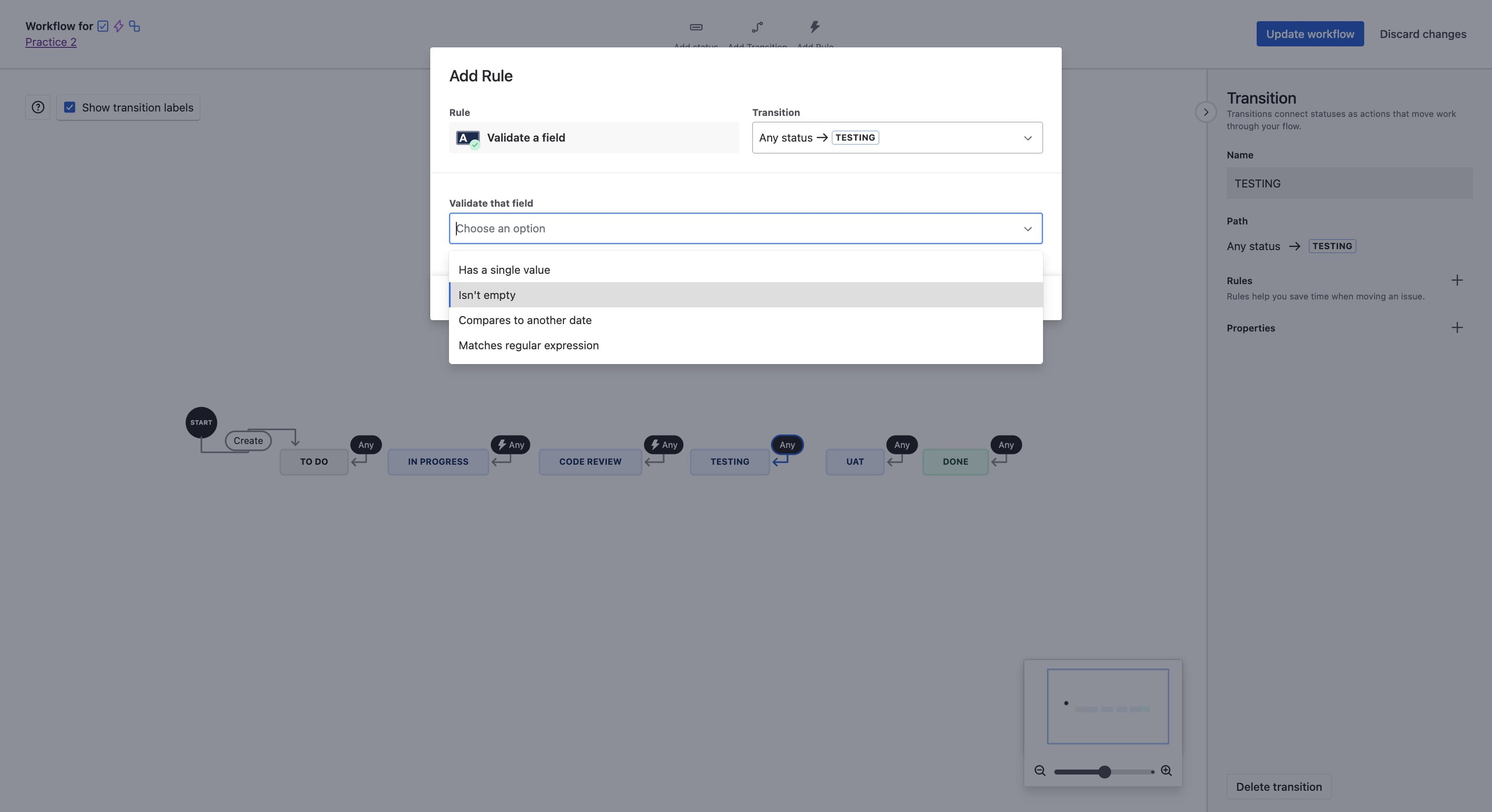
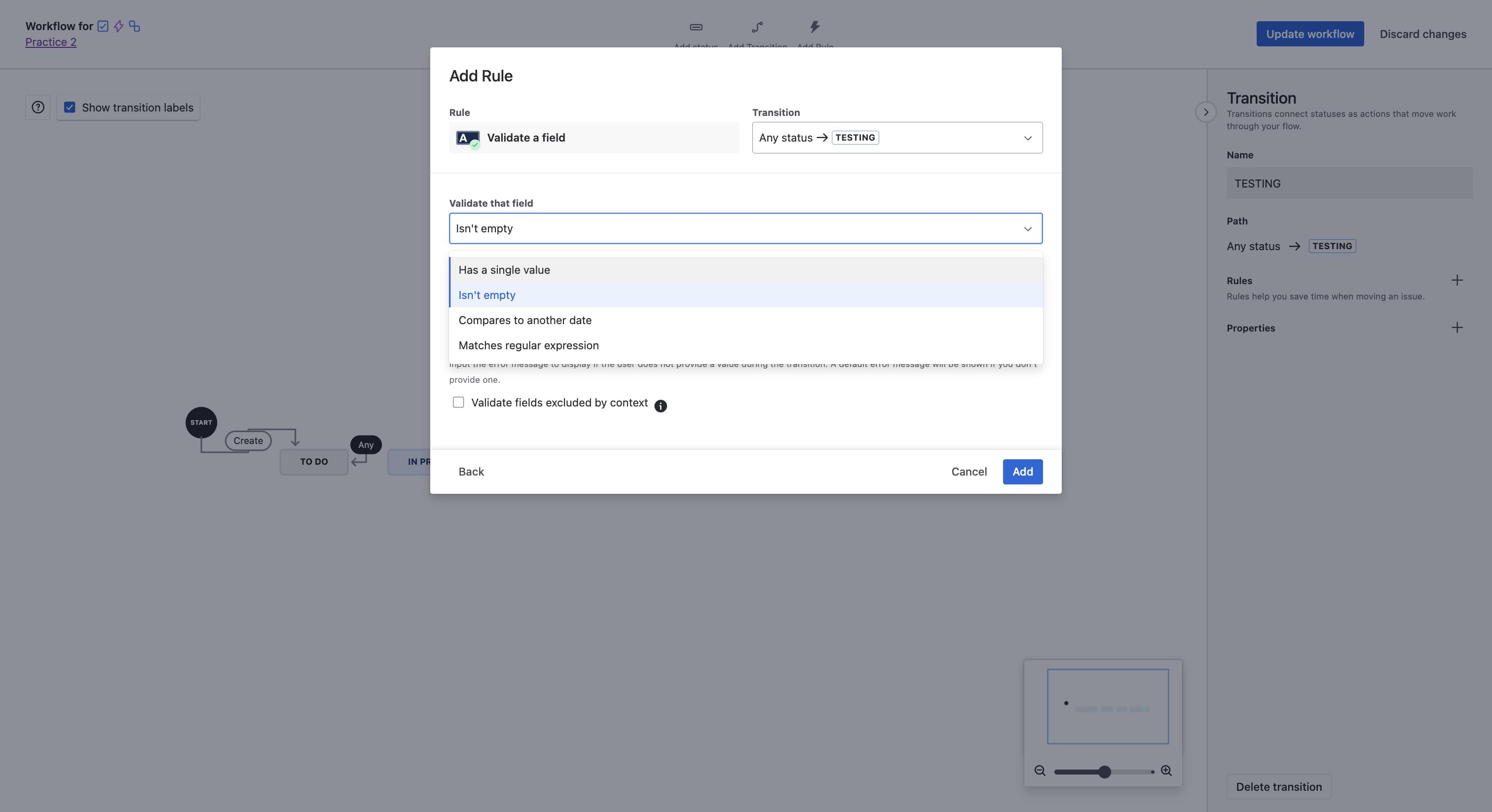
In Validate that field, Select Isn't Empty
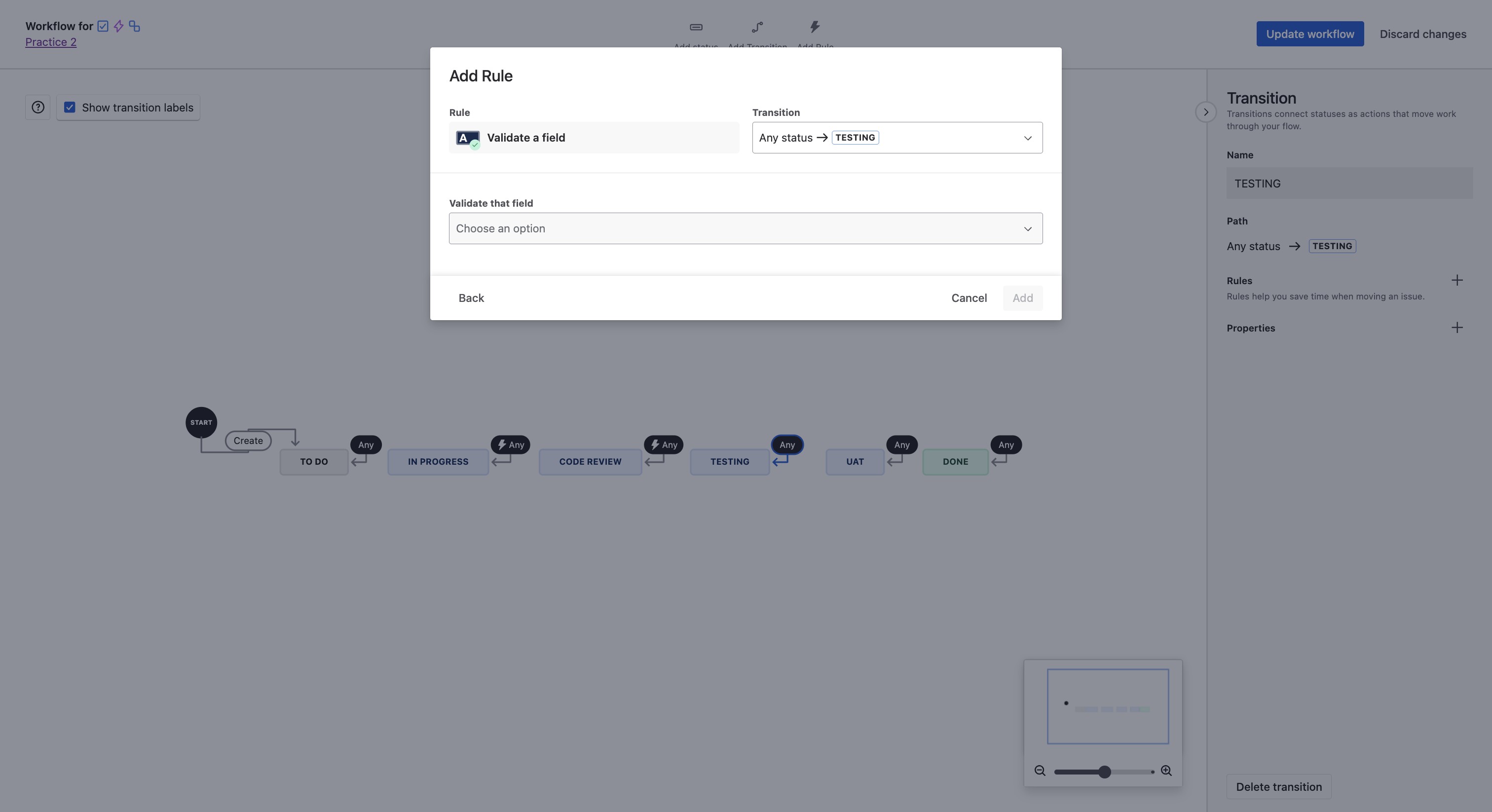
Click on "Isn't empty"
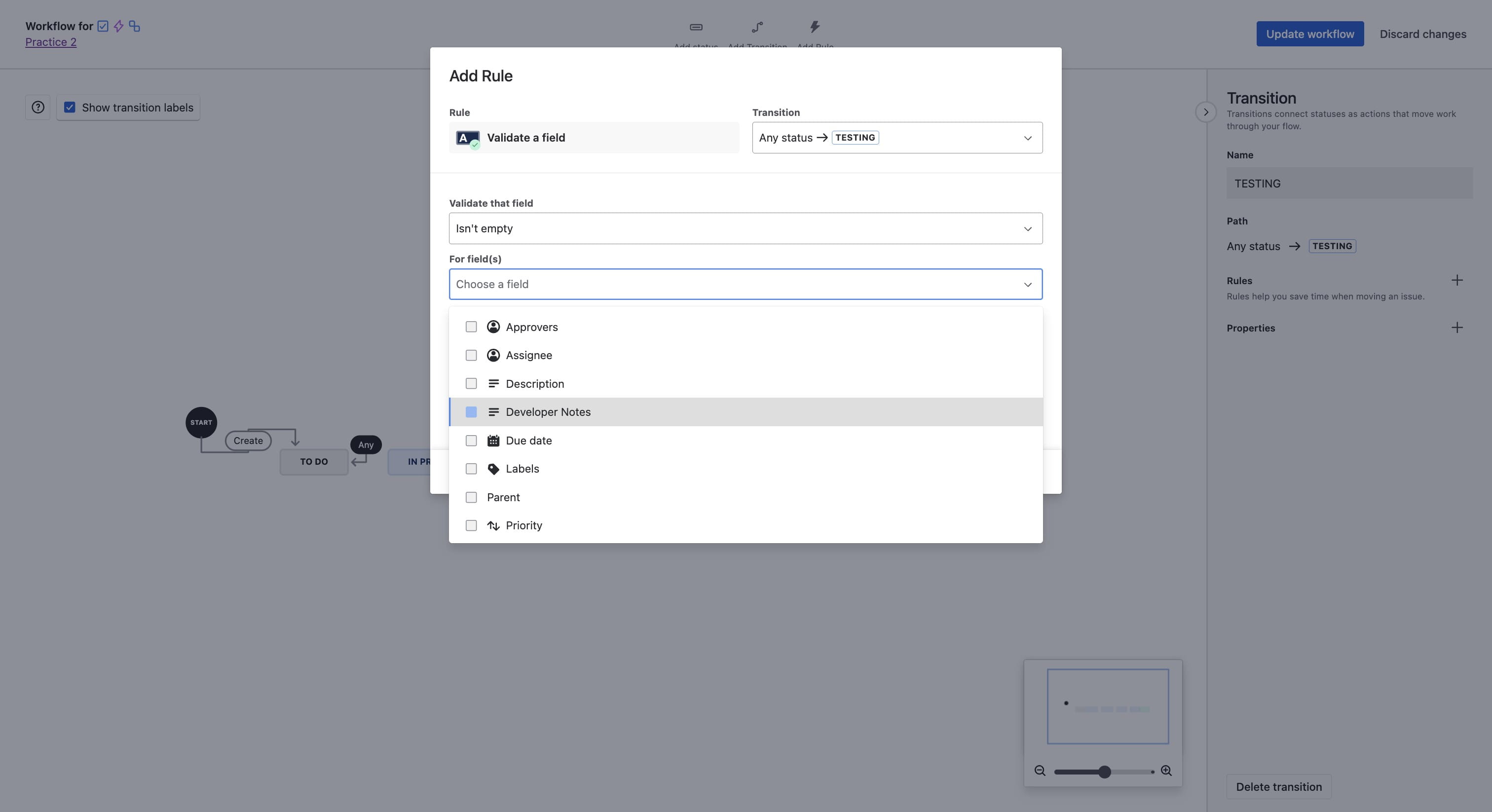
Click on "Choose a field"
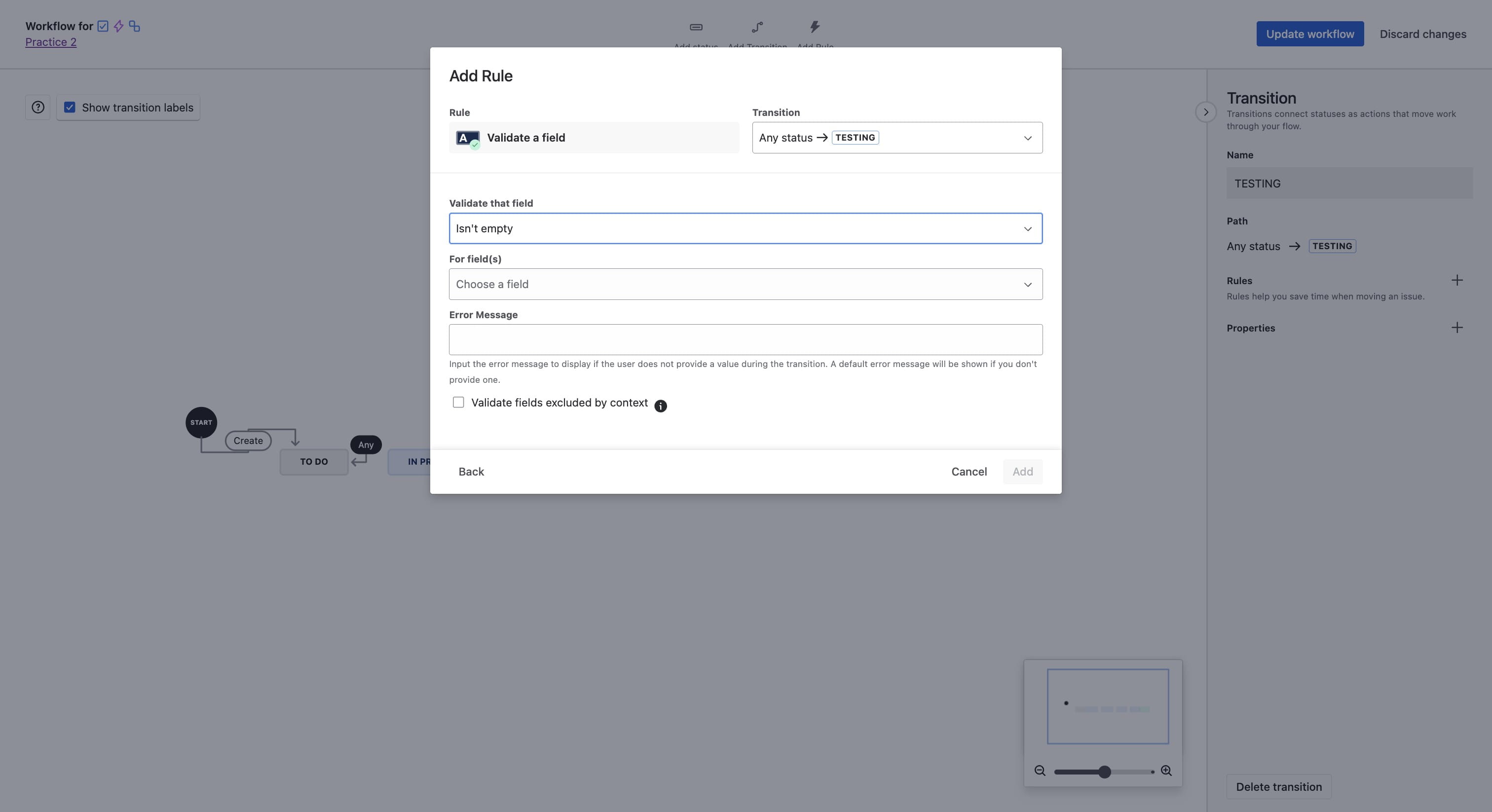
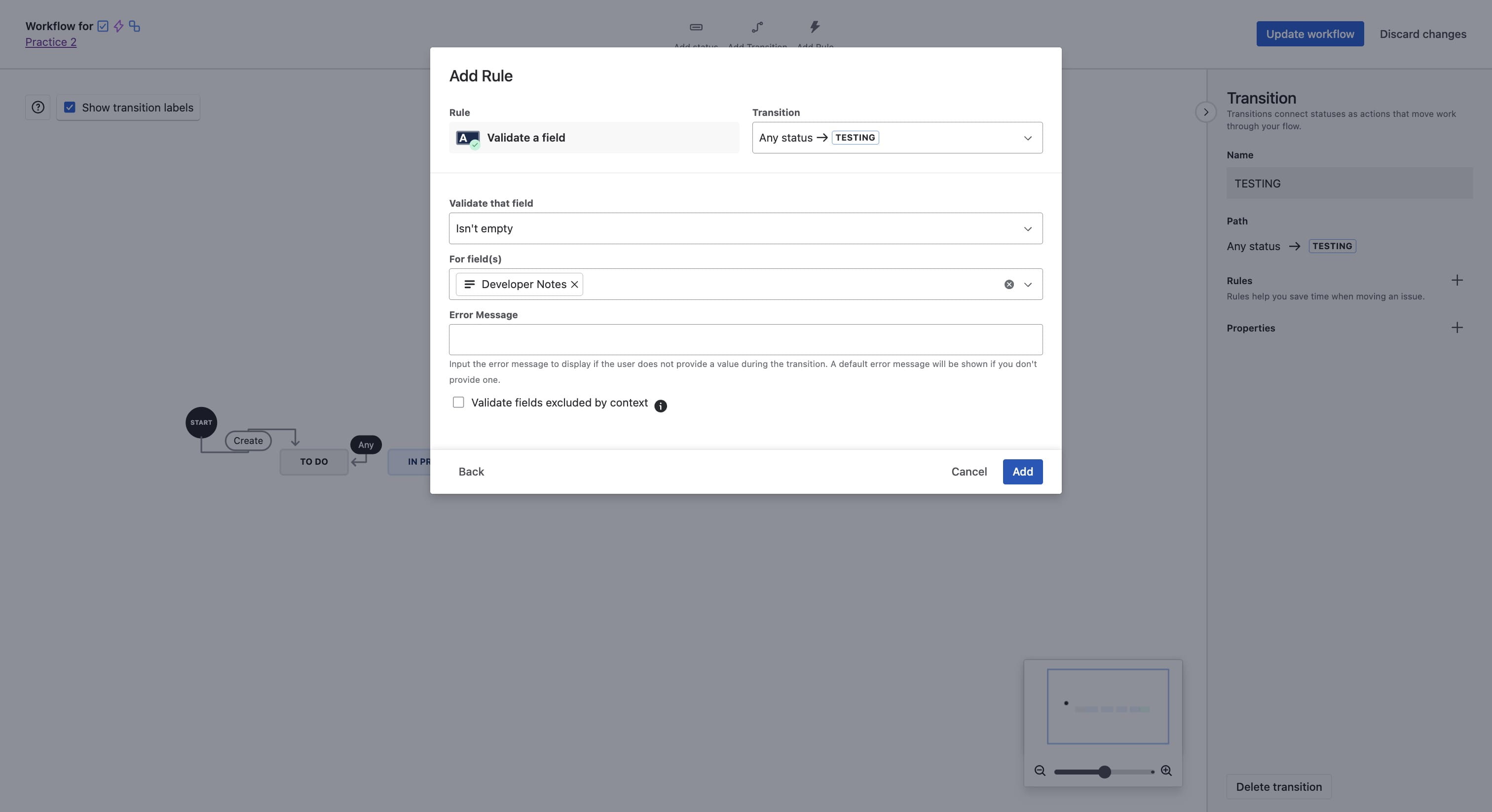
Select Developers Notes field
Click on "Validate that field"
Click on "Add"
Click on the update workflow to save
On the Project Page, you should be able to test your workflow as shown below
Add data in those fields and the transition should pass