Clickup - Create and Use Templates
This guide explains how to create and utilize templates within ClickUp to streamline your workflow. By creating templates, you can quickly replicate spaces with pre-configured settings, tasks, and views, saving time and ensuring consistency across your projects.
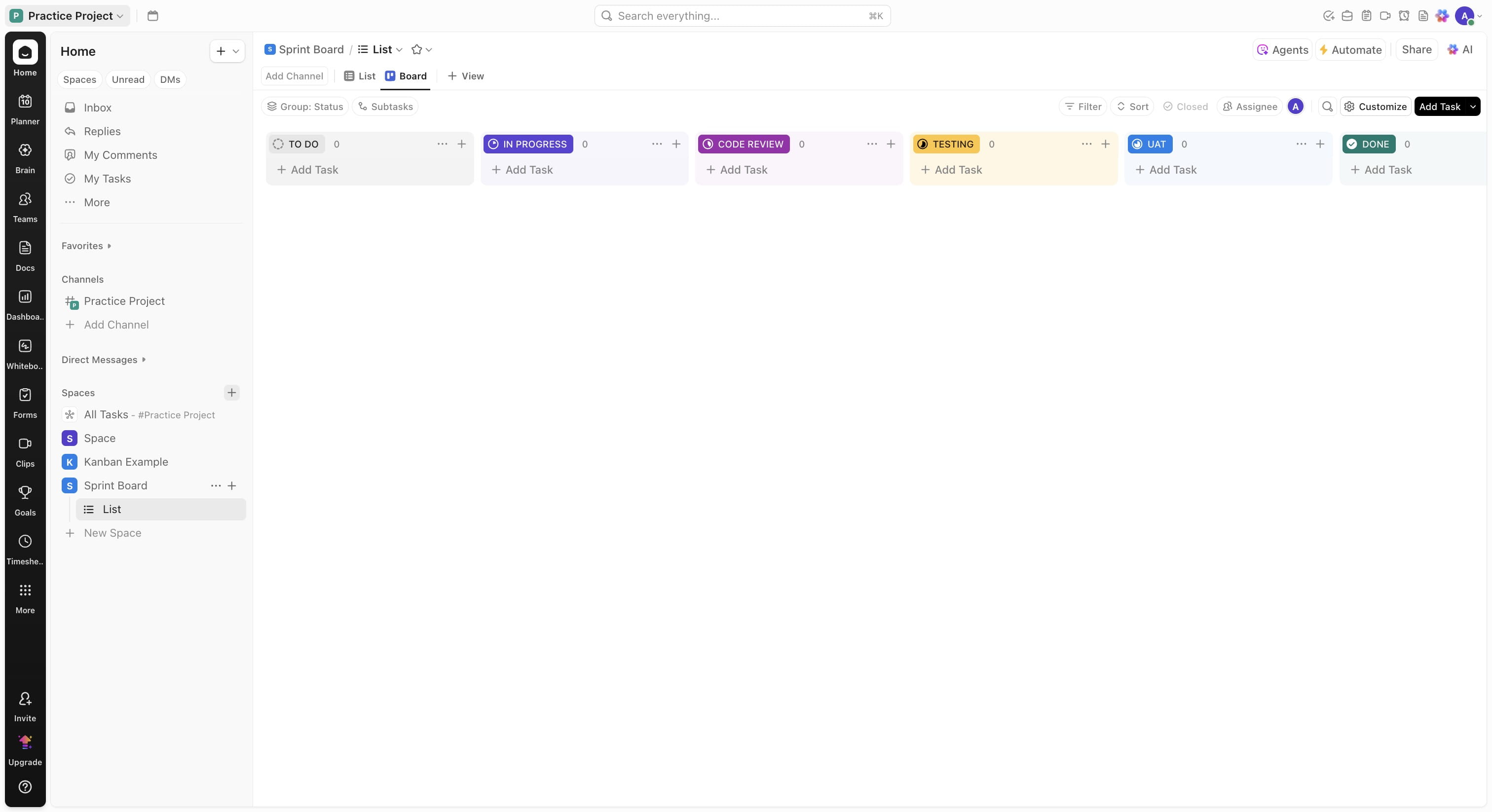
In your Clickup space, click on the menu near your space name
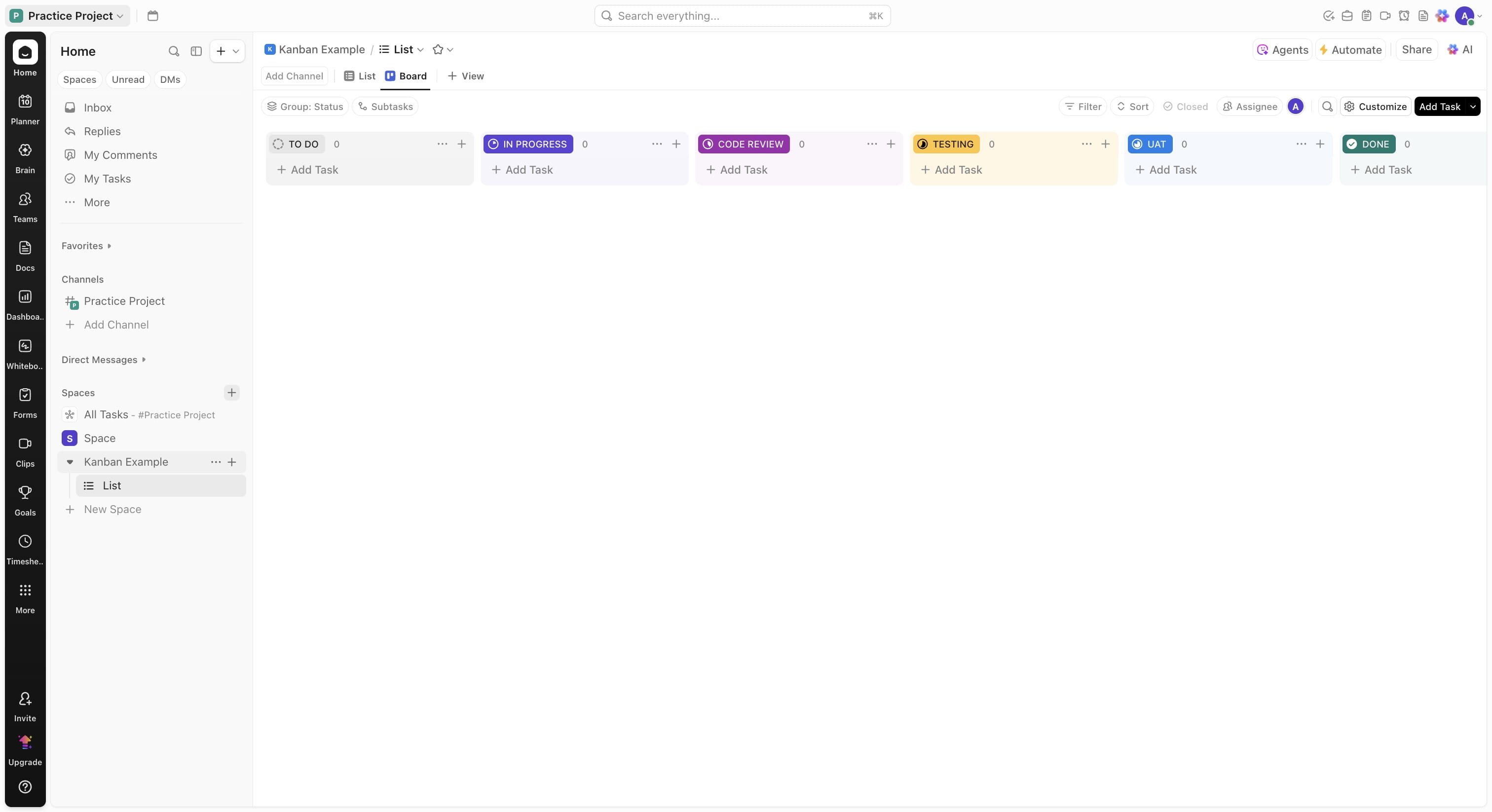
Click on "Templates"
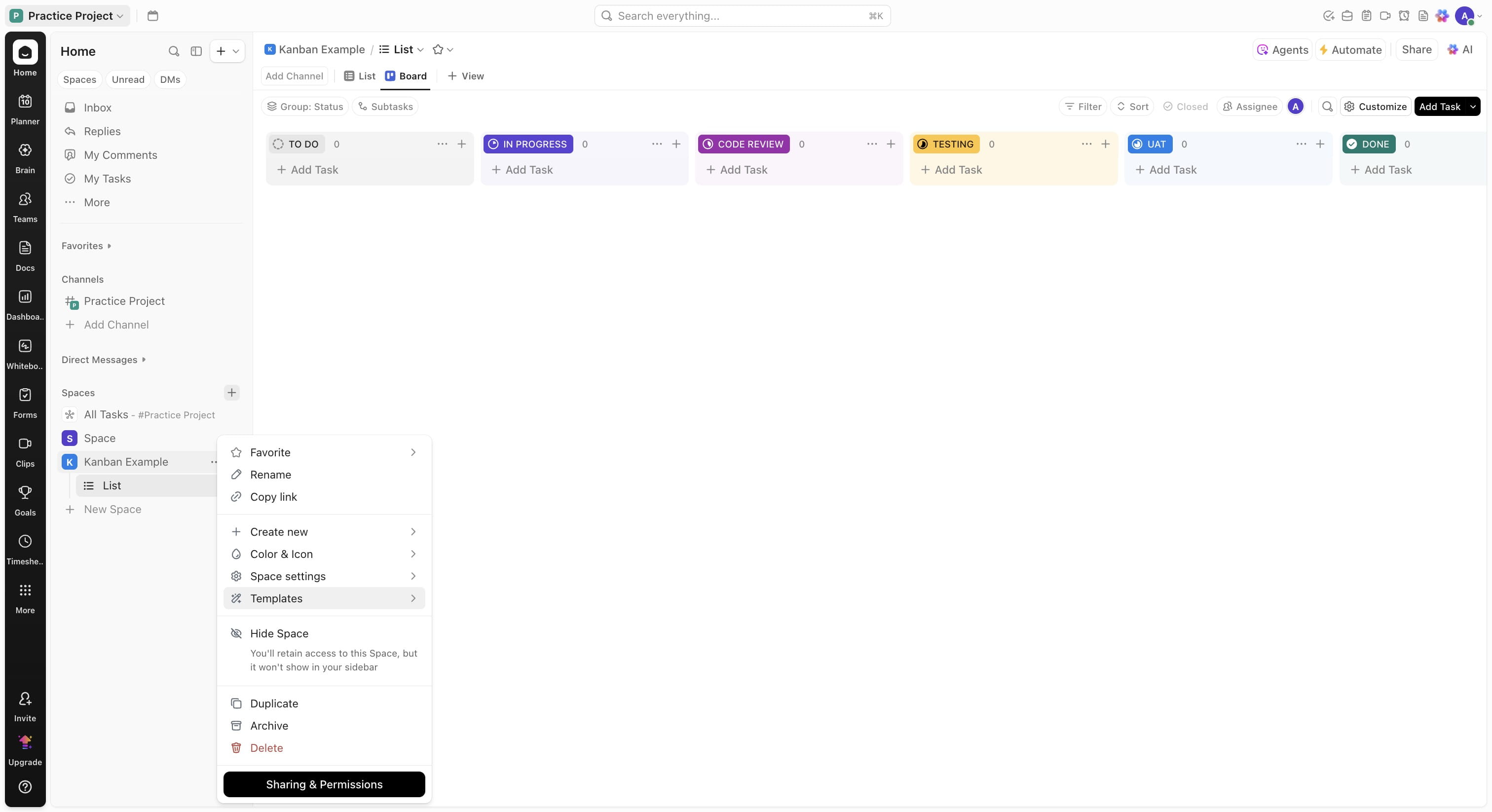
Click on "Save as Template"
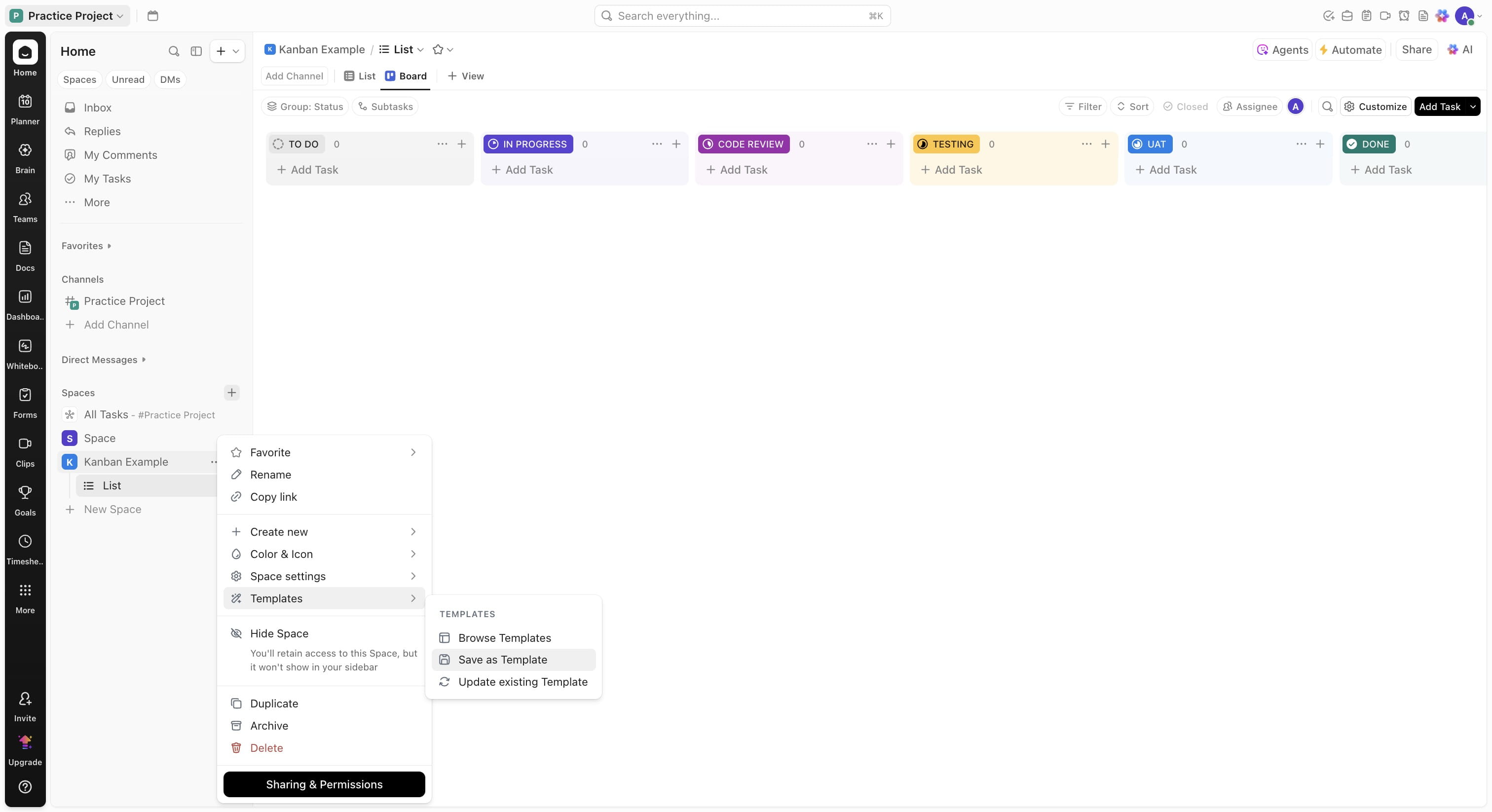
Add a name and Click on "Save Template"
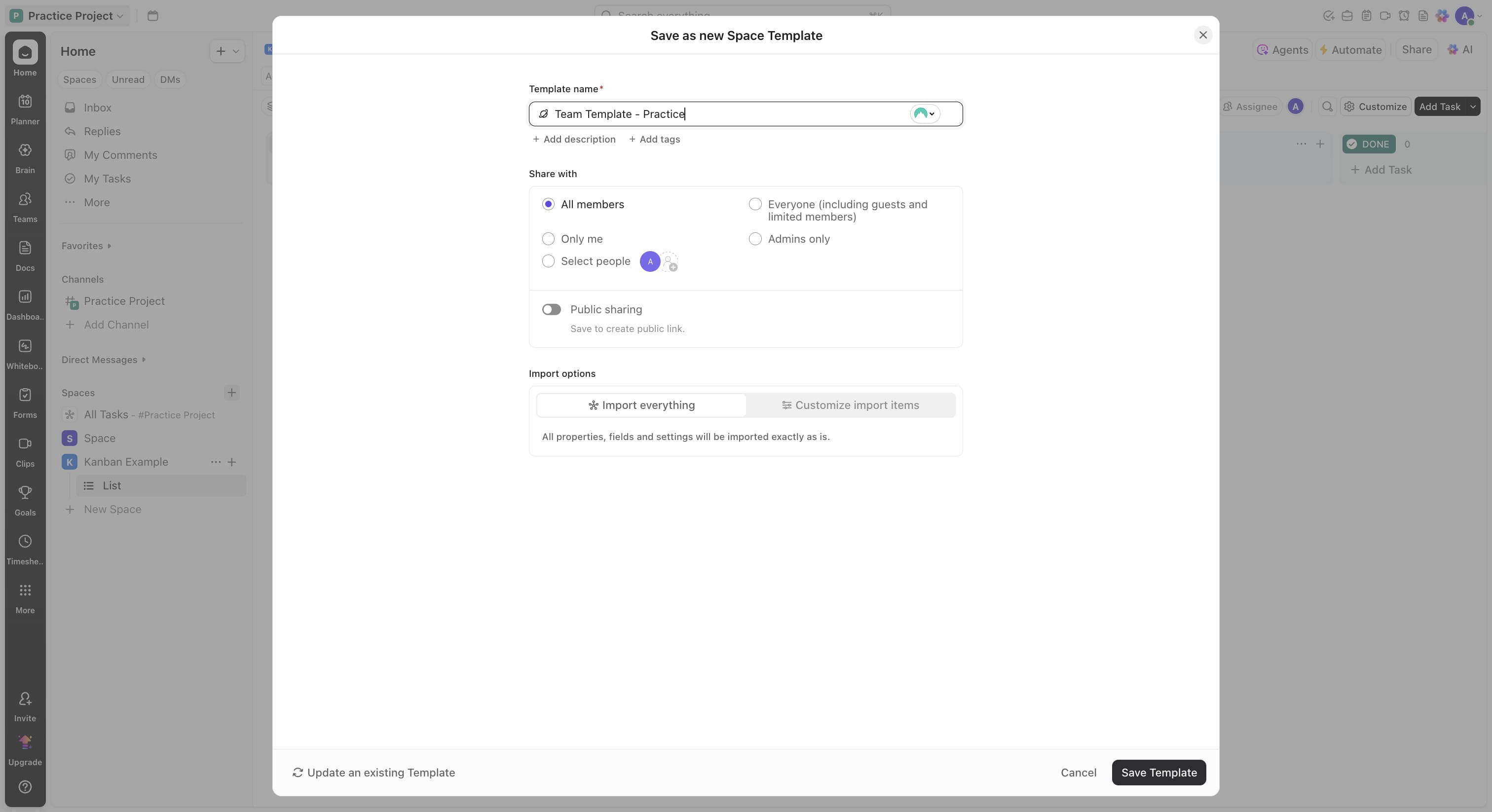
You should see the indicator on the bottom left about your template being created, you can wait for it to complete or come back when notified.
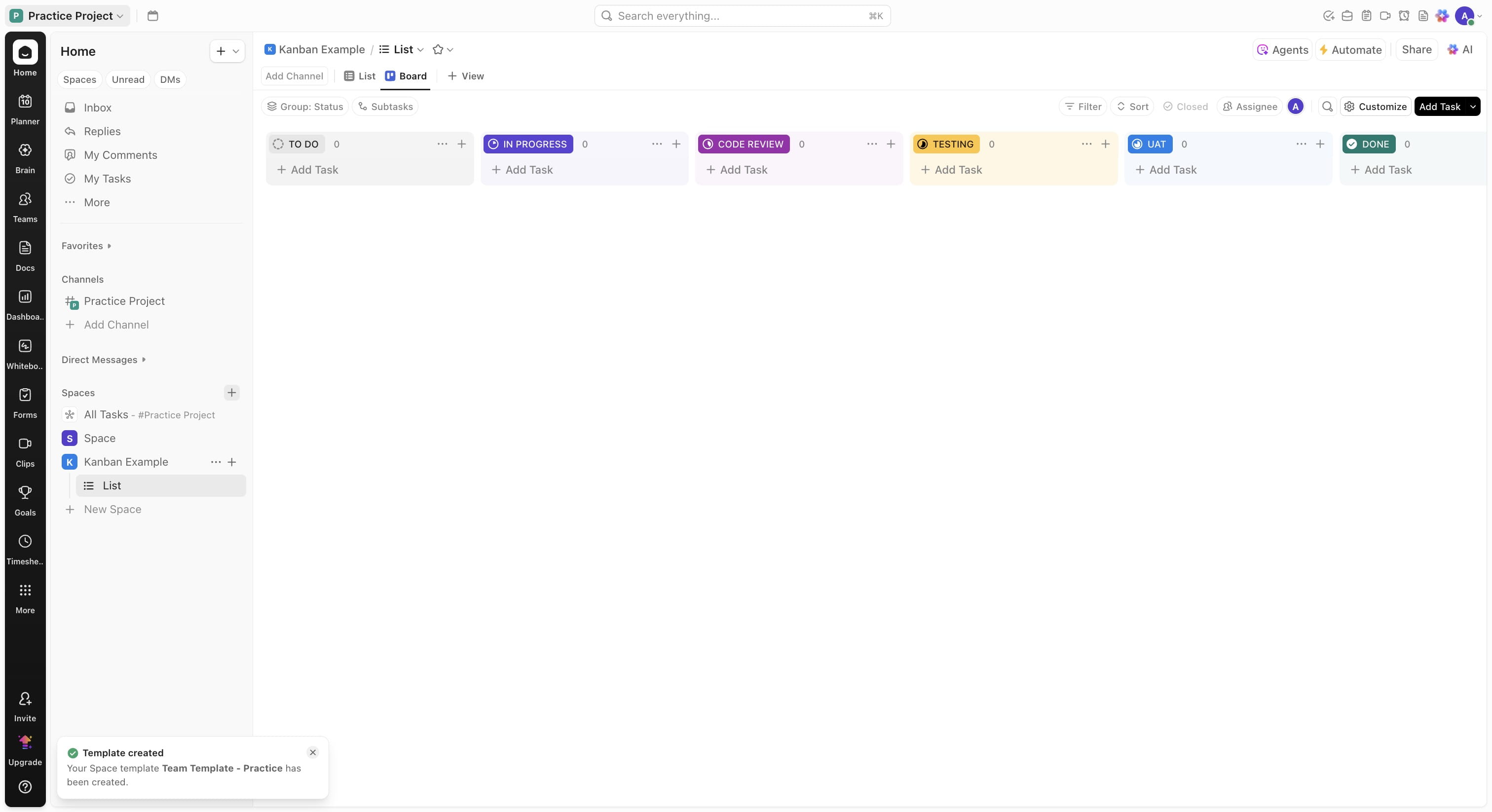
To create a new space using the template, click on "New Space"
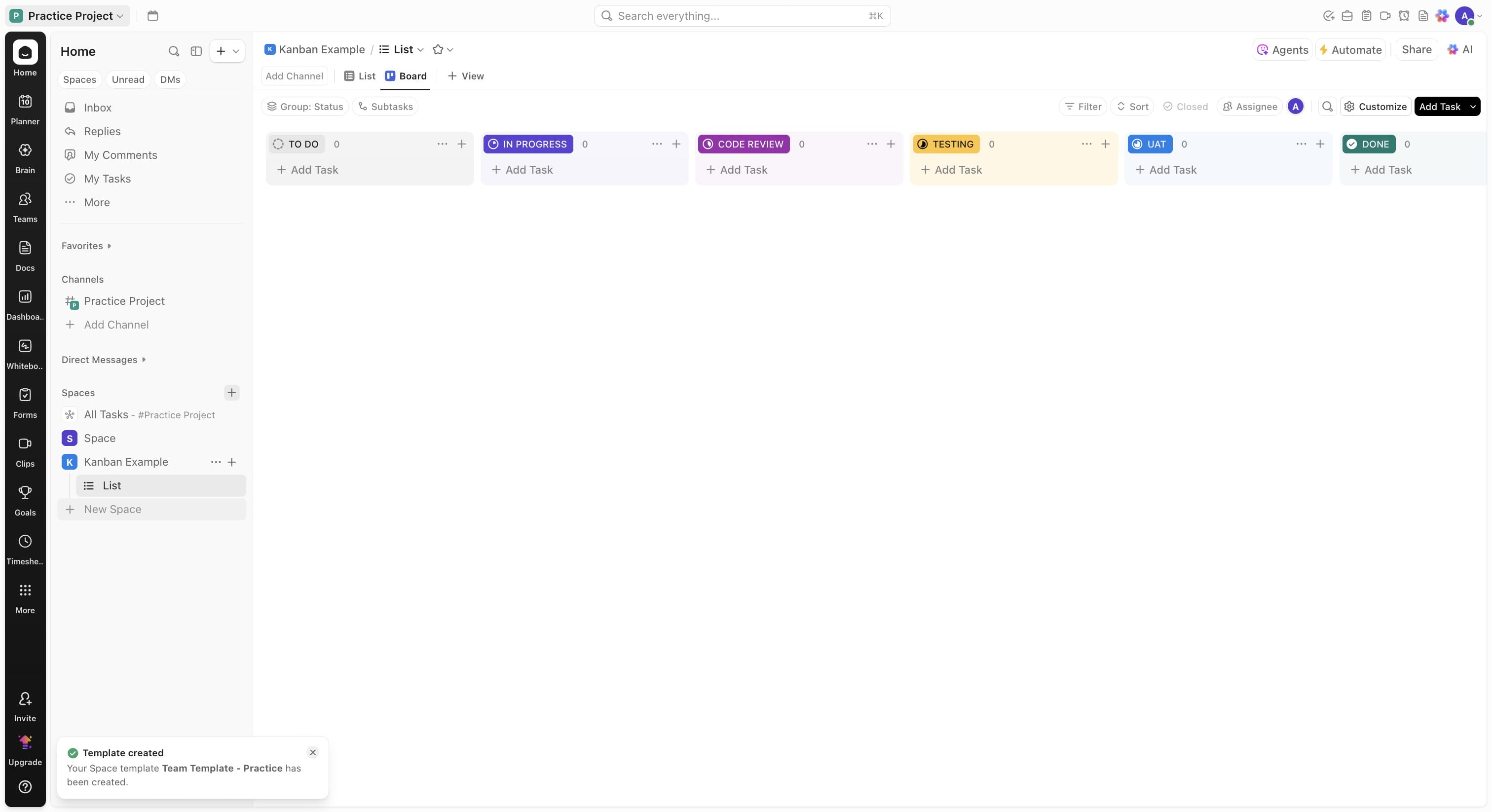
Click on "Use Templates"
Click on the just created template
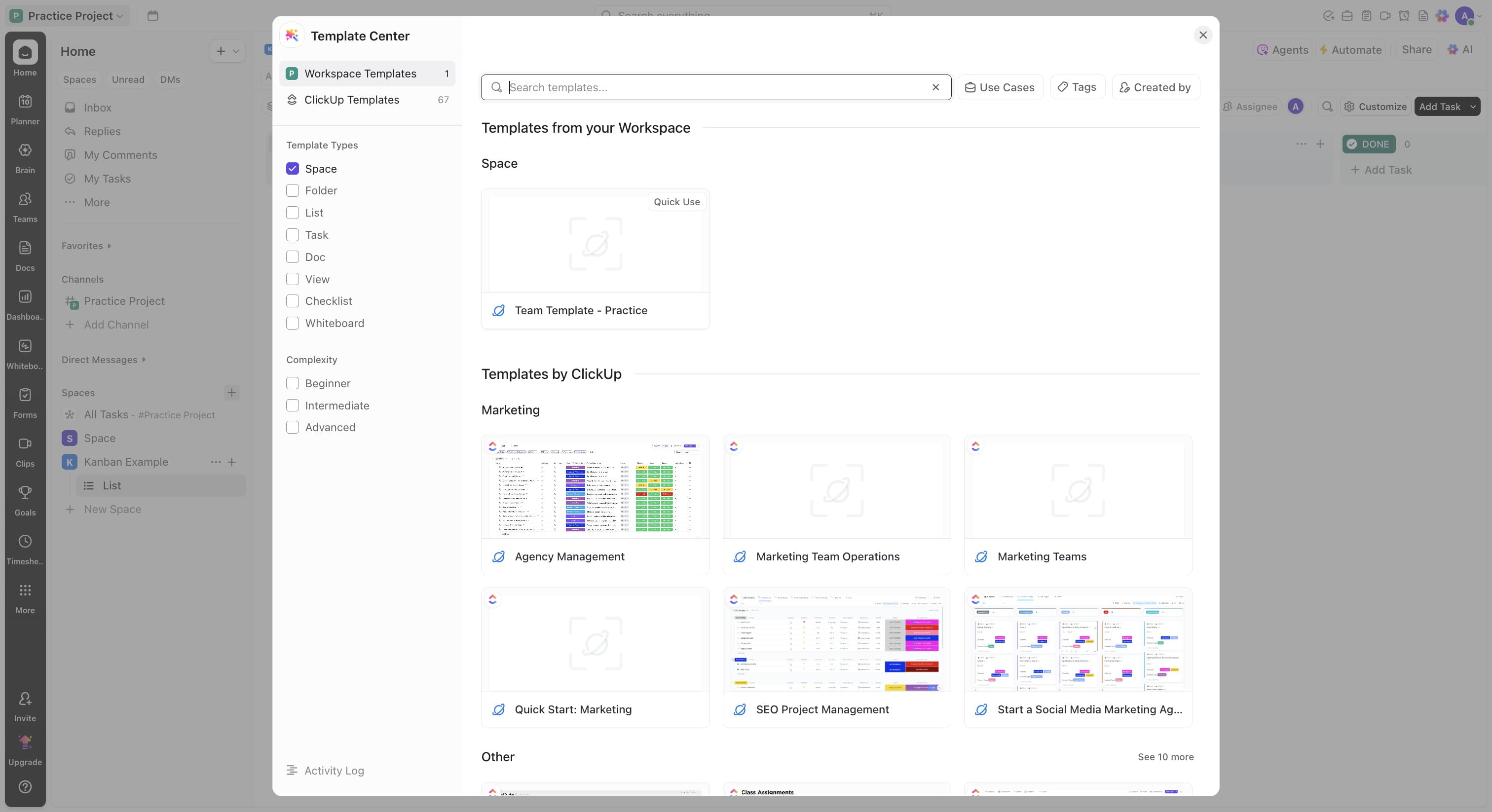
Click on "Use Template"
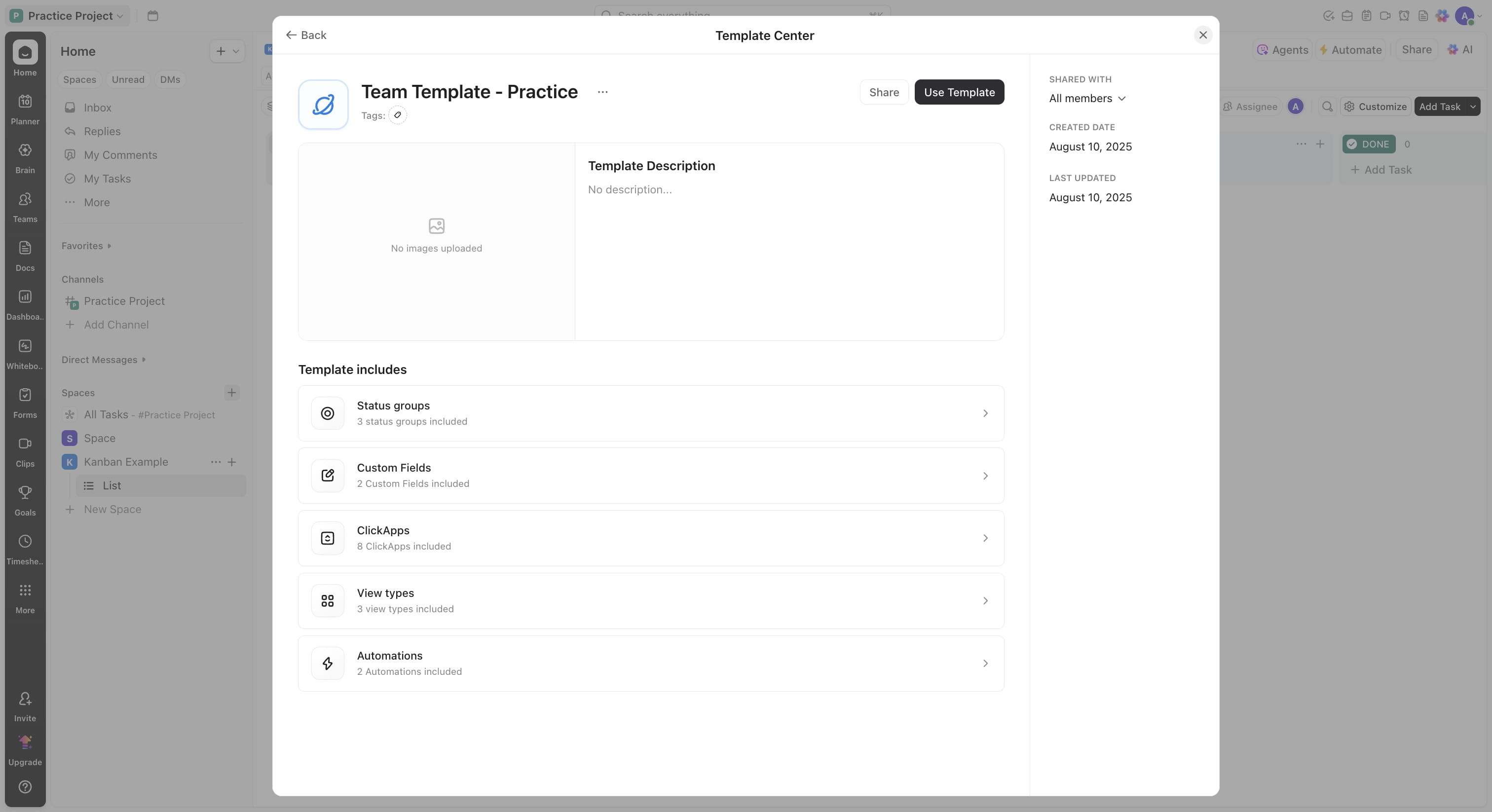
Click on "Use Template"
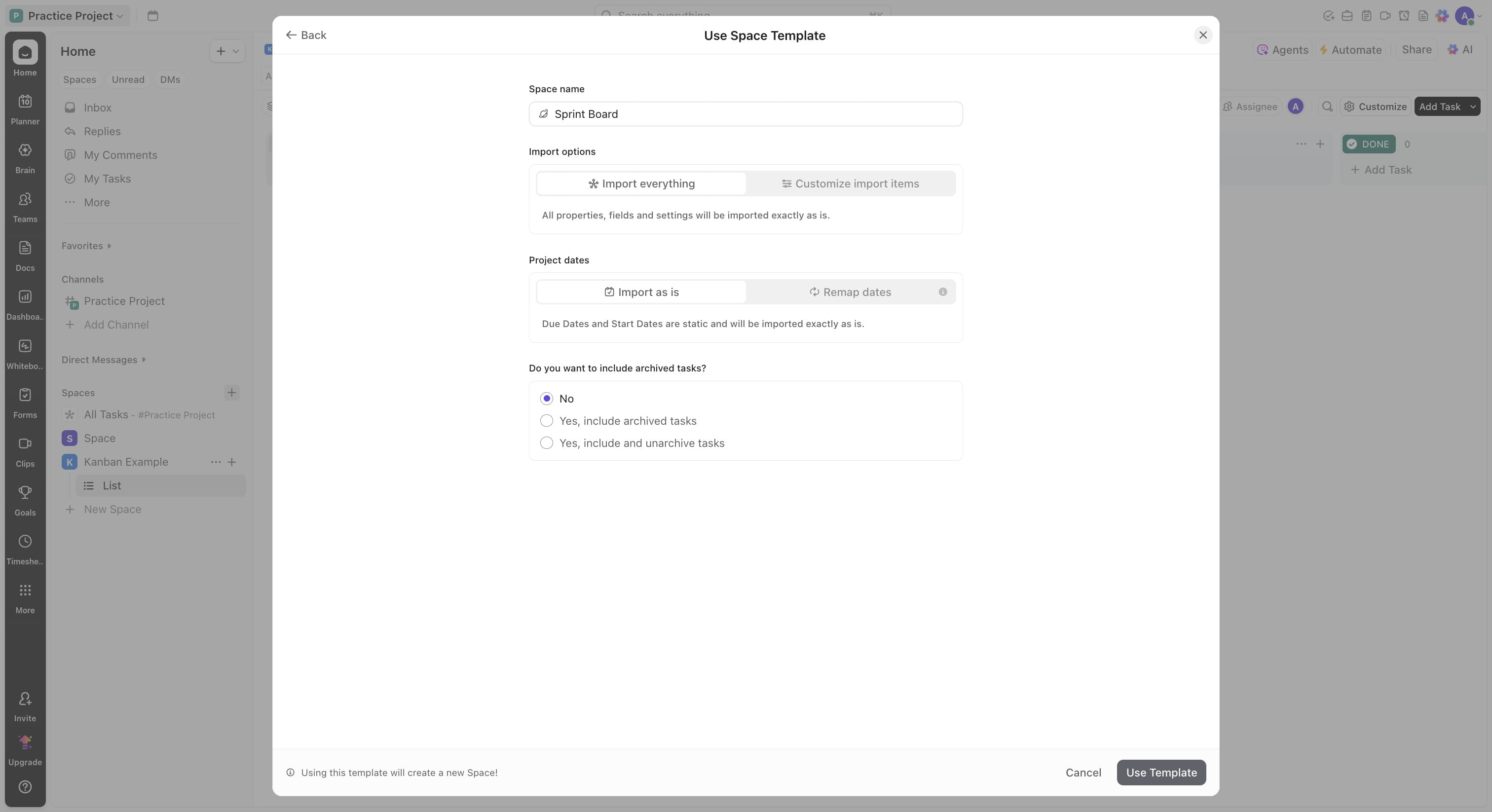
You can open your newly created space
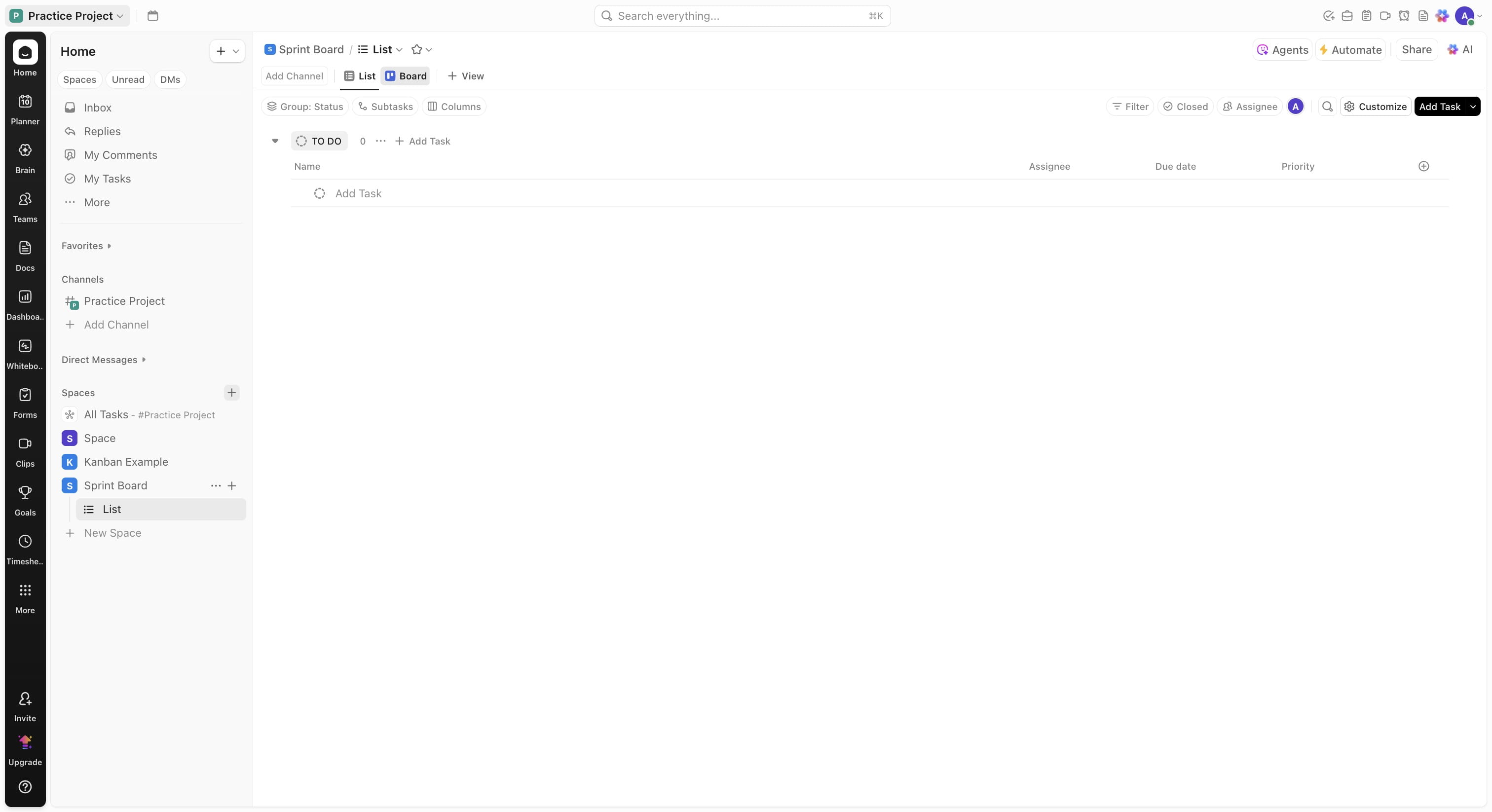
Click on "Board" to see the similar view created previously.
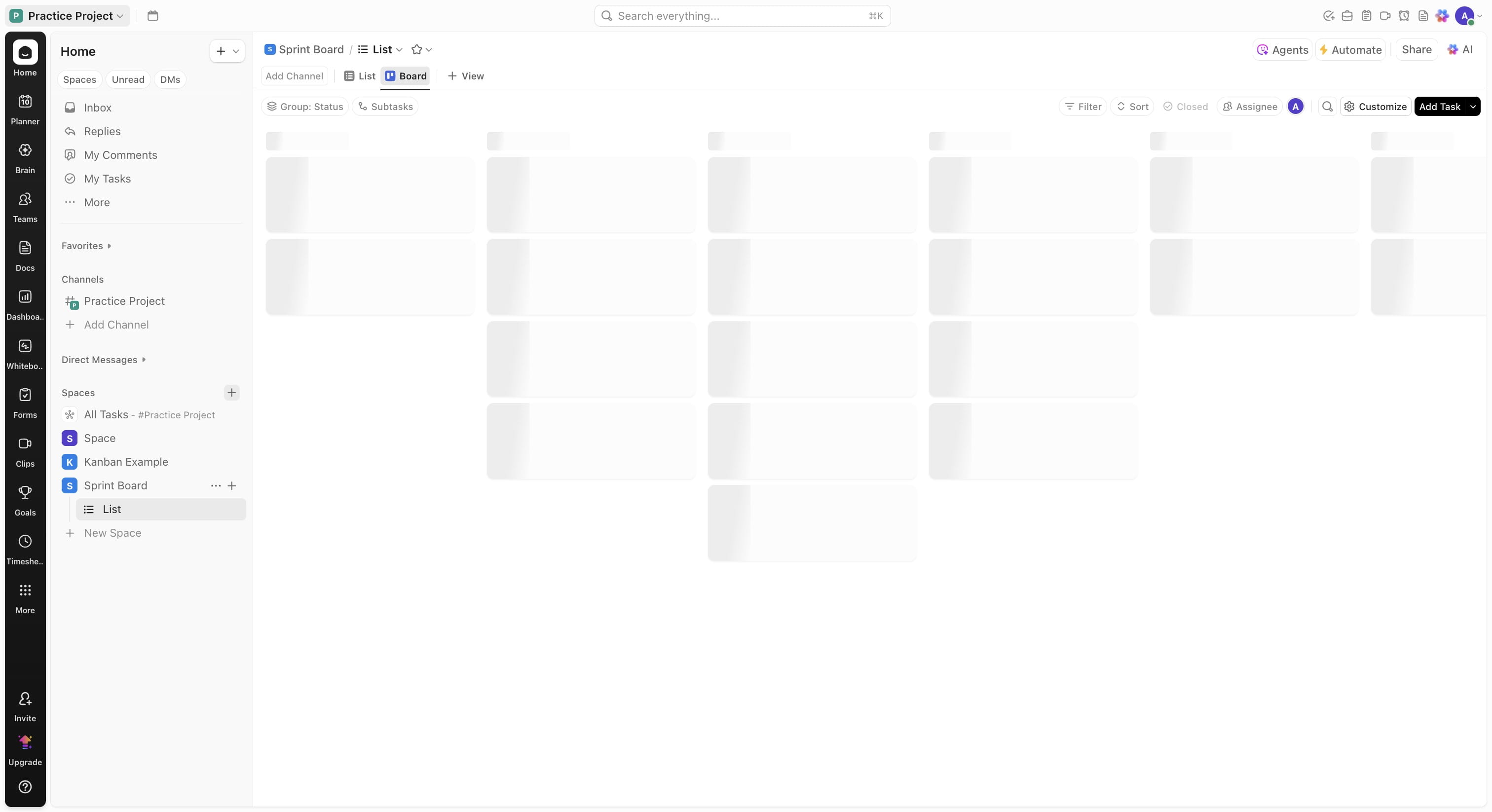
You can begin using your new space