Confluence | Create / Access Account
This guide provides instructions on how to create a new Confluence account and how to access an existing one. It's useful for new users getting started with Confluence and for existing users who need a refresher on accessing their accounts.
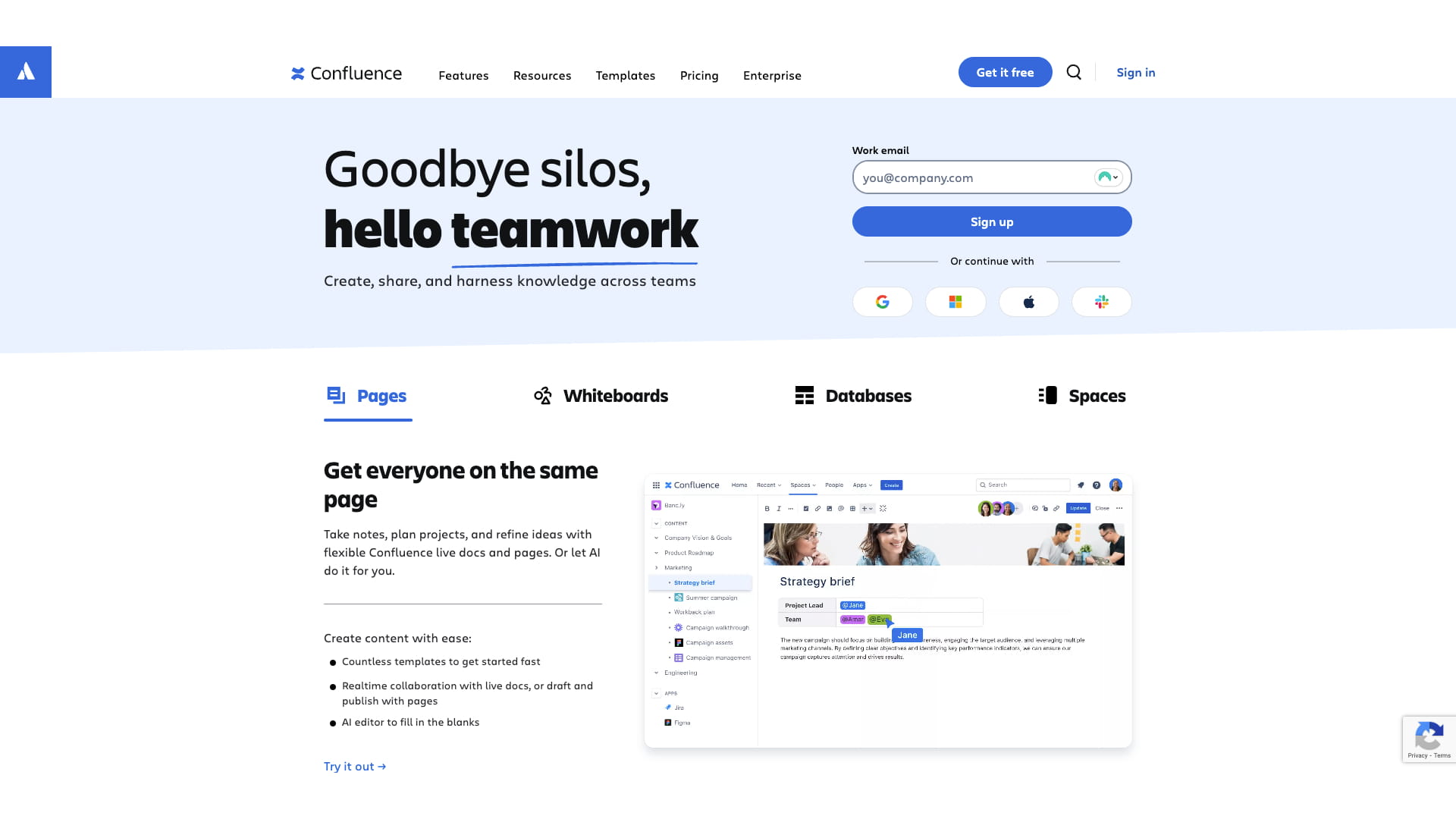
To access confluence, you can either reuse your Jira workspace or create a new account if you don't have access to Jira. To learn how to create a account, follow steps in this guide: https://help.prabbis.com/guides/jira-setup. To create a new confluence account, Go to https://www.atlassian.com/software/confluence and create one.
To access confluence from an already created Jira instance, in your Jira instance, click on the icon at the top left
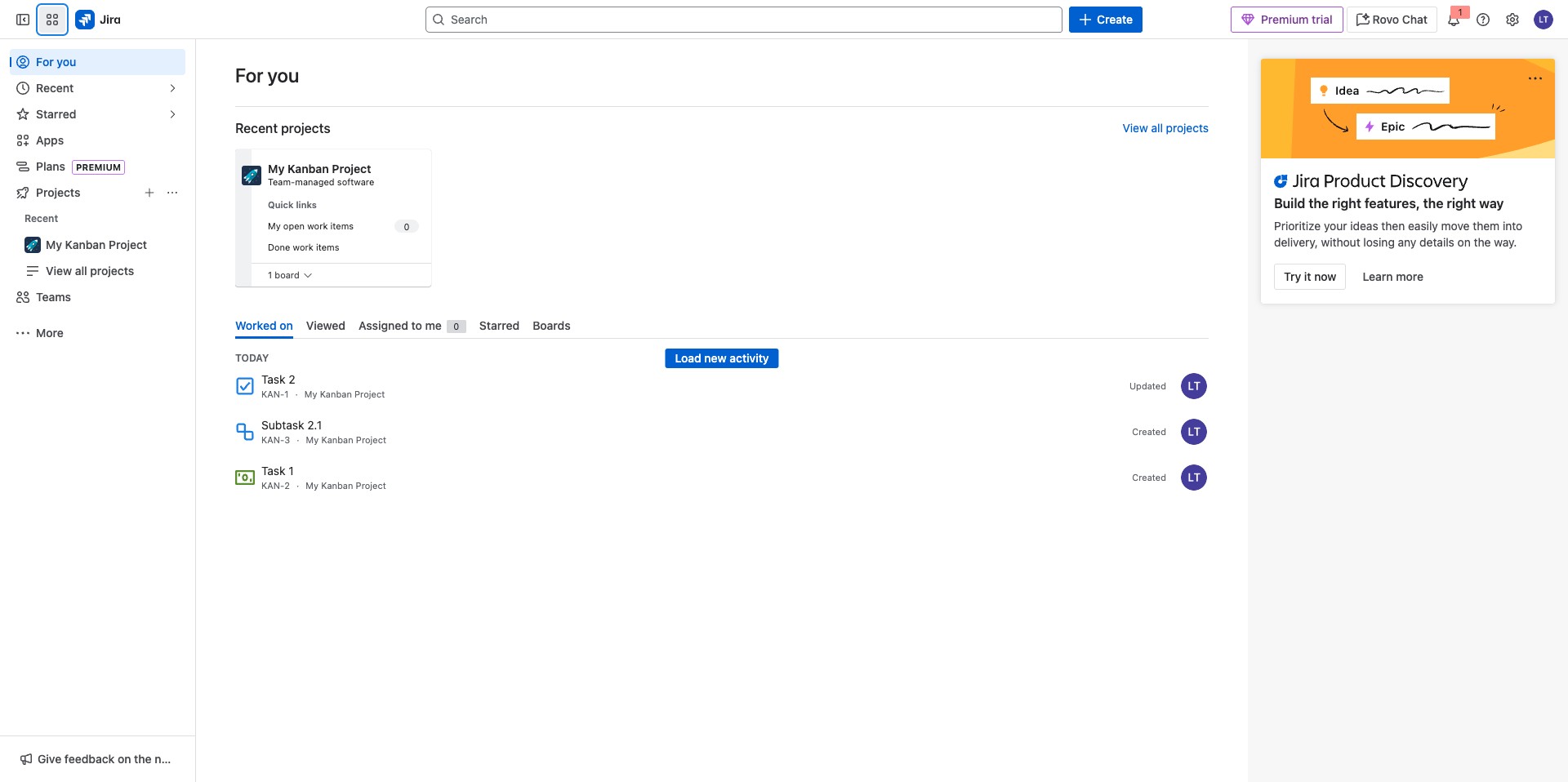
Click on "Confluence"

Click on Pages and Select Next
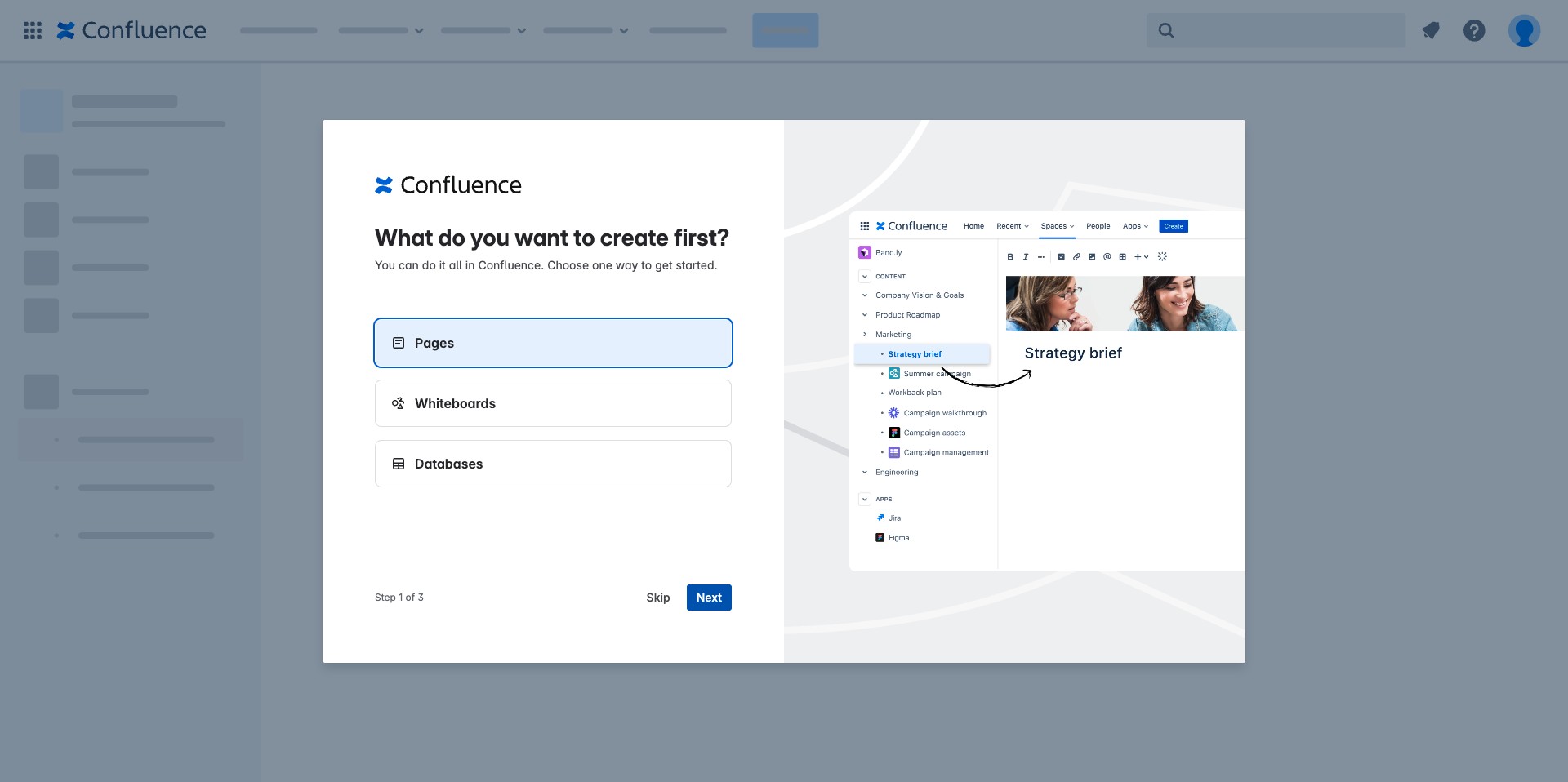
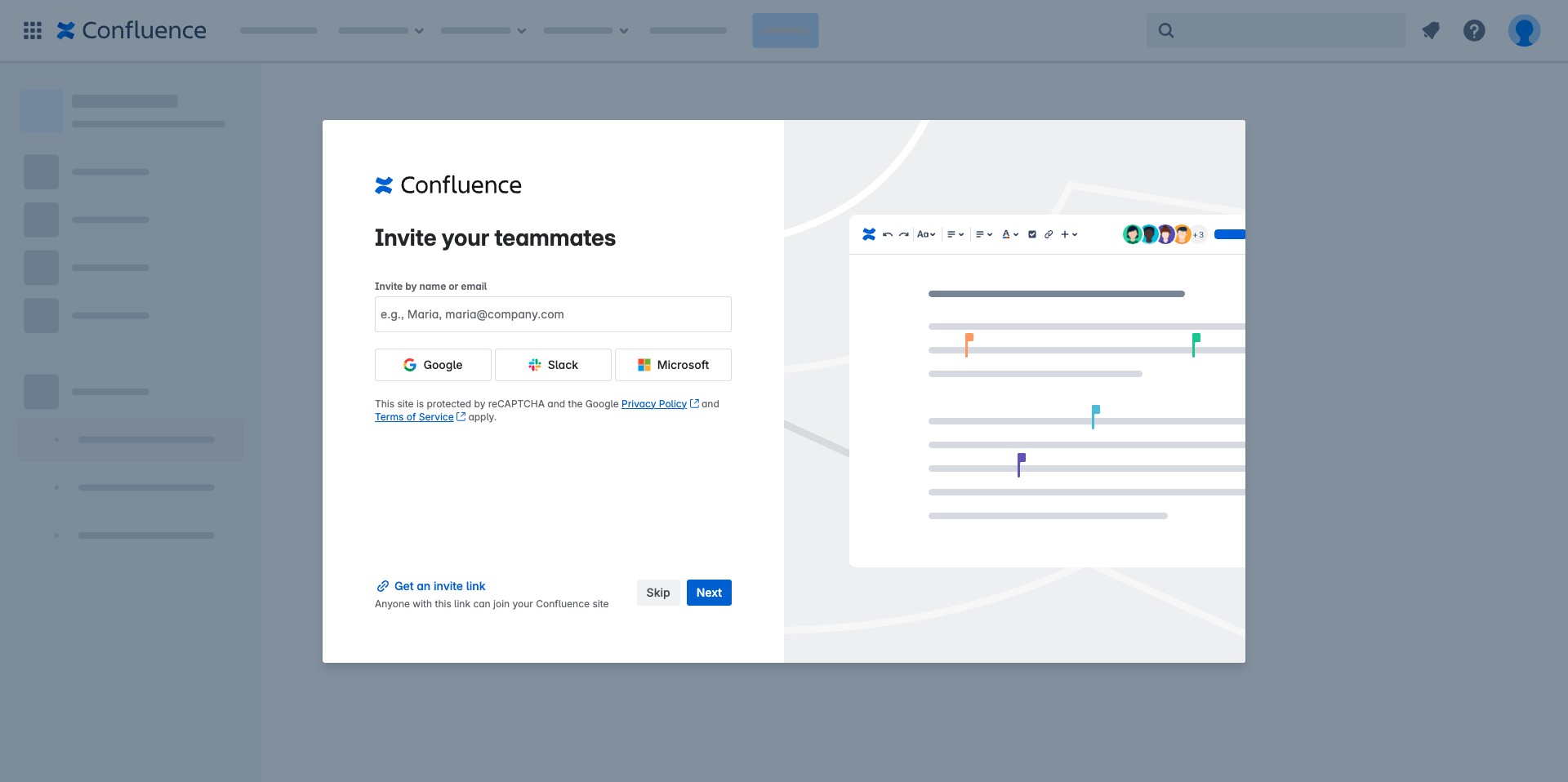
Click on "Skip" for now as this can also be done later
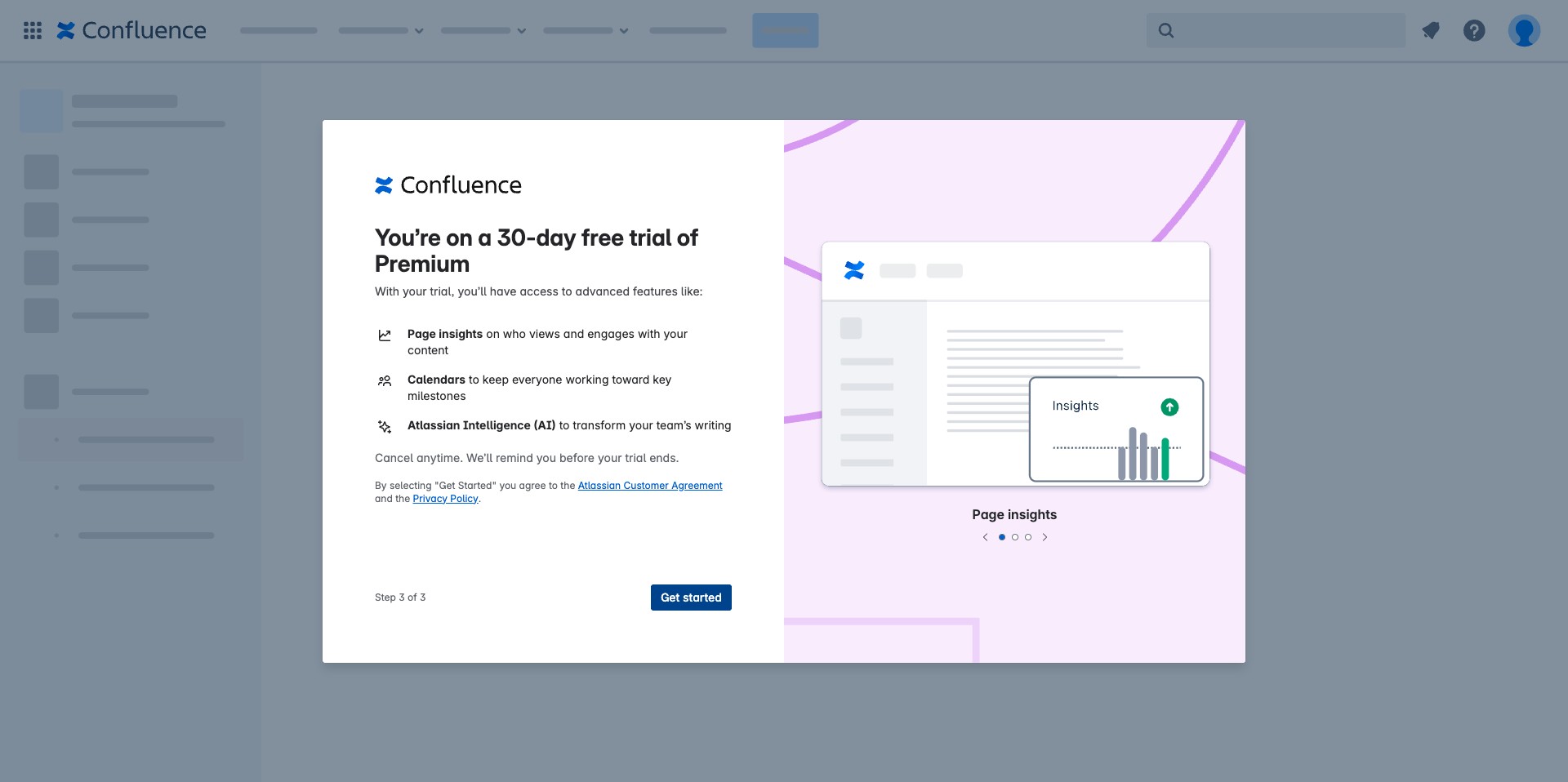
Click on "Get started"
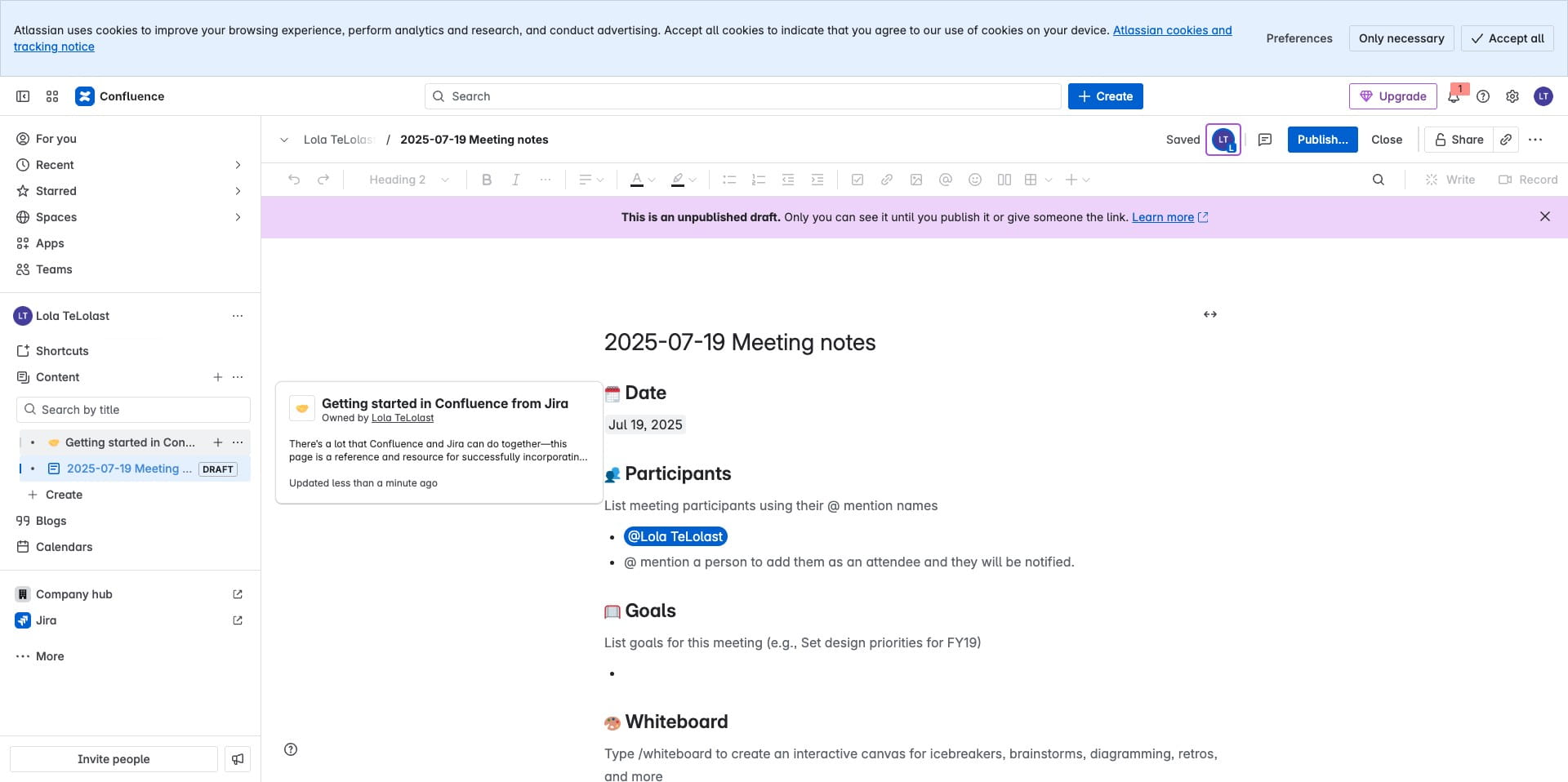
It will create the first document for you, you can exit if you don't need it
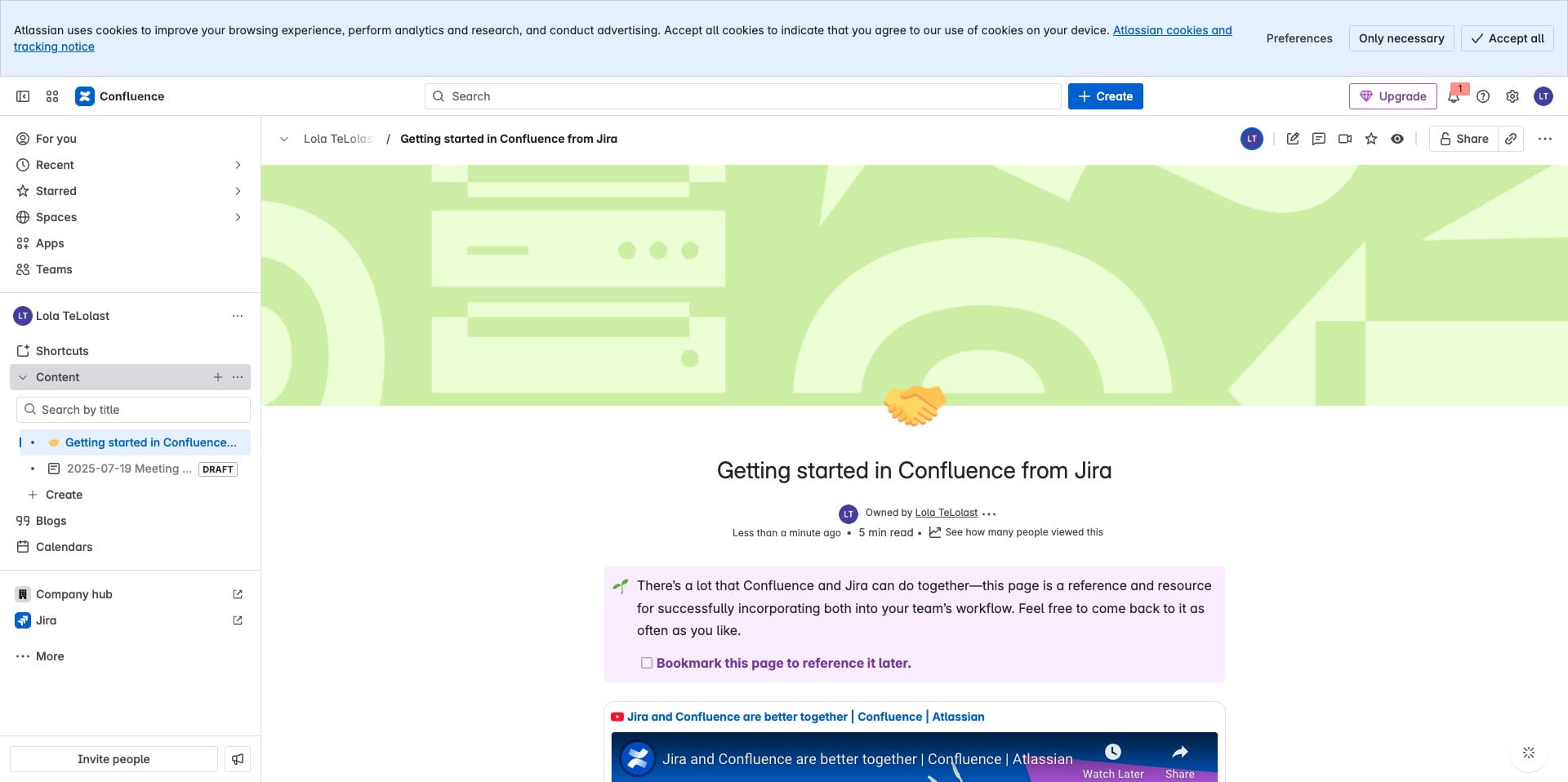
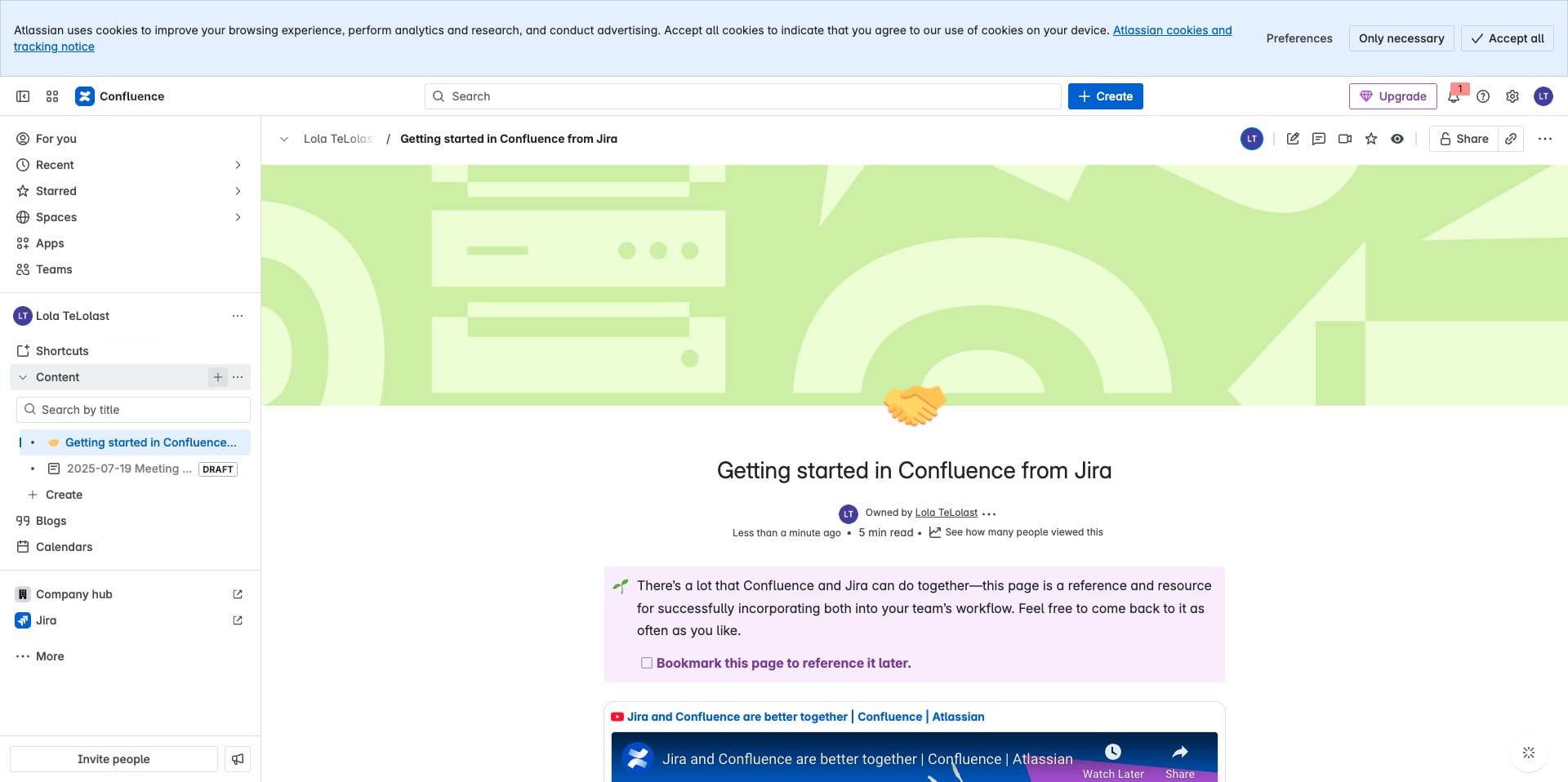
The content section represents where all your content will be located, you can create subpages under it.
Click on the + icon to create subpages
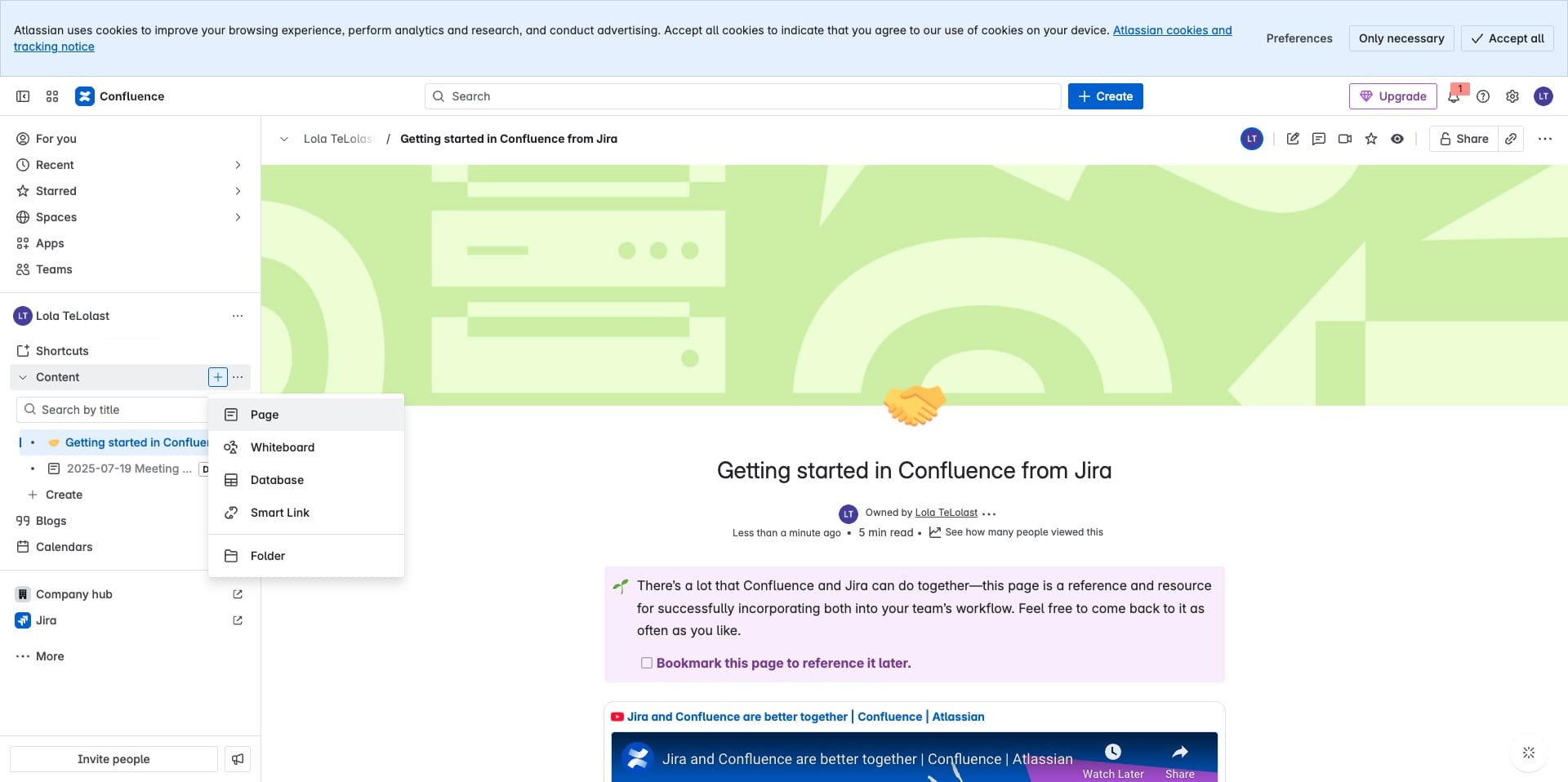
Click on "Page"
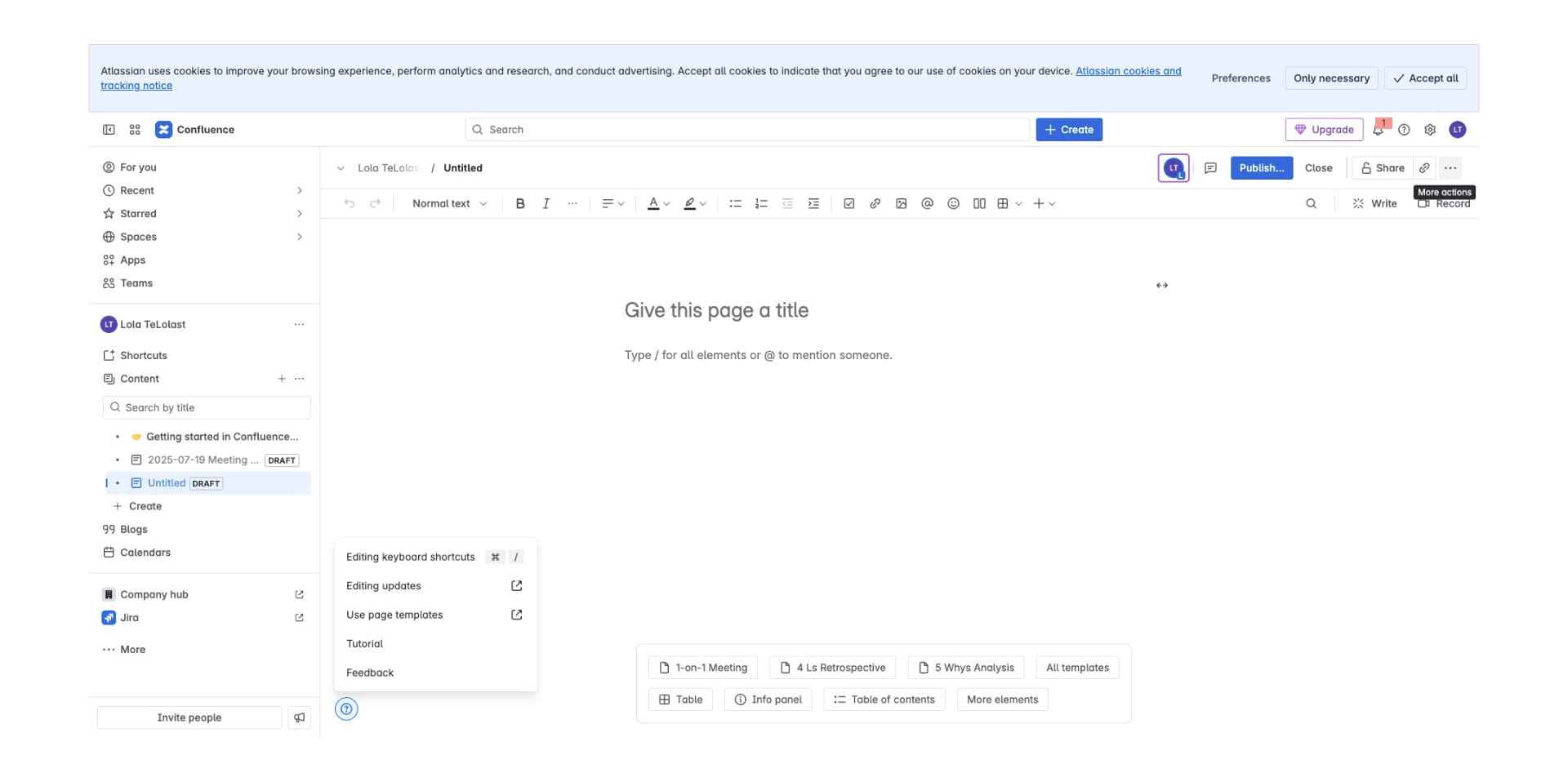
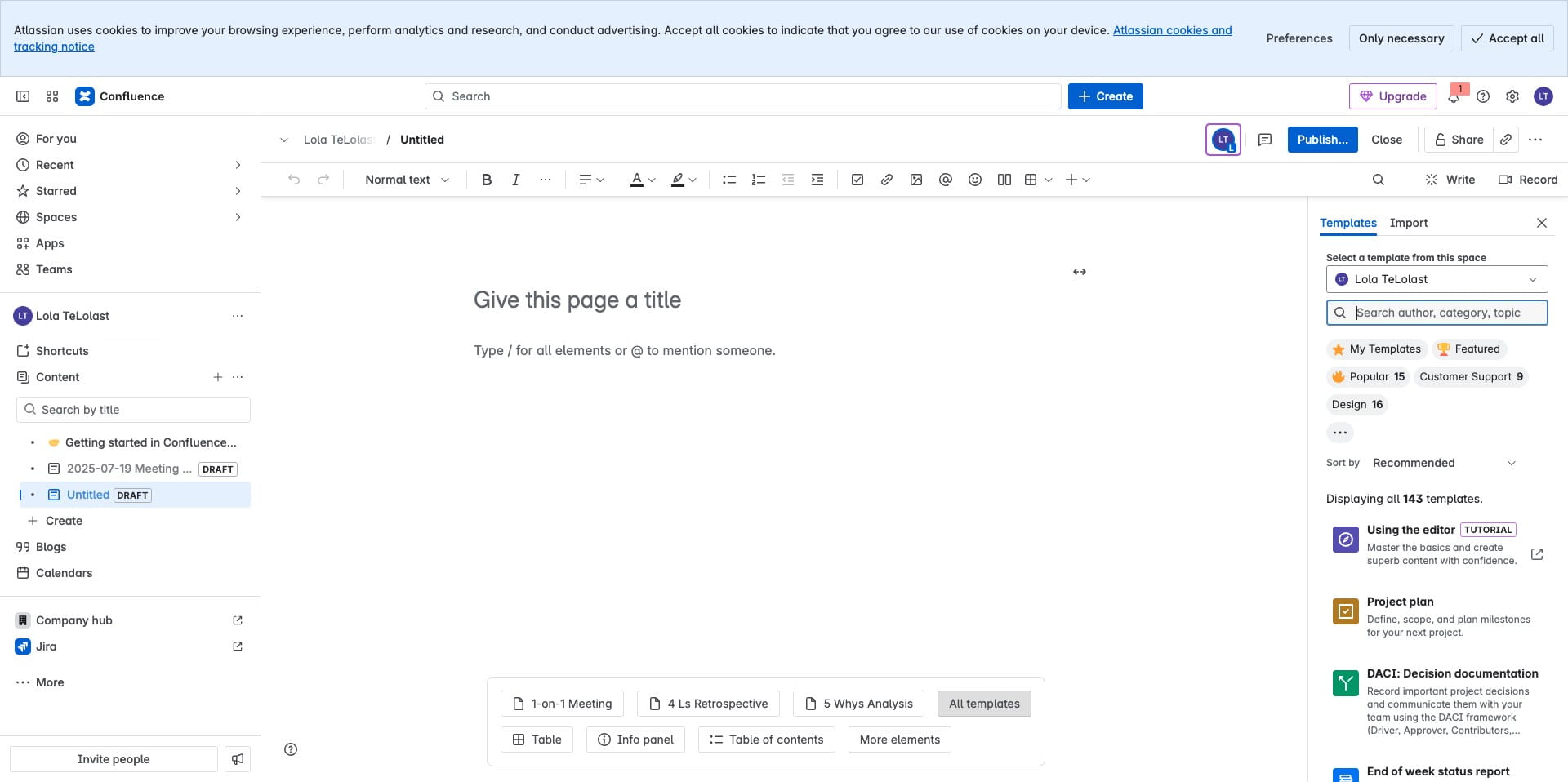
Jira has a library of templates, Click on the menu highlighted below to see some options.
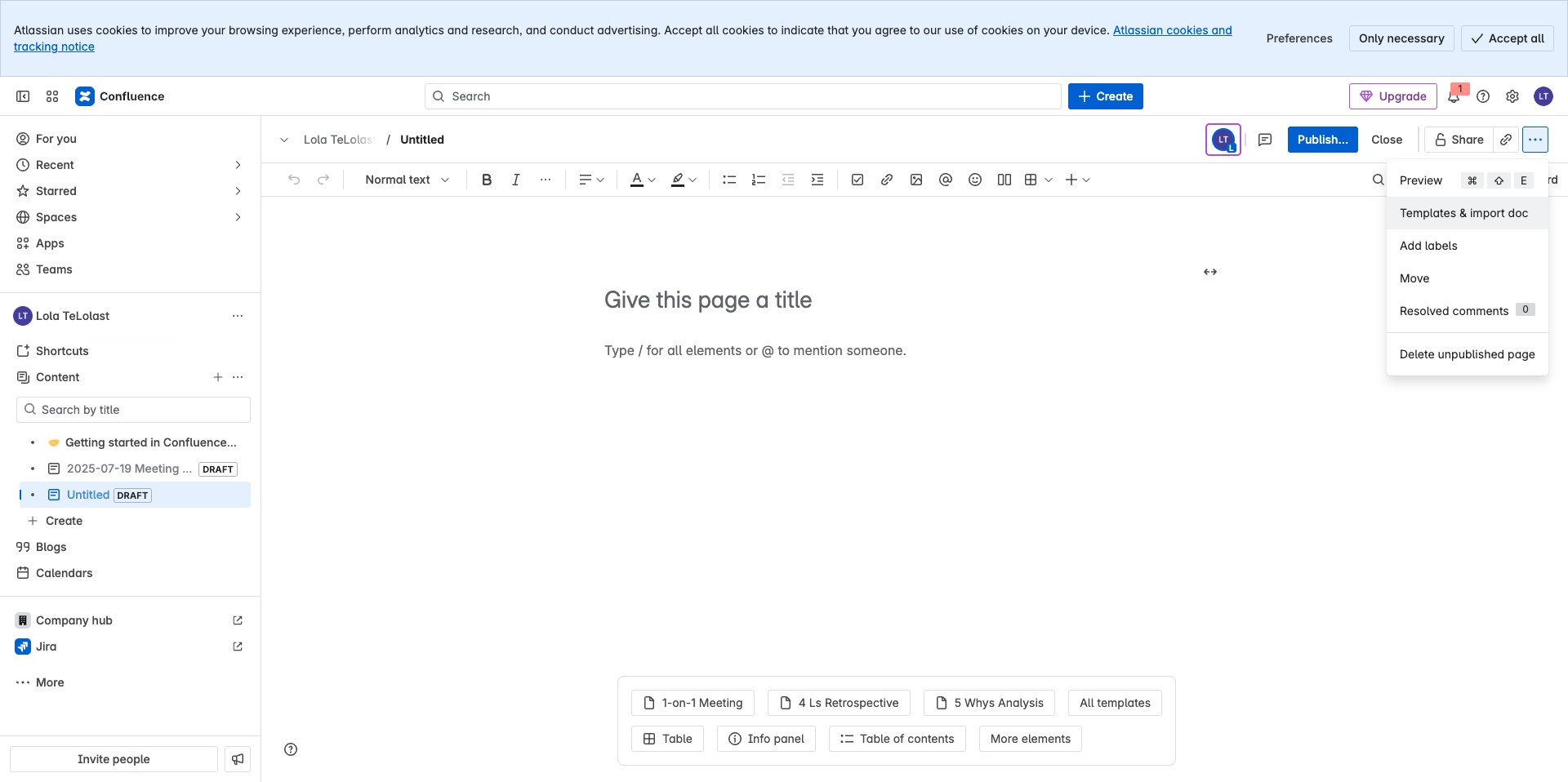
For Templates, Click on "Templates & import doc" option
You can search for one but in this case, lets use the Project plan option
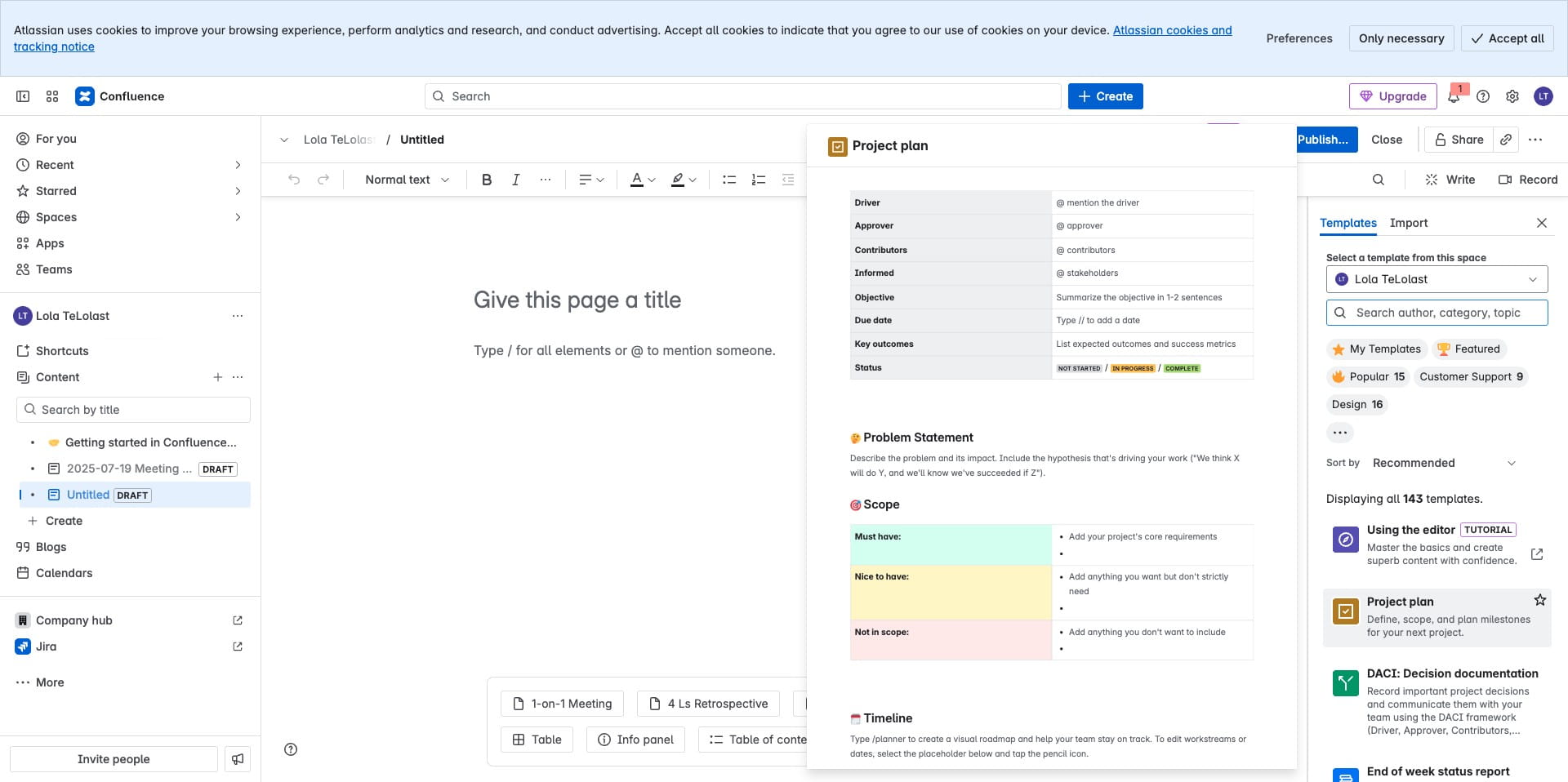
An example of a project plan is shown when the option is hovered on, click on it to apply to Page
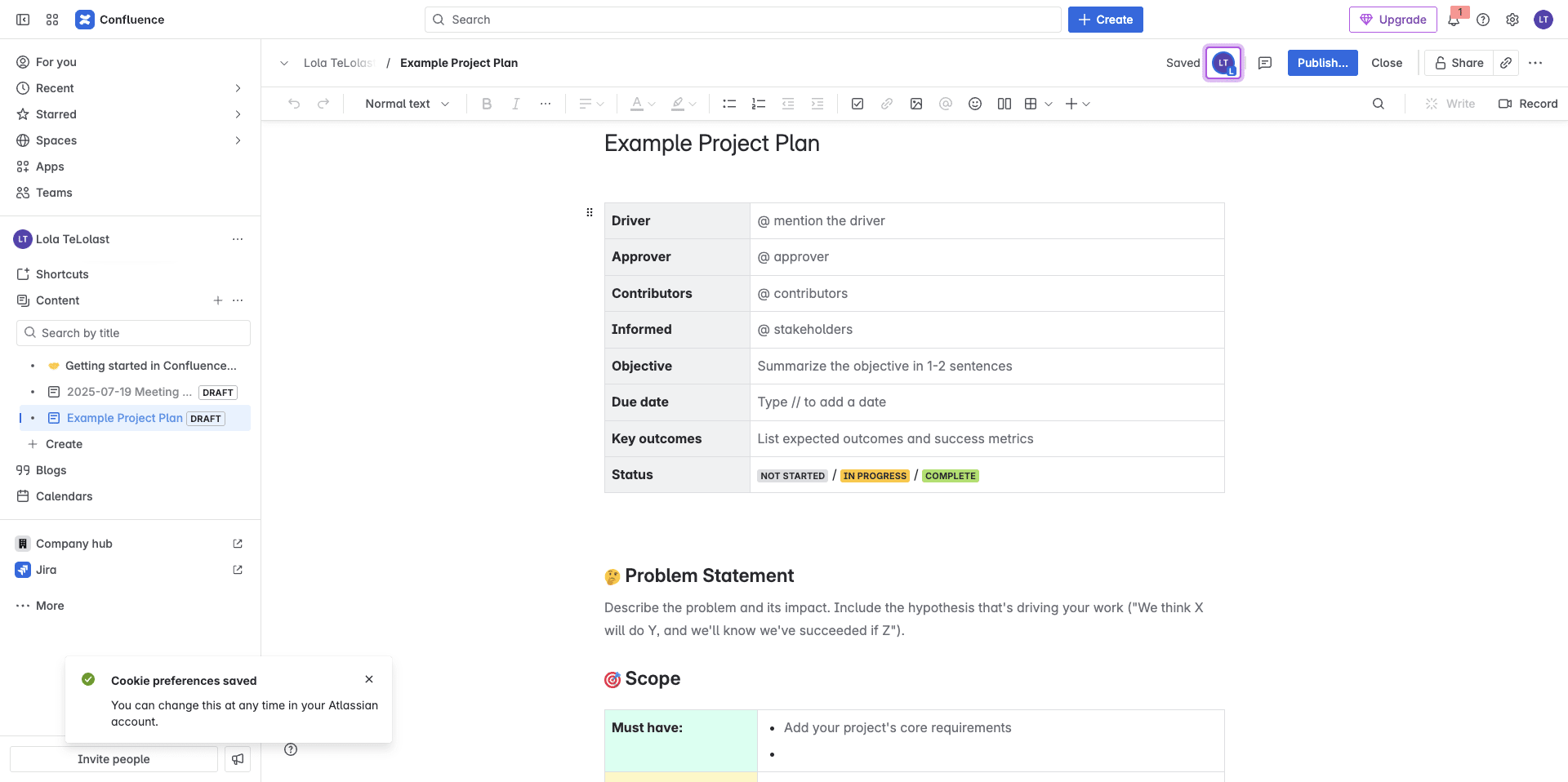
Your Page should look like this when template is applied